

Replace the old Revenue Grid widgets with the new ones in Salesforce#
Starting from version 1.87 of the Revenue Grid managed package, we introduced a new generation of sales widgets. These updated widgets offer faster performance, improved reliability, and deeper integration with Salesforce Lightning Experience.
The legacy widgets from version 1.83 and earlier will be officially deprecated on March 1, 2026. After this date, they will no longer function. If your organization has upgraded the managed package but you’re still using the old widgets, now is the time to replace them.
This article walks you through how to add the new widgets to your Salesforce layout and remove the outdated ones.
Important
Starting in version 1.87, Revenue Grid widgets are implemented using Lightning Web Components and Named Credentials. As a result, the updated widgets — and the new Revenue Grid app — are available only in Salesforce Lightning Experience.
If you’re using Salesforce Classic, we recommend switching to Lightning Experience to access the updated functionality.
If you’re using Lightning Experience but rely on Classic-based apps, do not replace widgets in those apps. Instead, use the new widgets in the Revenue Grid app or create a custom Lightning app that supports them.
Steps to replace your Revenue Grid widgets#
Note:
These actions are typically performed by users with the System Administrator profile. However, end users who have permission to edit page layouts in Salesforce can complete these steps without admin assistance.
Some widget names and types have changed. Use the old-to-new widget mapping table to find the correct replacement for each old widget.
Open the page where the old widget currently is.
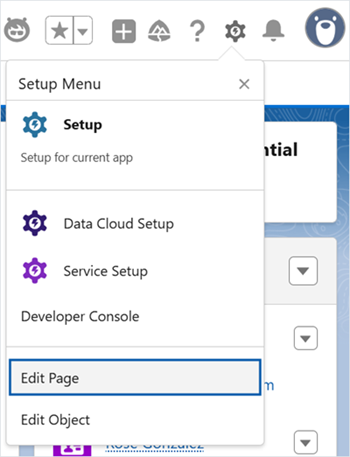
Click the gear icon in the top-right corner to open the Setup Menu and select Edit Page.
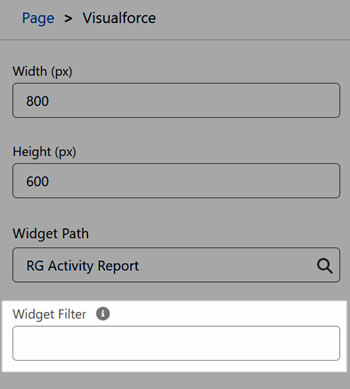
Select the widget you want to replace. In the properties panel, check if there’s a Widget Filter — if there is, copy it somewhere so you can reuse it later.
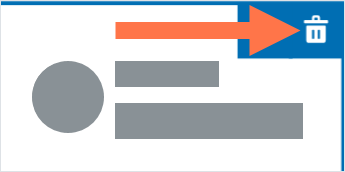
Click the Delete icon on the widget or press Delete on your keyboard.
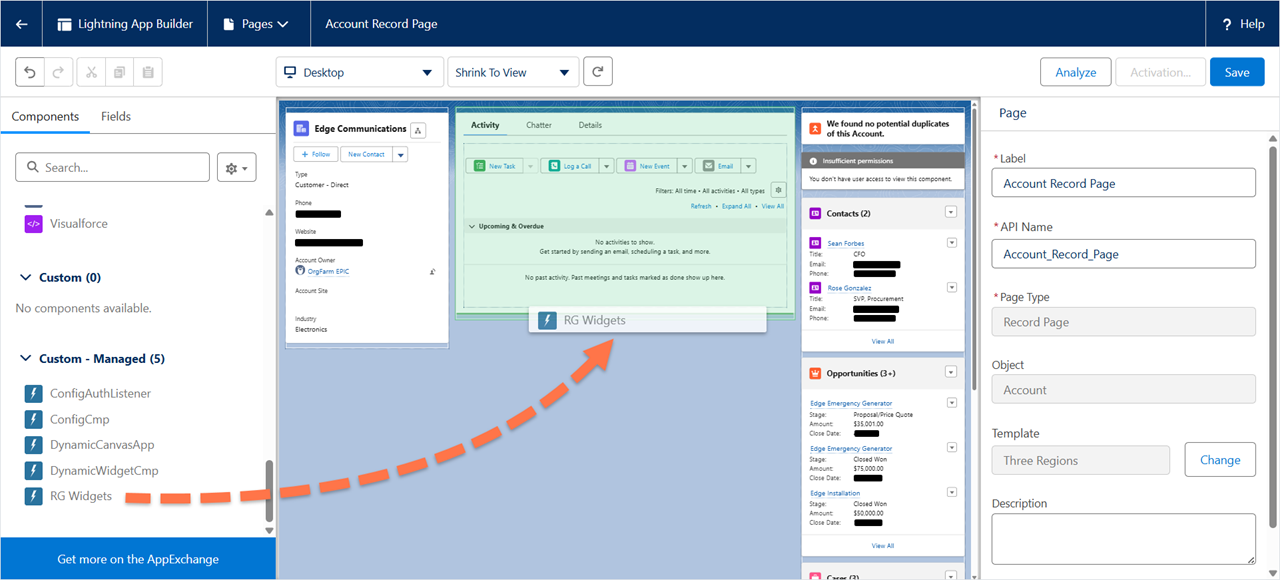
In the components panel on the left, scroll to Custom - Managed and drag the RG Widget component onto the page.
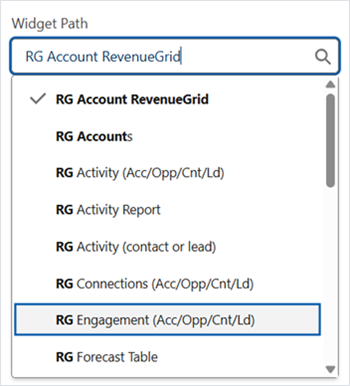
In the properties panel, open the Widget Path menu and select the new version of the widget you need.
(Optional) If you copied a filter from the old widget, paste it into the Widget Filter field.
Click Save to apply your changes.
Click the back arrow to return to the page.
Old-to-new widgets mapping#
Note: Widgets such as RG Signals (Acc/Opp/Cnt/Ld) or RG Activity (contact or lead) combine several similar widgets into a single, dynamic widget. The data displayed automatically adjusts based on the object page where the widget is added. For example, if you add RG Activity to a Contact page, it displays contact-related data; if you add it to a Lead page, it shows lead-related insights.
Old widget name |
New widget name |
|---|---|
RevenueGrid |
Revenue Grid |
RG Signals |
RG Signals |
RG Pipeline Flow (deprecated) |
deprecated |
RG Contact Overview |
RG Overview (contact or lead) |
RG Contact Sequences |
RG Sequences (contact or lead) |
Pipeline Evolution Report |
RG Pipeline Evolution |
Forecasting Table |
RG Forecast Table |
RG Log a Call to Lead |
RG Log a Сall (contact or lead) |
RG Log a Call to Contact |
RG Log a Сall (contact or lead) |
RG Account Signals |
RG Signals (Acc/Opp/Cnt/Ld) |
RG Opportunity Activity |
RG Activity (Acc/Opp/Cnt/Ld) |
RG Send an Email to Lead |
RG Mail to (contact or lead) |
Account Activity |
RG Activity (Acc/Opp/Cnt/Ld) |
RG Account Connections |
RG Connections (Acc/Opp/Cnt/Ld) |
Contact Activity Trends |
RG Activity (Acc/Opp/Cnt/Ld) |
RG Lead’s Signals |
RG Signals (Acc/Opp/Cnt/Ld) |
RG Opportunity Signals |
RG Signals (Acc/Opp/Cnt/Ld) |
RG Opportunity RevenueGrid |
RG Opportunity RevenueGrid |
RG Lead Sequences |
RG Sequences (contact or lead) |
RG Signals Report |
RG Signal Report |
RG Contact’s Connections |
RG Connections (Acc/Opp/Cnt/Ld) |
RG Team Performance |
RG Team Performance |
RG Opportunity Connections |
RG Connections (Acc/Opp/Cnt/Ld) |
RG Lead Activity History |
RG Activity (contact or lead) |
RG Lead Overview |
RG Overview (contact or lead) |
RG SMS to Contact |
RG SMS (contact or lead) |
RG Contact’s Signals |
RG Signals (Acc/Opp/Cnt/Ld) |
RG Waterfall |
RG Waterfall |
RG Lead’s Connections |
RG Connections (Acc/Opp/Cnt/Ld) |
RG Accounts |
RG Accounts |
RG Pipeline |
RG Pipeline |
RG Forecast Tracker (deprecated) |
deprecated |
Lead Activity Trends |
RG Activity (Acc/Opp/Cnt/Ld) |
RG Send Email Opportunity |
RG Send Email Opportunity |
RG Send an Email to Contact |
RG Mail to (contact or lead) |
RG Contact Activity History |
RG Activity (contact or lead) |
RG SMS to Lead |
RG SMS (contact or lead) |
Calendars |
RG Calendars |
UserUI |
none |
Revenue Inbox User Salesforce Config |
none |
Revenue Inbox User Mailbox Config |
none |
Revenue Inbox User Additional Config |
none |
RI Admin |
none |
Accounts |
RG Accounts |
Account Connnections(Deprecated) |
none |
RG Activity Report |
RG Activity Report |
Next steps#
Once you’re done, double-check the new widgets to ensure everything’s working as expected. If you’re not sure which new widget to use or need help, contact your Revenue Grid Support.