

Booking experience for recipients#
Supported platforms: Exchange Server
 Microsoft 365
 Google
When you share a Book Me link, recipients use it to select a time and book a meeting. Understanding what they see helps you configure the link appropriately and set expectations.
This article explains how the booking process works from the recipient’s perspective.
Booking a meeting#
When a recipient opens your Book Me link, the booking page appears in their web browser.
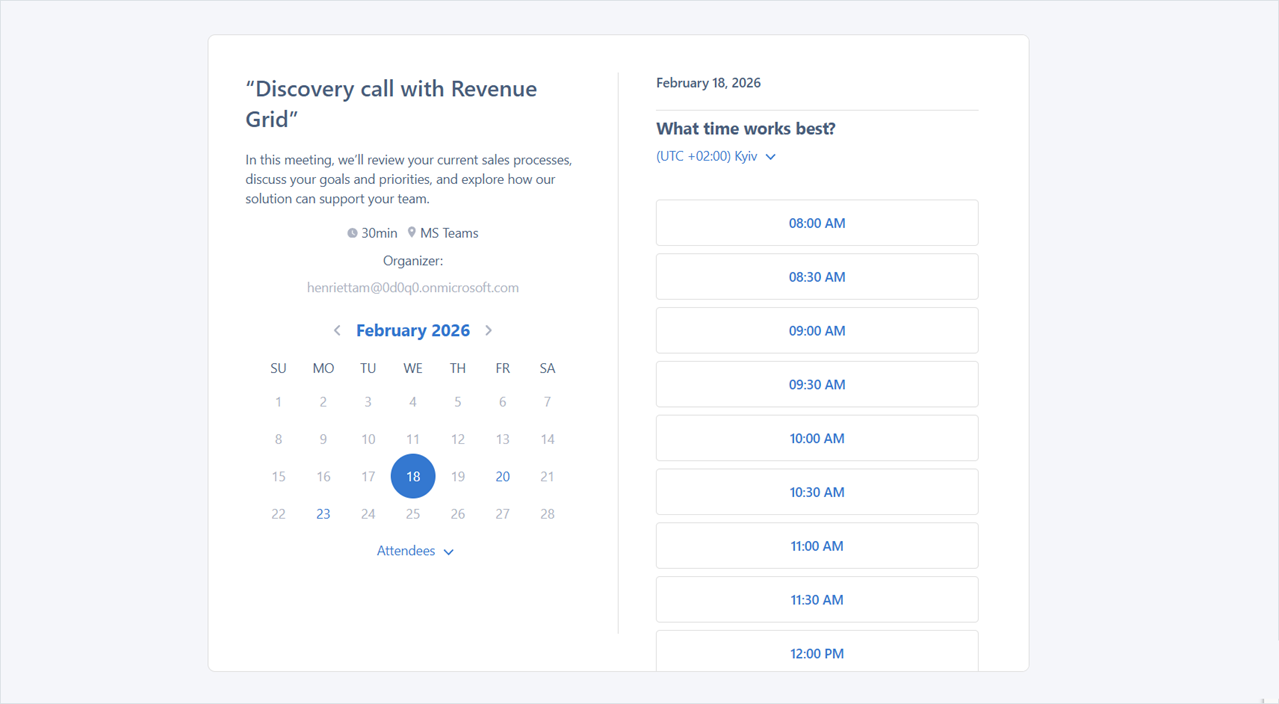
The page displays:
Meeting subject
Meeting description (if any)
Meeting duration
Meeting location
Organizer
Required and optional attendees (if any, except for round-robin scheduling)
A calendar view shows available dates and time slots.
Available time slots are generated based on your calendar availability and the booking rules defined during link creation.
If a selected time becomes unavailable before confirmation, the recipient is prompted to choose another slot.
For details about availability calculations, see How Book Me calculates availability.
Time zone and language#
The booking page displays time slots in the recipient’s detected time zone. Recipients can change the time zone using a drop-down list if needed.
The page language is determined by the recipient’s browser settings.
Booking confirmation#
After selecting a time slot, the recipient is redirected to the confirmation page.
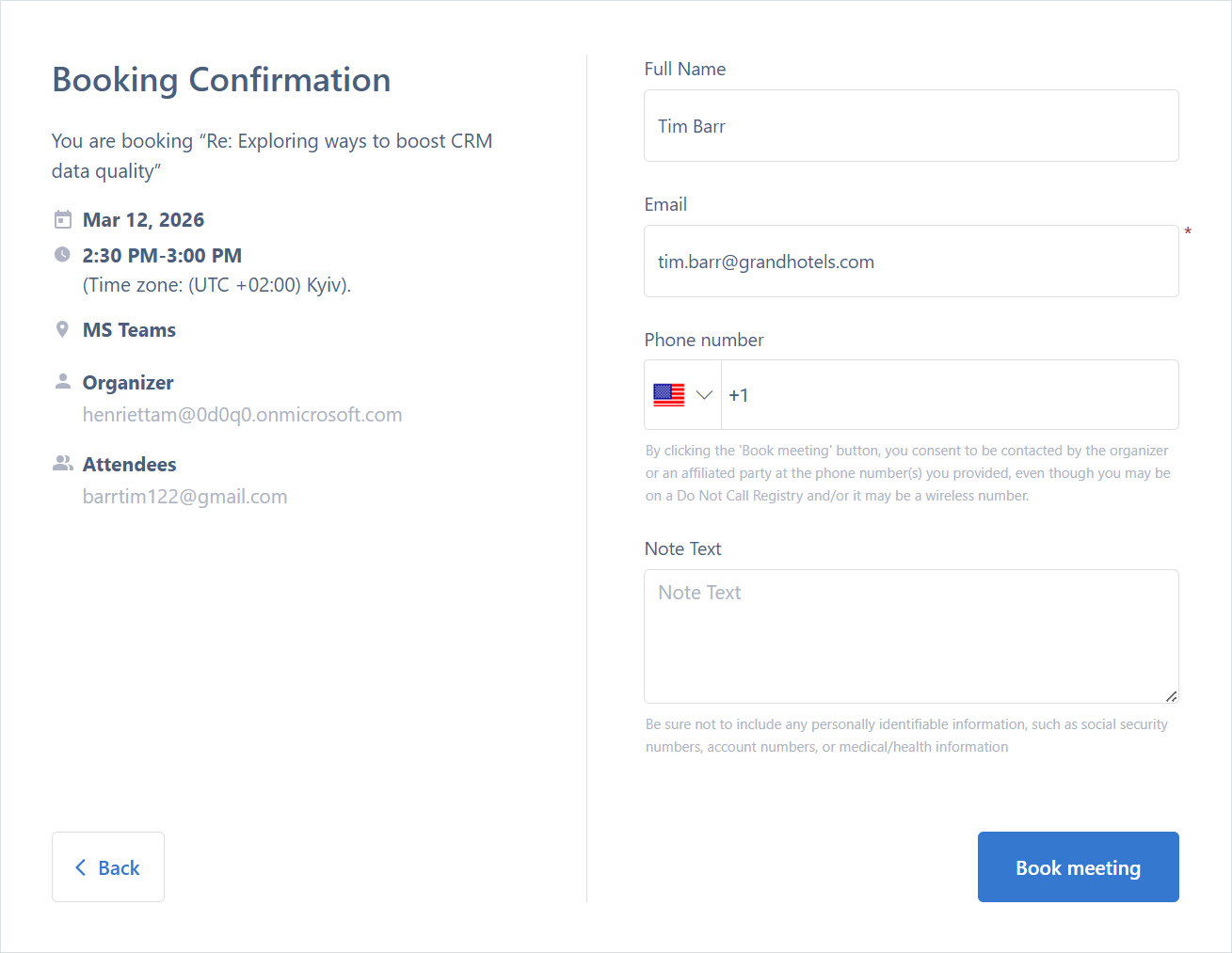
Recipients must provide:
Full name
Email address
Depending on how the link is configured, additional fields may be available, such as:
Phone number
Notes
Guest email addresses (if inviting guests is allowed)
Any phone number or notes entered by the recipient are added to the meeting description and are visible to all meeting participants. Recipients should avoid including sensitive or confidential information in these fields.
Information entered on the confirmation page is stored in the recipient’s browser and may be prefilled if they open another Book Me link from the same organization.
You can customize the fields and elements displayed on the confirmation page.
To customize the confirmation page, see Customize the booking confirmation page.
After booking#
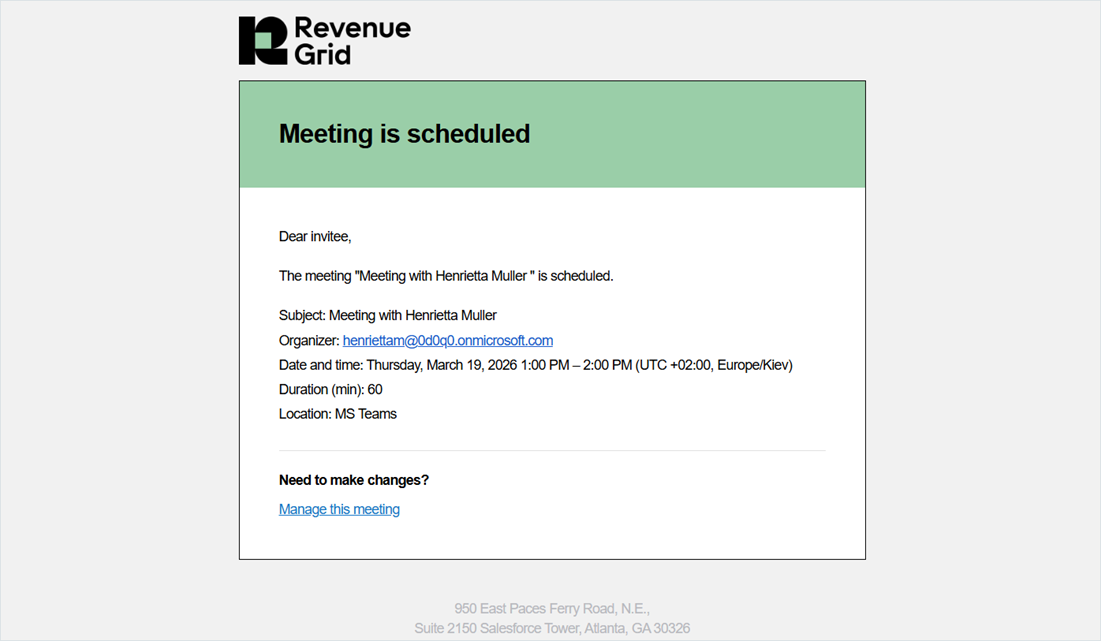
After the recipient confirms the meeting:
The meeting is created in your calendar.
You receive an email notification confirming the booking.
The recipient receives a confirmation email and a calendar invitation.
Other invited participants receive a calendar invitation with the meeting details.
If you selected Salesforce records when creating the Book Me link, the meeting is synced to Salesforce and linked to those records during the next sync session.
If a video conferencing tool is selected, the meeting link is included in the calendar event.
Rescheduling and cancellation#
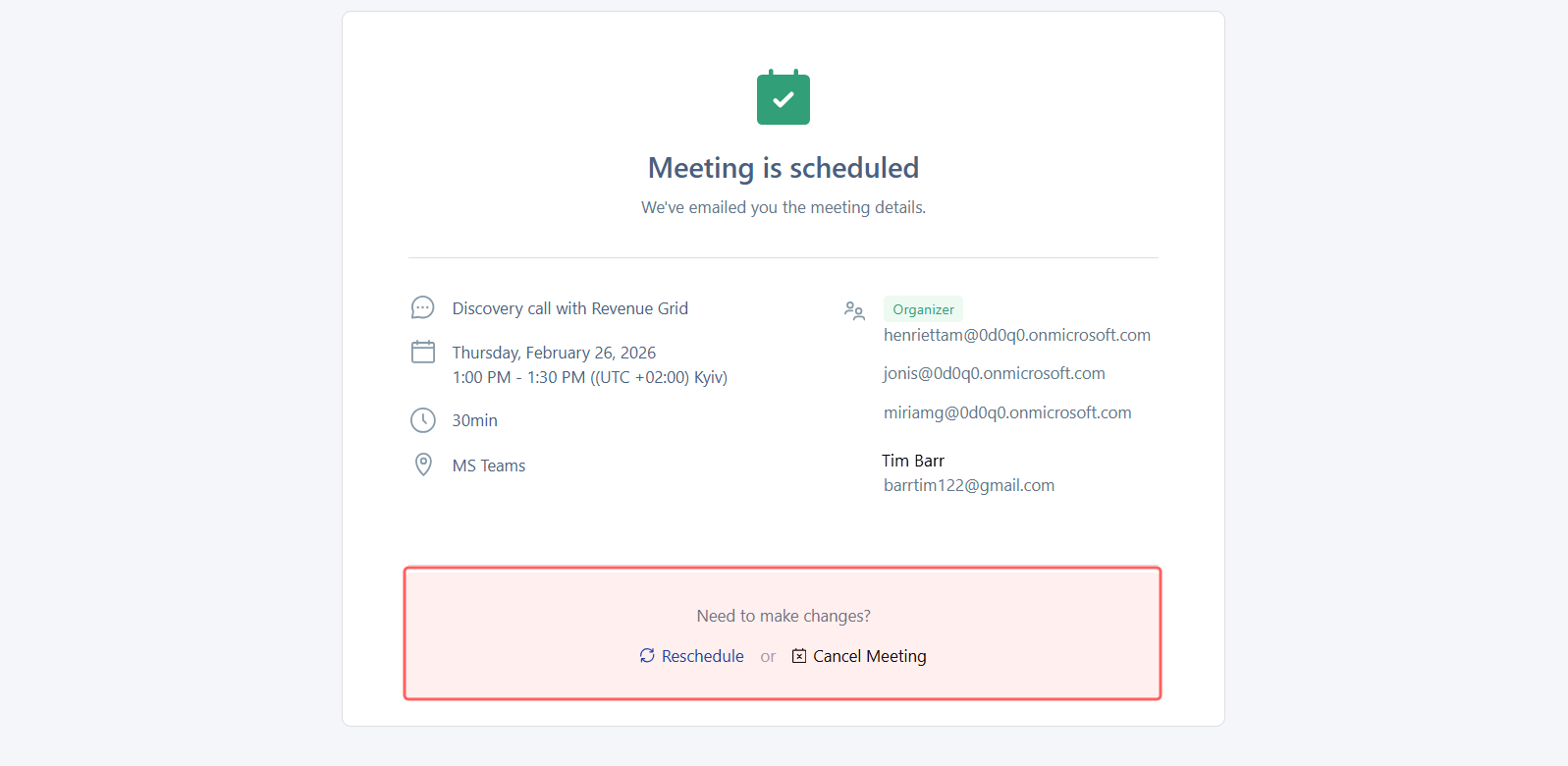
If you enabled rescheduling or cancellation when creating the link, recipients can manage the meeting using a link provided:
On the booking result page
In the confirmation email
If these options are not available, they were disabled during link creation.
To allow rescheduling or cancellation, see Configure invitee permissions.