

Configure user-authorized mailbox access for Microsoft 365 (end-user logon)#
Supported platforms: Microsoft 365
Set up Revenue Grid so users can connect their Microsoft 365 accounts independently during onboarding. In this setup, Revenue Grid accesses Microsoft 365 in the context of each signed-in user by using delegated permissions.
A Microsoft 365 administrator must first grant tenant-wide admin consent for the delegated permissions required by Revenue Grid. This one-time action allows users to connect their Microsoft 365 accounts using the approved permissions without requiring administrators to approve access for each user individually.
Before you begin#
Understand how Revenue Grid uses Microsoft Graph#
Revenue Grid connects to Microsoft 365 mailboxes using the Microsoft Graph API, Microsoft’s modern and supported integration framework. This affects how mailbox access is authorized and how data sync behaves across mail, calendar, tasks, and other services.
Before granting admin consent, see How Revenue Grid uses Microsoft Graph to connect to Microsoft 365 to understand:
Why Revenue Grid uses Microsoft Graph
The differences between delegated and app-only access
Which permissions Revenue Grid uses and how they are authorized
Known Microsoft Graph limitations
Once you’re familiar with the integration model, confirm the prerequisites below.
Prerequisites#
Make sure the following conditions are met before proceeding:
You have a Platform admin or Profile admin account in Revenue Grid.
All required user profiles have been created in Revenue Grid.
You have a Microsoft 365 admin account with permissions to grant tenant-wide consent.
Configuration steps#
The setup consists of the following steps:
Step 1: Grant tenant-wide admin consent for Revenue Grid#
A Microsoft 365 administrator must grant tenant-wide admin consent for the delegated permissions required by Revenue Grid. After consent is granted, users can connect their Microsoft 365 accounts using these permissions without individually consenting to them.
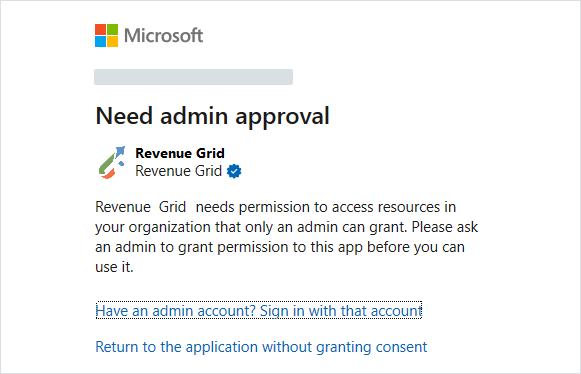
If admin consent isn’t granted, users may see the following error when signing in:
Need admin approval

Revenue Grid needs permissions to access resources
in your organization that only an admin can grant.
Please ask an admin to grant permission to this app
before you can use it.
You can grant consent in one of three ways:
Grant consent via URL (recommended)#
Use this method if the Revenue Grid app is not yet installed in your tenant or if you want to grant only the baseline delegated permissions required by Revenue Grid. Depending on the Revenue Grid functionality your organization uses, you may need to add other delegated permissions to the consent request.
Important
If you’re using a dedicated Revenue Grid instance, request the client_id from Revenue Grid Support.
Copy the following URL into a text editor:
https://login.microsoftonline.com/{organization}/v2.0/adminconsent?client_id=336be6bf-83eb-47ad-93ef-32250063f88d&redirect_uri=https://portal.azure.com/TokenAuthorize&scope=https://graph.microsoft.com/offline_access%20https://graph.microsoft.com/User.Read%20https://graph.microsoft.com/User.ReadBasic.All%20https://graph.microsoft.com/MailboxSettings.ReadWrite%20https://graph.microsoft.com/Mail.ReadWrite%20https://graph.microsoft.com/Mail.Send%20https://graph.microsoft.com/Calendars.ReadWriteReplace
{organization}with your Microsoft 365 tenant ID. To get the tenant ID:Go to Microsoft Entra admin center > Entra ID > Overview.
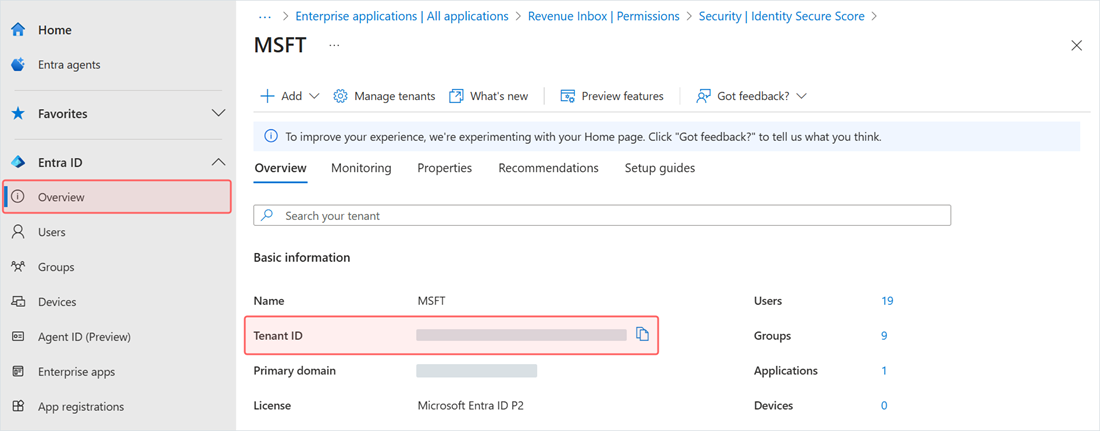
Copy the Tenant ID.
If you’re using a dedicated Revenue Grid instance, replace the
client_idvalue (after=) with the one provided by Revenue Grid Support.Paste the completed URL into your browser and open it.
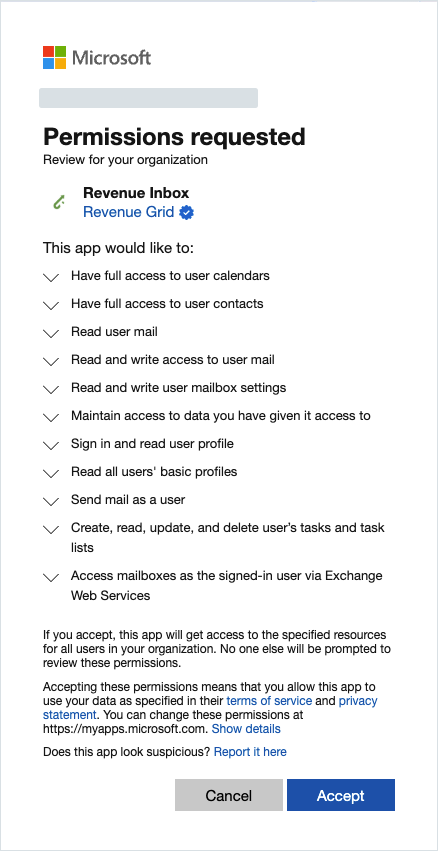
Review the requested permissions and select Accept.
Grant consent in the Microsoft Entra admin center#
Use this method if the Revenue Grid enterprise application already exists in your Microsoft 365 tenant.
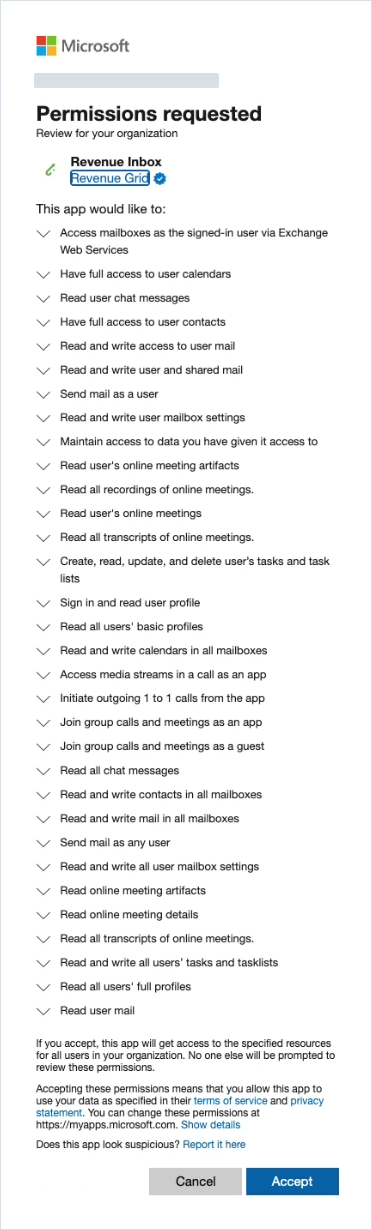
This method grants admin consent to the permissions configured for the Revenue Grid application, which can include both delegated and application permissions. Application permissions aren’t required for delegated mailbox access. After granting consent, review the granted permissions and revoke any that your organization doesn’t need.
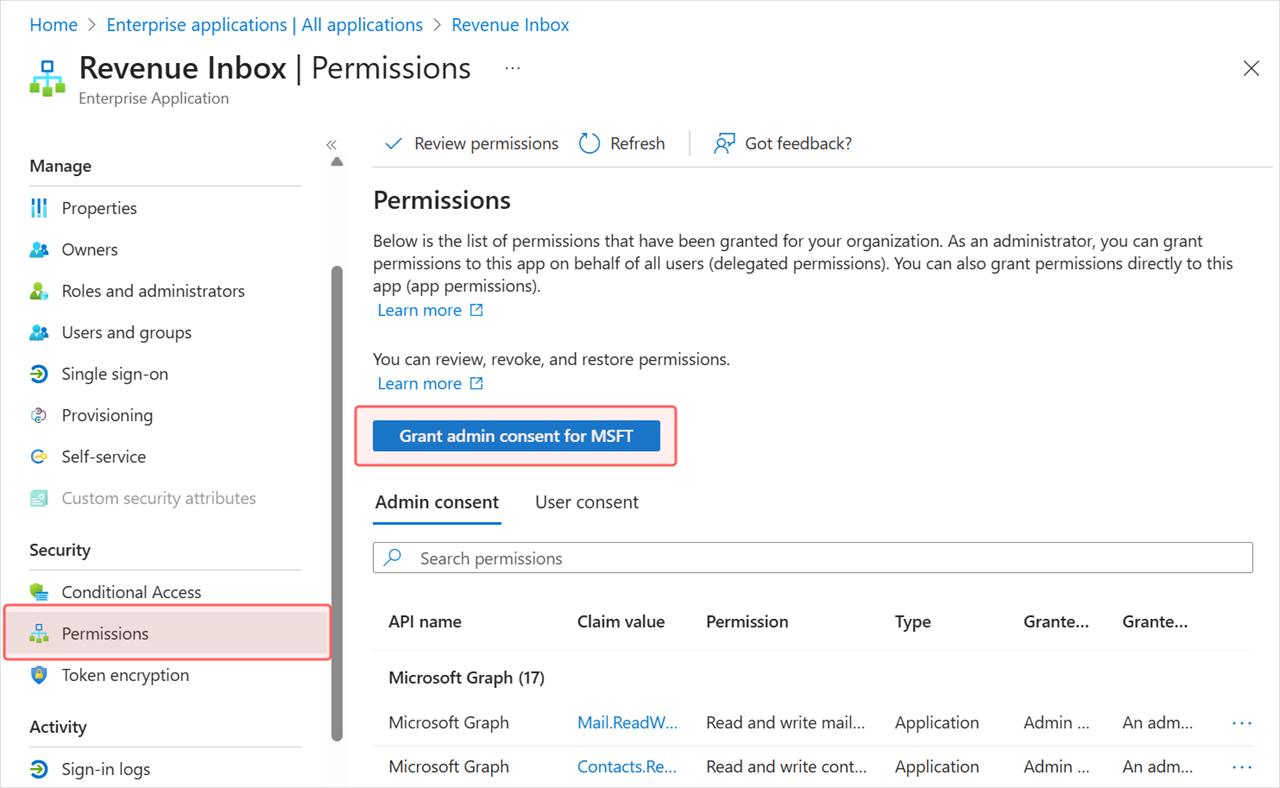
Sign in to Microsoft Entra admin center.
Go to Enterprise applications > All applications > Revenue Inbox.
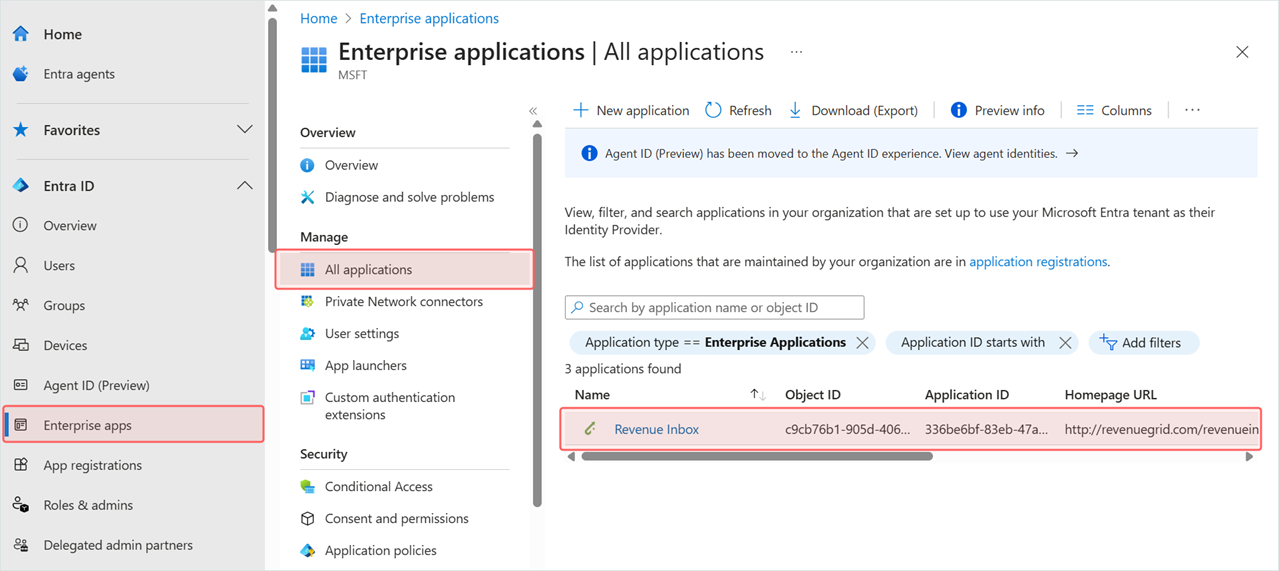
Select Permissions > Grant admin consent for [Organization Name].
Sign in with your Microsoft 365 admin credentials and select Accept in the permissions dialog.
Grant admin consent during initial login to the Context Panel#
Use this method if you plan to use Context Panel and haven’t signed in before.
This flow also establishes the consent required for Context Panel to use Nested App Authentication (NAA). NAA allows the Outlook add-in to obtain Microsoft Graph access tokens for the signed-in user. Granting tenant-wide admin consent allows users to use the approved Microsoft Graph permissions without individually consenting to them.
For more information, see Microsoft’s Nested app authentication documentation.
Requirements:
Microsoft 365 credentials with permissions to grant tenant-wide consent.
Salesforce account with the System Administrator profile.
Context Panel installed.
Steps:
Open the Context Panel.
In the Permissions requested dialog, select Consent on behalf of your organization, then click Accept.
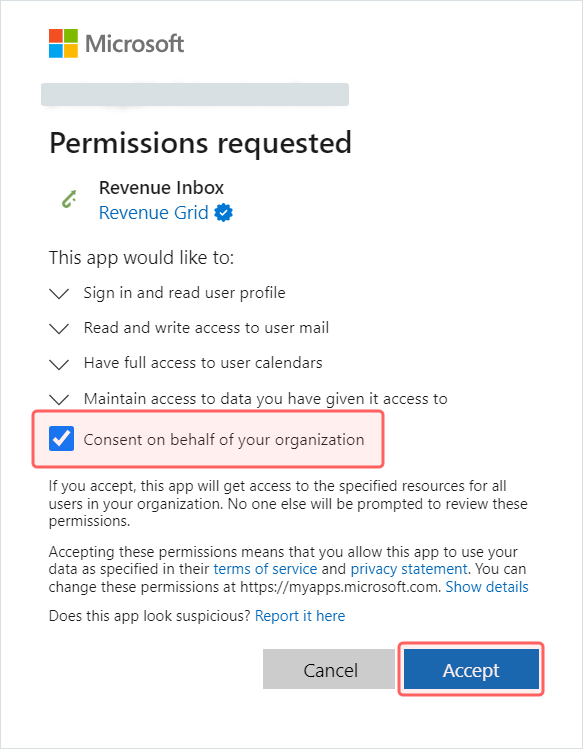
In the Context Panel, choose a sign-in method:
Select Salesforce to sign in with your product account.
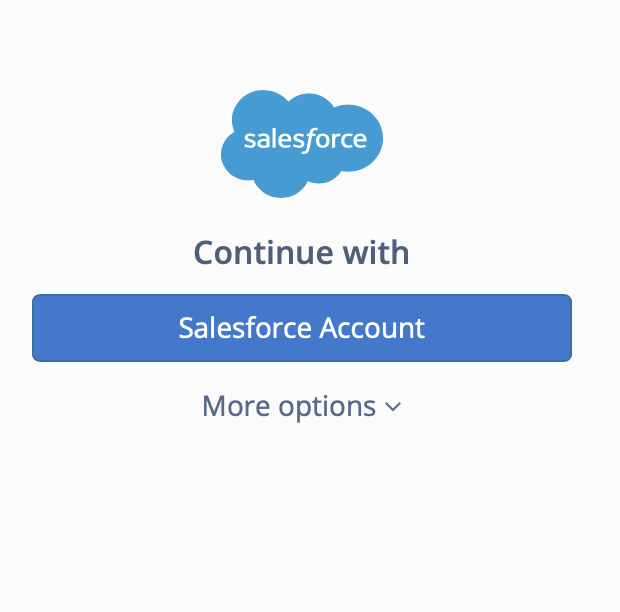
Or expand More options to select Salesforce Sandbox or Customer/Partner Community.
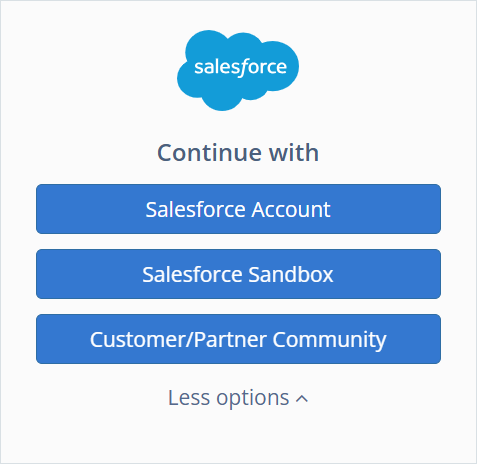
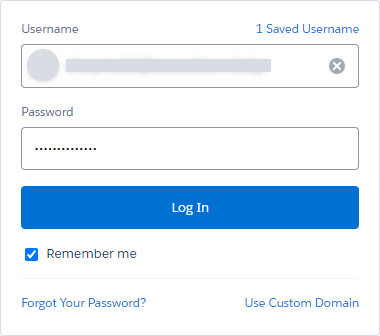
Enter your Salesforce System Administrator credentials and click Log In.
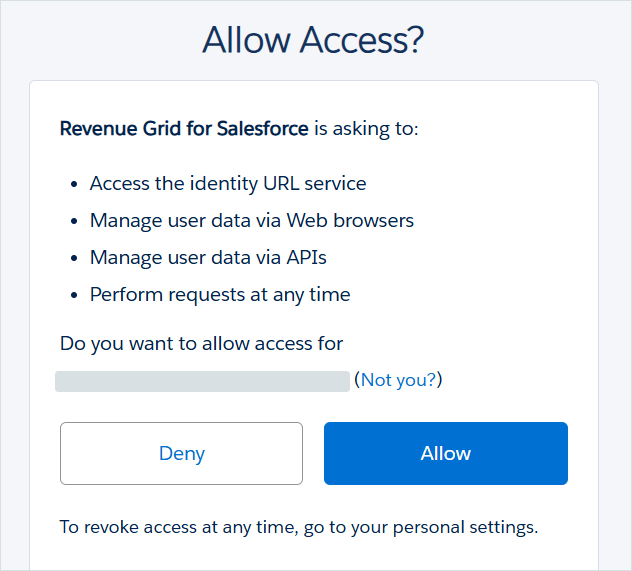
In the Allow access dialog, click Allow.
In the Context Panel, click Connect to Office 365.
Sign in using Microsoft 365 admin credentials.
In the Permissions requested dialog, select Consent on behalf of your organization, then click Accept.
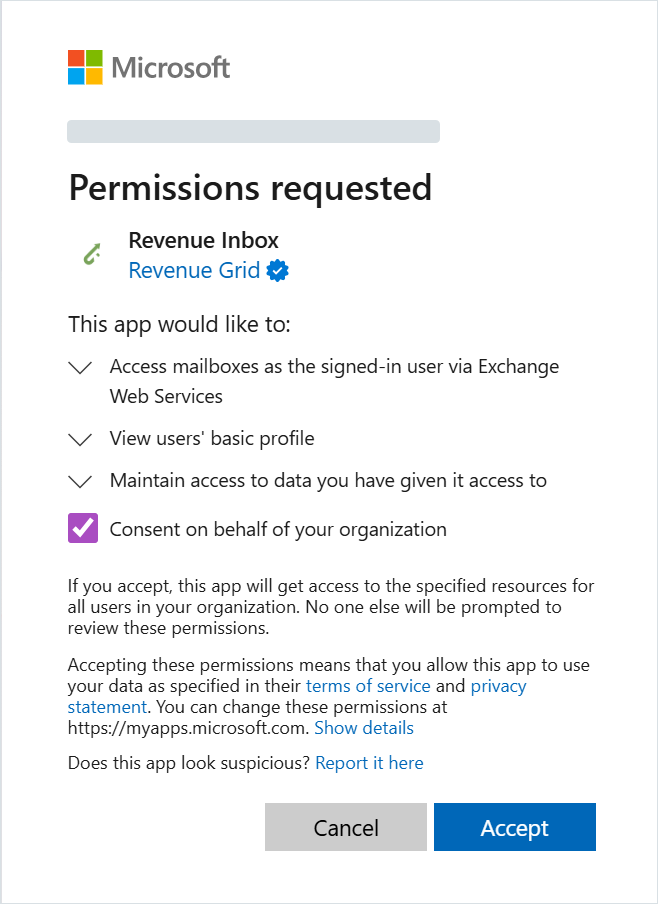
After tenant-wide admin consent is granted, users can connect their Microsoft 365 accounts during sign-in without individually consenting to the approved delegated permissions.
(Optional) Review and revoke unneeded permissions#
If the consent method you used granted permissions that your organization doesn’t need, you can revoke them after granting admin consent.
Before revoking a permission, see How Revenue Grid uses Microsoft Graph to connect to Microsoft 365 to identify which permissions are required for the Revenue Grid functionality your organization uses.
If you granted consent through the Microsoft Entra admin center, the consent also includes application permissions configured for Revenue Grid. Application permissions aren’t required for delegated mailbox access unless your organization uses Revenue Grid functionality that specifically requires application access.
For instructions on reviewing and revoking permissions, see Review and revoke Microsoft Entra ID permissions for Revenue Grid.
Step 2: Configure user-authorized mailbox access for Microsoft 365#
After tenant-wide admin consent is granted, configure the applicable Revenue Grid profiles to use delegated Microsoft Graph access.
Open the Revenue Grid settings.
Under the Administration section, go to Profiles.
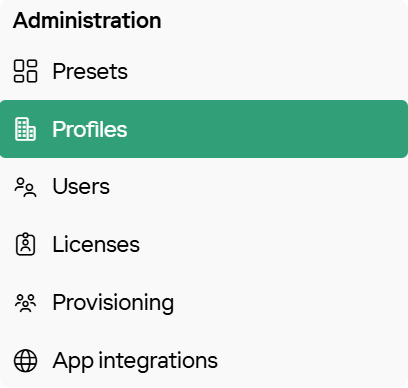
Open the profile you want to configure and go to the Connectivity tab.

In the Email configuration section, open the Mailbox access type menu and select: Microsoft 365 OAuth (Graph API) - end-user sign-in.
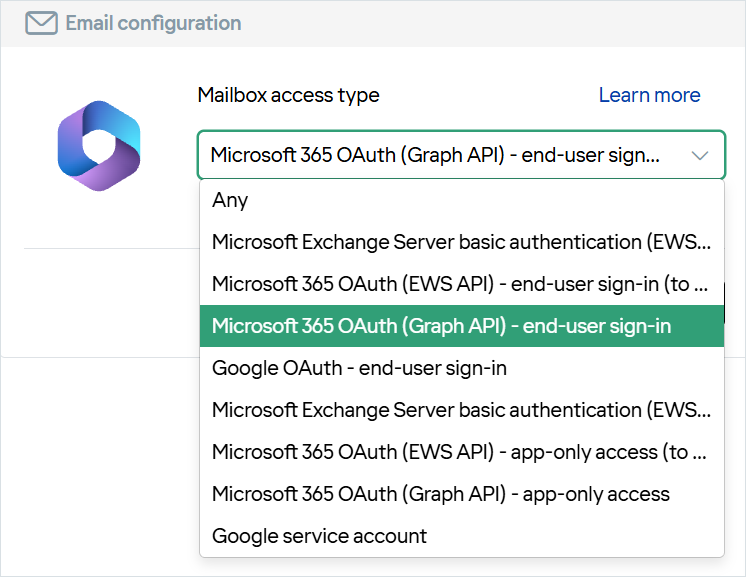
Click Save.
Only Microsoft 365 users can be assigned to this profile. Each user must sign in to Microsoft 365 during onboarding to establish the user context Revenue Grid uses for delegated access.