

How to save internal or blocklisted emails to Salesforce through Context Panel#
Supported platforms: Exchange Server
 Microsoft 365
 Google
By default, internal or blocklisted emails are not saved to Salesforce automatically. These messages are filtered out to avoid unnecessary logging of data unrelated to customer engagement. If you need to save these emails for reference or reporting, you can do so manually using Context Panel.
What you see in the Context Panel for filtered emails#
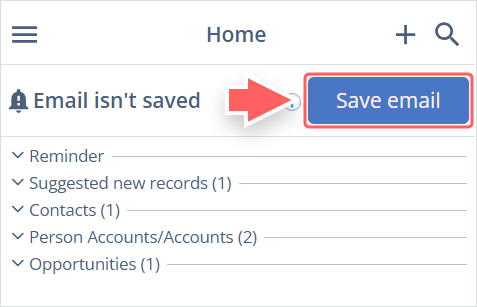
When you select an email from an internal or blocklisted address and open Context Panel, the Save email button becomes available in the Context Panel header, allowing you to log the email if needed.
To help you understand why the email wasn’t saved automatically, a message appears under Smart Actions > More… > Observations: “Some not important emails were filtered:”
This message lists the internal or blocklisted email addresses found in the selected email.
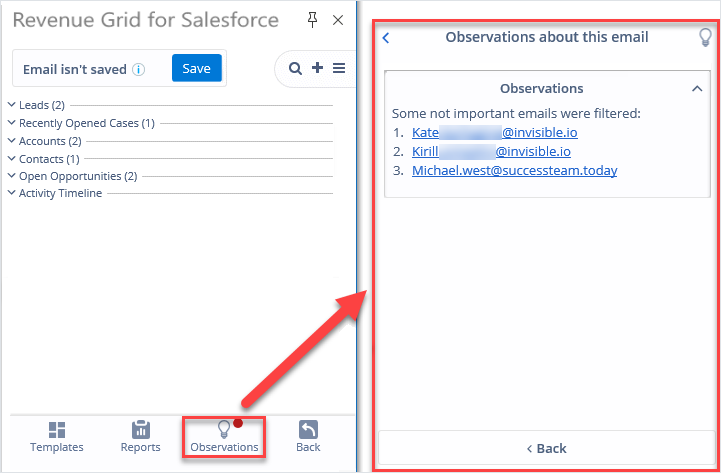
This helps you quickly identify why the email was excluded and decide whether it should be added to Salesforce manually.
Save an internal or blocklisted email manually#
To save a filtered email to Salesforce:
Select the email and open Context Panel.
In the Context Panel header, click Save email.
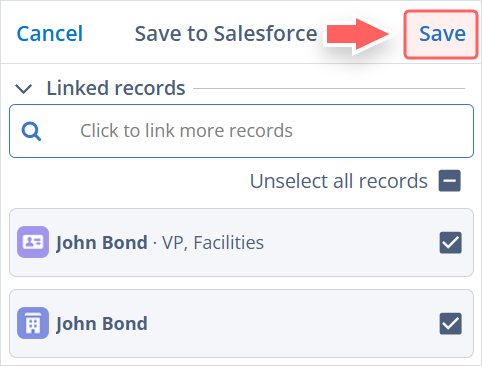
In the Save to Salesforce dialog, complete the required fields, such as related contact, opportunity, or account.
Click Save.
Hint
You can also use this process to save emails that include unresolved addresses — those that haven’t been added to Salesforce yet.