

Save confidential events using Context Panel#
Supported platforms: Microsoft 365
 Google
When you save a calendar event with a confidential participant to Salesforce, Context Panel lets you choose whether to mask sensitive meeting details or include the full content.
For details about how confidential event handling works, see Confidential event handling.
Requirements#
Confidential event handling must be enabled for your organization.
The event must include at least one participant configured as a confidential user.
Save a confidential event#
Open a calendar event in Outlook or Google Calendar and open Context Panel.
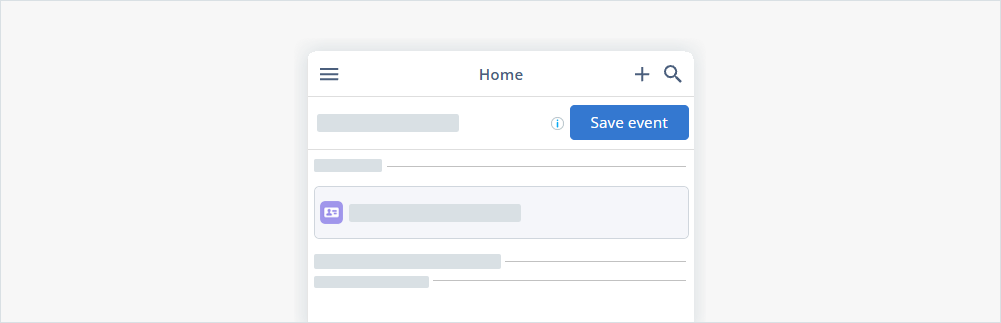
Select Save event.
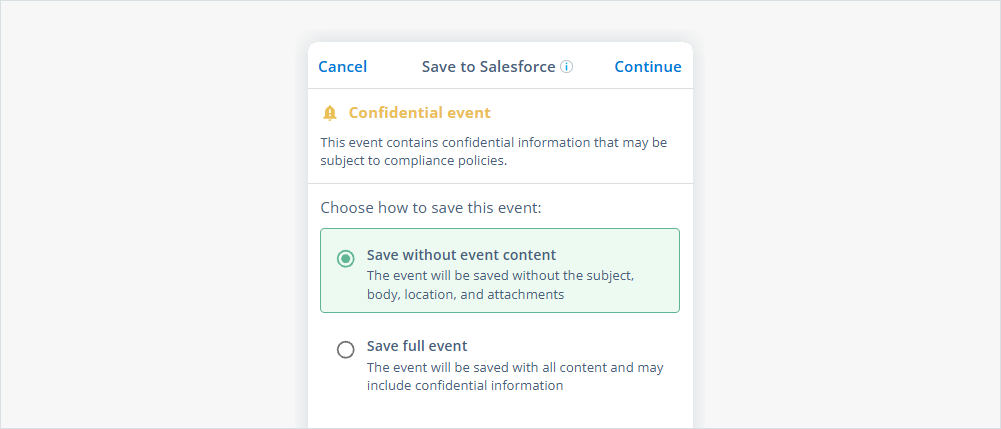
Choose how to save the event:
Option
Description
Save without event content
Saves the event with subject, description and location fields masked. This option is selected by default.
Save full event
Saves the event with its original content, including potentially confidential information.
Select Continue.
In the Save event dialog, save the event as usual:
Select the Salesforce records to link the event to.
Review or update the available fields.
Important
If you selected Save without event content, the Attachments section is not available. A notification indicates how the event will be saved.

Select Save.
After saving#
After the event is saved, Context Panel displays its status along with a notification:
If saved without content: “Confidential content was removed.”

If saved with full content: “May include confidential content.”
The event is created in Salesforce and linked to the selected records according to your configuration.
The original event details remain unchanged in Outlook or Google Calendar.