

Reference guide to Context Sync settings#
This article provides a detailed overview of all available Context Sync settings in Revenue Grid. It is intended for administrators configuring sync behavior—either at the user, profile, or preset level.
While some settings may also be visible to users in their personal settings, this guide focuses exclusively on admin-level configuration. When referring to the user level, we mean that the admins access and manage settings for individual users using Administration settings.
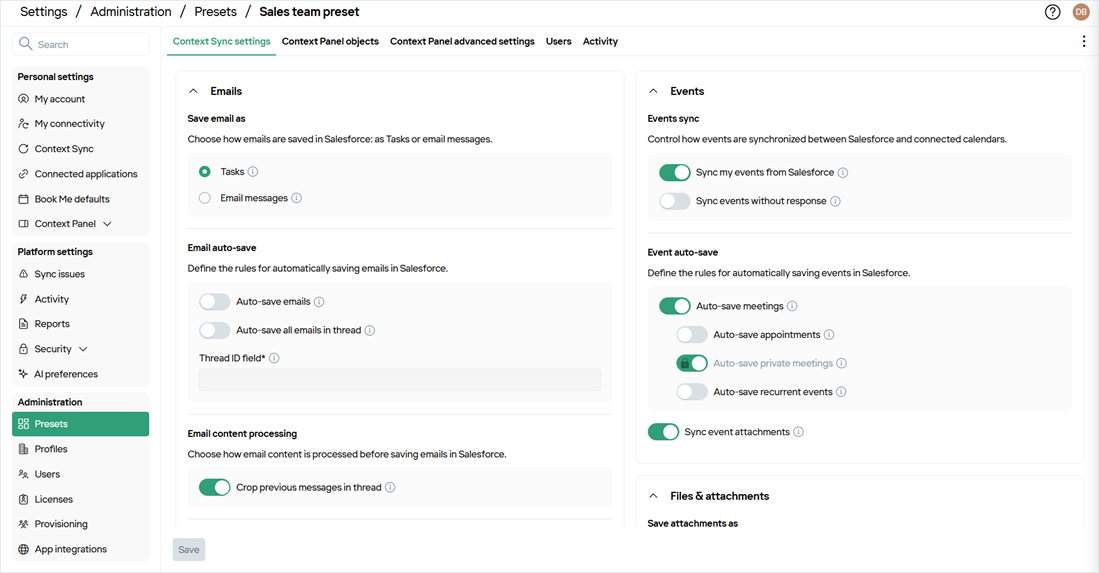
Email Context Sync settings#
Setting name |
Description |
How to configure |
Notes |
|---|---|---|---|
Save emails as |
Determines whether emails are saved in Salesforce as Tasks or Email Messages. |
Select Tasks to save emails as standard Salesforce Task records. Select Email Messages to save emails as Salesforce Email Message records. |
To save emails as Email Messages, the Enhanced Email feature must be enabled in your Salesforce org. Set Up Enhanced Email. |
Auto-save emails |
Automatically saves new emails from the Inbox and Sent folders to Salesforce, except for internal, blocklisted, or service emails. |
Turn on Auto-save emails. |
Emails are saved during the next sync session. |
Auto-save all emails in thread |
Saves all emails in a conversation once one is saved. |
Applies to both past and future emails in the thread. If saving emails as Tasks, requires the Thread ID field to be configured. |
|
Thread ID field |
Defines the custom Salesforce Task field used to store the thread ID from the first saved email, to link all related emails in the same thread. |
Required only when saving emails as Salesforce Task records. If the Revenue Grid managed package is installed, it automatically creates this field. |
|
Auto-sync signed emails |
Determines whether incoming and outgoing S/MIME-signed Microsoft 365 emails can be saved to Salesforce through automatic synchronization and other Sync-based saving methods. How Revenue Grid handles encrypted and S/MIME-signed emails |
Under Emails → Email auto-save, turn on Auto-sync signed emails. |
When enabled, signed emails can be saved through automatic synchronization, the Salesforce category, and Quick Save to Salesforce. When disabled, signed emails can be saved only through Context Panel. The setting doesn’t enable saving of encrypted emails or emails that are both encrypted and signed. |
Crop previous messages in thread |
Enables or disables automatic cropping of previous email messages from the email body when saving emails in Salesforce. |
When enabled, Revenue Grid crops previous messages during sync and preselects the same option in Context Panel (unless “Auto-save all emails in thread” is enabled). If disabled, emails are saved with the full conversation history. |
|
Email messages deduplication |
Prevents duplicate email records from being saved to Salesforce. |
Turn on Email messages deduplication. |
Requires the Email deduplication field to be configured. |
Email deduplication field |
Defines the Salesforce Task field used to store the message ID for identifying duplicates. |
Enter the Salesforce field name (e.g., |
Required only when saving emails as Salesforce Task records. If the Revenue Grid managed package is installed, it automatically creates this field. |
Email direction field (name) |
Custom Salesforce field for storing the direction of email communication (inbound or outbound). |
Create a custom Salesforce field and enter its name (e.g., |
Must be a text field. |
Email direction field (inbound value) |
Prefix used for inbound emails in the Salesforce subject line. |
Enter the inbound value (e.g., |
Useful for filtering and reporting in Salesforce. |
Email direction field (outbound value) |
Prefix used for outbound emails in the Salesforce subject line. |
Enter the outbound value (e.g., |
Useful for filtering and reporting in Salesforce. |
Event Context Sync settings#
Setting name |
Description |
How to configure |
Notes |
|---|---|---|---|
Sync My events from Salesforce |
Syncs events from the user’s “My events” calendar in Salesforce to the mailbox calendar. |
Turn on Sync My events from Salesforce. |
Not available at the profile level. |
Sync events without response |
Enables syncing of meetings where the user was invited but has not responded. |
Turn on Sync events without response. |
If disabled, only meetings the user responds to are saved. |
Auto-save meetings |
Automatically saves calendar events with attendees to Salesforce. |
Turn on Auto-save meetings. |
Events are saved to the user’s Salesforce calendar and to colleagues’ calendars (if they use Revenue Grid). Calendar sync exceptions. Events with new business contacts may trigger lead or contact creation. Auto-creation rules. |
Auto-save appointments |
Automatically saves calendar events without attendees to Salesforce. |
Turn on Auto-save appointments. |
Requires Auto-save meetings to be enabled. |
Auto-save private meetings |
Allows auto-saving of appointments and meetings marked as private. |
Turn on Auto-save private meetings. |
Requires Auto-save meetings to be enabled. Saves private meetings without linking them to Salesforce records. |
Auto-save recurrent events |
Allows auto-saving of recurring calendar events. |
Turn on Auto-save recurrent events. |
Requires Auto-save meetings to be enabled. Requires Advanced Calendaring to be enabled in Salesforce. Enable Advanced Calendaring Org Permission. |
Sync event attachments |
Enables syncing of attachments for calendar events. |
Turn on Sync event attachments. |
If disabled, event attachments are not synced. Manual saving from Context Panel is not affected. |
Task Context Sync settings#
Task Context Sync settings are configurable only at the user and preset levels. Not supported at the profile level.
Setting name |
Description |
How to configure |
Notes |
|---|---|---|---|
Sync Salesforce tasks |
Enables syncing of Salesforce tasks with Outlook. |
Turn on Sync Salesforce tasks in the Tasks section. |
Only due tasks or those modified within the past two weeks are synced. Context Sync is two-way (Salesforce ↔ Outlook/Google Tasks) and applies by default to the user’s My tasks view. |
Forbid to remove tasks |
Prevents users from deleting synced tasks in their mail client. |
Turn on Forbid to remove tasks in the Tasks section. |
Users must delete tasks directly in Salesforce. |
Contact Context Sync settings#
Contact Context Sync settings are configurable only at the user and preset levels. They are not supported at the profile level.
Setting name |
Description |
How to configure |
Notes |
|---|---|---|---|
Sync Salesforce contacts |
Enables syncing of Salesforce contacts with Outlook. |
Turn on Sync Salesforce contacts in the Contacts section. |
If turned off, previously synced contacts are removed from the mail client. |
Customize the scope of contacts |
Defines which Salesforce contacts are synced. |
Click Customize scope, then choose one of the following:
|
Admin must have a connected Salesforce account to configure contact scope. Admin’s visibility in Salesforce must be equal to or greater than the visibility of the target users. |
Forbid to remove contacts |
Prevents contacts from being deleted from the mail client. |
Turn on Forbid to remove in the Contacts section. |
Contacts must be deleted directly in Salesforce. |
Files & Attachments Context Sync settings#
Setting name |
Description |
How to configure |
Notes |
|---|---|---|---|
Save attachments as |
Determines whether attachments are stored in Salesforce as classic Attachments or as Salesforce Files. |
Select Attachments to store files as classic Salesforce Attachments. Select Files to store them as Salesforce Files. |
Requires the Salesforce CRM Content User setting to be enabled for users. Otherwise, attachments are saved as classic Attachments. How to enable Salesforce Files. |
Prohibited file extensions |
Lists file extensions that cannot be auto-saved to Salesforce. |
Enter file extensions separated by commas or semicolons, or select from the list. |
Leave blank to allow all file types. This setting overrides the allowed extensions list. Manual saving from Context Panel is not restricted. |
Allowed file extensions |
Lists file extensions that can be auto-saved to Salesforce. |
Enter file extensions separated by commas or semicolons, or select from the list. |
Leave blank to allow any extension. Manual saving from Context Panel is not restricted. |
Maximum attachment size (KB) |
Sets the maximum file size, in kilobytes, for attachments to be auto-saved to Salesforce. |
Enter the size limit in the Maximum attachment size (KB) field. |
Attachments larger than the specified size are not saved. |
Minimum attachment size (KB) |
Sets the minimum file size, in kilobytes, required for attachments to be auto-saved to Salesforce. |
Enter the size limit in the Minimum attachment size (KB) field. |
Attachments smaller than the specified size are not saved. |
File extensions with minimum size limit |
Lists file extensions that are not auto-saved if their file size is below the defined minimum. |
Enter file extensions separated by commas or semicolons, or select from the list. |
Applies only if Minimum attachment size (KB) is set. |
Advanced Context Sync settings#
Setting name |
Description |
How to configure |
Notes |
|---|---|---|---|
Link to Opportunities |
Automatically links saved emails to open Salesforce opportunities. |
Turn on Link to Opportunities. |
Linking conditions:
Linking behavior:
|
Blocklisted email addresses and domains |
Prevents syncing of emails and calendar items from specific addresses or domains. |
Enter addresses or domains in Blocklisted email addresses and domains. |
Wildcards (such as Common free domains (e.g., |
Context Sync settings availability by configuration level#
Setting name |
User level |
Preset level |
Profile level |
|---|---|---|---|
Save emails as |
Yes |
Yes |
No |
Auto-save emails |
Yes |
Yes |
Yes |
Auto-save all emails in thread |
Yes |
Yes |
Yes |
Thread ID field |
Yes |
Yes |
Yes |
Auto-sync signed emails |
No |
Yes |
No |
Email messages deduplication |
Yes |
Yes |
Yes |
Email deduplication field |
Yes |
Yes |
Yes |
Email direction field (name) |
Yes |
Yes |
Yes |
Email direction field (inbound value) |
Yes |
Yes |
Yes |
Email direction field (outbound value) |
Yes |
Yes |
Yes |
Sync My events from Salesforce |
Yes |
Yes |
No |
Sync events without response |
Yes |
Yes |
No |
Auto-save meetings / Auto-saving of events |
Yes |
Yes |
Yes |
Auto-save appointments |
Yes |
Yes |
Yes |
Auto-save private meetings |
Yes |
Yes |
No |
Auto-save recurrent events |
Yes |
Yes |
No |
Sync event attachments |
Yes |
Yes |
No |
Sync Salesforce tasks |
Yes |
Yes |
No |
Forbid to remove tasks |
Yes |
Yes |
No |
Sync Salesforce contacts |
Yes |
Yes |
No |
Customize the scope of contacts |
Yes |
Yes |
No |
Forbid to remove contacts |
Yes |
Yes |
No |
Save attachments as |
Yes |
Yes |
No |
Prohibited file extensions |
Yes |
Yes |
No |
Allowed file extensions / Attachment file types allowed for saving to Salesforce |
Yes |
Yes |
Yes |
Maximum attachment size (KB) |
Yes |
Yes |
No |
Minimum attachment size (KB) |
Yes |
Yes |
No |
File extensions with minimum size limit |
Yes |
Yes |
No |
Link to Opportunities |
Yes |
Yes |
Yes |
Blocklisted email addresses and domains |
Yes |
Yes |
Yes |