

How availability is calculated in Book Me#
Supported platforms: Exchange Server
 Microsoft 365
 Google
Book Me automatically generates available meeting time slots based on your calendar data and the settings defined when creating a Book Me link.
Understanding how availability is calculated helps you configure scheduling links correctly and avoid situations where expected time slots do not appear on the booking page.
What affects meeting availability#
The time slots shown on the booking page depend on several factors:
Working hours configured in the meeting organizer’s calendar settings.
Availability settings defined during link creation, such as selected days, time ranges, and the date range displayed on the booking page.
Calendar availability of the meeting organizer and any required internal attendees.
Meeting configuration, including meeting duration and booking rules.
Working hours and default availability#
Book Me first determines the general time range in which meetings can be scheduled. The working hours used for this calculation depend on your calendar provider.
Calendar provider |
Working hours used for availability |
|---|---|
Microsoft Exchange / Microsoft 365 |
Book Me uses the working days and hours configured in Outlook calendar settings. Time outside these hours is treated as unavailable. |
Google Workspace |
Book Me uses a default working schedule of Monday–Friday, 8:00 AM–5:00 PM. Time outside this range is treated as unavailable. |
Availability settings defined during link creation#
When creating a Book Me link, the meeting organizer can further shape availability by selecting specific days and time ranges within these working hours.

Setting |
Description |
|---|---|
Available on (days of the week) |
Defines which days of the week meetings can be booked. |
From / Until |
Defines the daily time range in which meetings can be scheduled. |
From date / To date |
Defines the date range displayed on the booking page. |
These settings do not extend availability beyond the organizer’s working hours. They narrow the time range used to generate available time slots.
For example, if working hours are 8:00 AM – 5:00 PM, but the link is configured with available hours 10:00 AM – 3:00 PM, the booking page shows availability only within 10:00 AM – 3:00 PM.
Whose calendars affect availability#
By default, availability is calculated using the calendar of the meeting organizer.
If internal participants are added as required attendees, their calendars are also included in the calculation. A time slot appears on the booking page only if it is available for all required internal participants.

Internal participants are users who belong to the same Microsoft 365, Microsoft Exchange, or Google Workspace organization as the meeting organizer.
Optional attendees do not affect availability calculations. This also applies to required attendees who do not belong to the meeting organizer’s organization.
How calendar events affect availability#
Book Me evaluates existing calendar events and uses their status to determine whether a time slot is available. Event status interpretation depends on the calendar provider.
Calendar status |
Availability in Book Me |
|---|---|
Free |
Available |
Busy |
Unavailable |
Tentative |
Available (default)* |
Out of Office |
Unavailable |
Working Elsewhere |
Unavailable |
Outside working hours |
Unavailable |
* By default, events marked as Tentative are treated as Available. If needed, this behavior can be changed upon request to Revenue Grid Support.
Google Calendar uses Free and Busy states for availability calculations.
In Book Me:
Calendar status |
Availability in Book Me |
|---|---|
Free |
Available |
Busy |
Unavailable |
Out of office (event type) |
Unavailable |
Focus time (event type) |
Unavailable |
Although Out of office and Focus time are event types rather than availability states in Google Calendar, both are treated as Unavailable in Book Me availability calculations.
Booking rules#
Additional booking rules defined during link creation further shape how available time slots are generated.

Setting |
Description |
|---|---|
Time buffer between meetings |
Defines a minimum gap between meetings. Book Me blocks time before and after scheduled events according to the configured buffer. |
Minimal span between booking and meeting start |
Prevents recipients from booking meetings that start too soon. For example, if the minimal span is set to 30 minutes, meetings cannot be booked within the next 30 minutes from the moment of booking. |
Disregarding the organizer’s calendar#
When creating a Book Me link, the meeting organizer can choose to exclude their calendar from availability calculations.
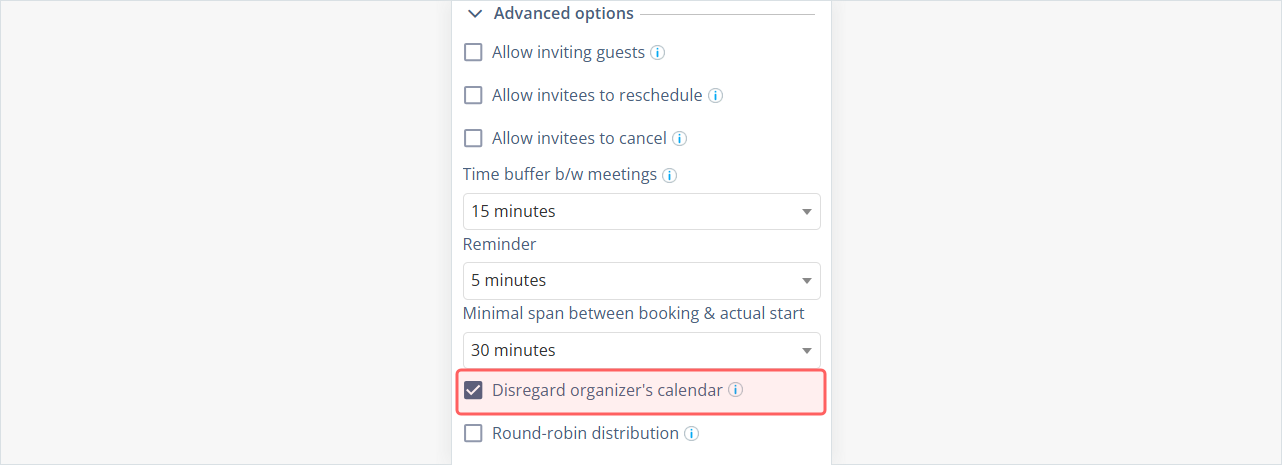
When this option is enabled:
The organizer’s busy events do not block available time slots.
The organizer’s configured working days and hours are not applied.
Meetings booked through the link are treated as Free as well.
Availability is determined only by other required internal participants, if any.
If no other internal participants are required, the availability table shows a 24-hour schedule for each day within the link’s active date range.
Note: Disregarding the organizer’s calendar is not supported for round-robin scheduling. Round-robin scheduling relies on accurate availability, and ignoring the organizer’s calendar could result in conflicts or incorrect assignments.
Availability verification before booking#
Book Me does not continuously monitor calendar changes in real time. Instead, it builds availability based on a snapshot of calendar data when the booking page is generated.
Before confirming a booking, Book Me checks the selected time again to ensure the slot is still available. If the time is no longer available, the recipient is prompted to choose another time.
Example: Availability calculation#
The meeting organizer creates a Book Me link with these settings:
Working hours: 9:00 AM – 5:00 PM
Meeting duration: 60 minutes
Time buffer between meetings: 15 minutes
Existing events:
10:00–11:00 AM (Busy)
2:00–3:00 PM (Tentative, treated as available)
Resulting availability:
Time range |
Availability |
Explanation |
|---|---|---|
9:00–9:30 AM |
Not available |
Meetings starting in this range would overlap the buffered time before the busy event (buffer begins at 9:45). |
9:30–11:30 AM |
Not available |
Blocked by the busy event (10:00–11:00) and the 15-minute buffer applied before and after it (9:45–11:15). |
11:30 AM–2:00 PM |
Available |
No conflicting events or buffers. |
2:00–3:00 PM |
Available |
Tentative events are treated as available by default. |
3:00–4:00 PM |
Available |
No conflicts with existing events. |
After 4:00 PM |
Limited availability |
A meeting starting at 4:00 PM fits within working hours; later start times would end after 5:00 PM. |
If Tentative events are treated as unavailable, start times overlapping 2:00–3:00 PM would not appear.
The minimal span between booking and meeting start depends on the current time and may hide near-term slots.