

Book Me default settings reference#
Supported platforms: Exchange Server
 Microsoft 365
 Google
Book Me defaults define the values that are automatically applied when you create a Book Me link in the Context Panel. These settings help standardize how meetings are scheduled and ensure consistent meeting configuration.
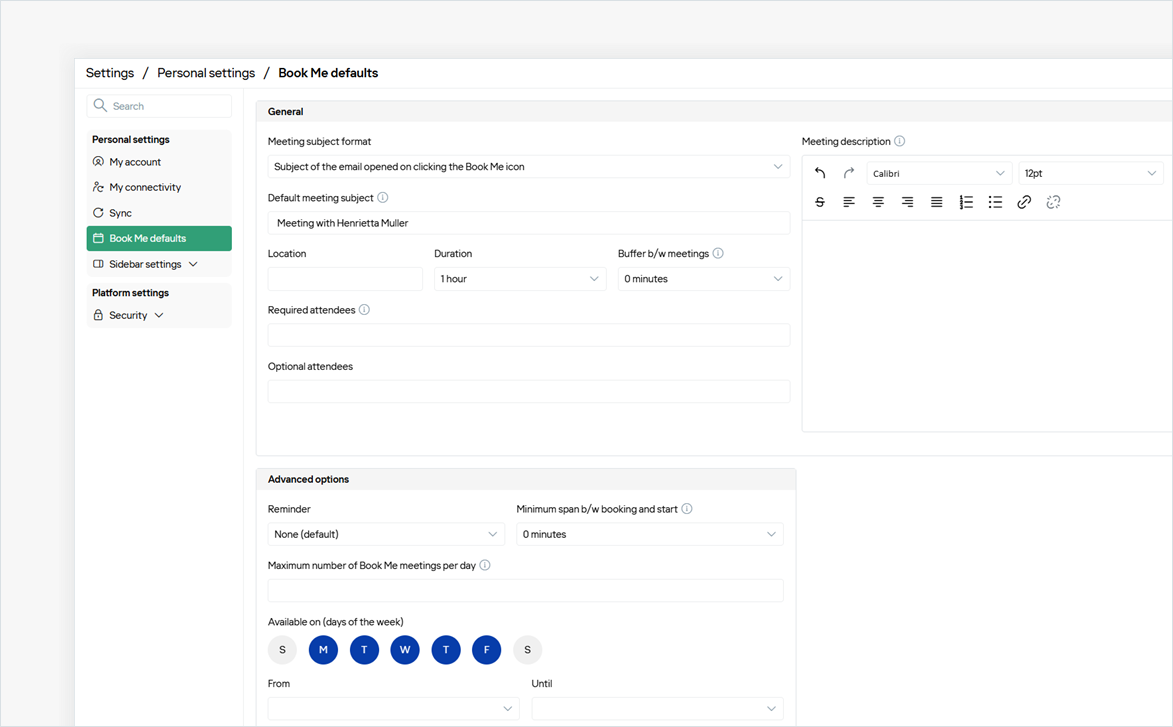
General settings#
The General section defines the default meeting configuration used when creating Book Me links.
Setting |
Description |
|---|---|
Meeting subject format |
How the meeting subject is generated when creating a Book Me link:
|
Default meeting subject |
Custom default subject for Book Me meetings. Depending on the Meeting subject format, it can be used alone or combined with the email subject. |
Location |
Default meeting location. Enter a physical location (such as a meeting room or address), select a location from your Exchange room resources, or enter the name of the default video conferencing tool:
|
Duration |
Meeting duration available to invitees on the booking page. |
Buffer b/w meetings |
Minimum gap between meetings. Book Me blocks time before and after scheduled events according to the configured buffer, preventing meetings from being booked too close to existing events. |
Required attendees |
Email addresses of participants whose presence is required. Note: The calendars of required attendees from the same Microsoft 365, Microsoft Exchange, or Google Workspace organization as the meeting organizer are included in availability calculations. |
Optional attendees |
Email addresses of participants who receive the meeting invitation as optional attendees. Optional attendees do not affect availability calculations. |
Meeting description |
Default description for Book Me meetings. The description appears on the booking page and is added to the meeting created in calendars and Salesforce. Maximum length: 32,000 characters. Longer text is truncated. |
Advanced settings#
The Advanced section controls additional booking rules and scheduling behavior.
Setting |
Description |
|---|---|
Reminder |
Calendar reminder for the meeting organizer before the meeting starts. |
Minimum span b/w booking and start |
Minimum time between when a meeting is booked and when it can start. Ensures the organizer has enough time to prepare before the meeting. |
Maximum number of Book Me meetings per day |
Maximum number of meetings that can be scheduled using Book Me links in a single day. Note: Not supported for delegated scheduling. |
Available on (days of the week) |
Days when meetings can be scheduled. If the selected days fall outside the organizer’s working days, only days within the working schedule are applied when creating a Book Me link in the Context Panel. Working days are taken from Outlook calendar settings for Microsoft Exchange / Microsoft 365 users, or from the system default schedule Monday–Friday for Google Workspace users. |
From / Until |
Time range used to generate available booking slots. If the selected time range falls outside the organizer’s working hours, only times within the working schedule are applied when creating a Book Me link in the Context Panel. Working hours come from Outlook calendar settings for Microsoft Exchange / Microsoft 365 users, or from the system default schedule 8:00 AM–5:00 PM for Google Workspace users. |
Disregard organizer’s calendar |
Allows meetings to be booked during time slots that are already occupied in the organizer’s calendar. When enabled:
Available options:
Note: Not supported for round-robin scheduling. |
Allow inviting guests |
Allows invitees to add additional participants when booking a meeting. Up to 10 guest email addresses can be added. Additional participants are added as optional attendees. |
Allow invitees to reschedule |
Allows recipients to change the meeting date and time after booking. |
Allow invitees to cancel |
Allows recipients to cancel the meeting after booking. |
Deadline for rescheduling and cancellation |
Time limit before the meeting when invitees can reschedule or cancel. Appears only if Allow invitees to reschedule or Allow invitees to cancel is enabled. If set to 0 minutes, invitees can reschedule or cancel even after the meeting starts. Once the meeting ends, these actions are no longer allowed. |
Confirmation page |
What invitees see after booking a meeting. Available options:
Note: Administrators can restrict users from changing the confirmation page setting by submitting a request to Revenue Grid Support. |
Redirect URL |
URL of the external website to open after booking a meeting. Available only when Redirect to an external site is selected for the Confirmation page setting. You can update the redirect URL at any time. Changes are applied immediately, so new bookings will use the latest URL. Note: Administrators can restrict users from changing the redirect URL setting by submitting a request to Revenue Grid Support. |