

About Book Me#
Supported platforms: Exchange Server
 Microsoft 365
 Google
Scheduling meetings often requires multiple emails to agree on a time. Book Me helps you eliminate that back-and-forth by letting you share your availability via a booking link. The recipient selects a suitable time, and the meeting is automatically created in all participants’ calendars.
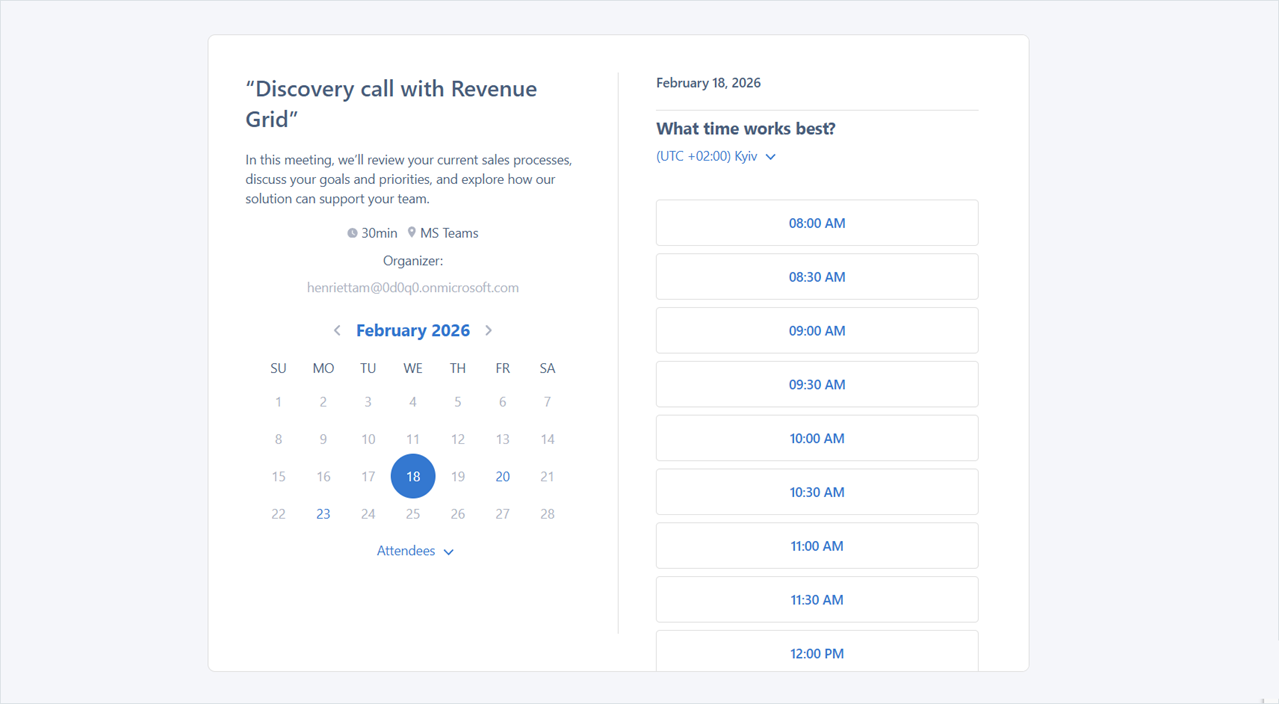
Book Me reduces manual coordination and ensures meetings are scheduled based on your actual calendar availability.
How Book Me works#
The scheduling process follows a simple flow:
You create a Book Me link, defining meeting details such as subject, duration, location, availability, etc.
You insert the link into an email and send it to the recipient.
The recipient opens the link, selects an available time slot, and confirms the meeting.
Book Me checks that the selected time is still available to help prevent double-booking.
The meeting is automatically created in the participants’ calendars.
Scheduling scenarios#
Book Me supports different scheduling scenarios depending on whose availability is used and how the meeting is assigned.
Personal scheduling#
You share your own availability, and the meeting is created in your calendar. This is the standard one-on-one scenario.
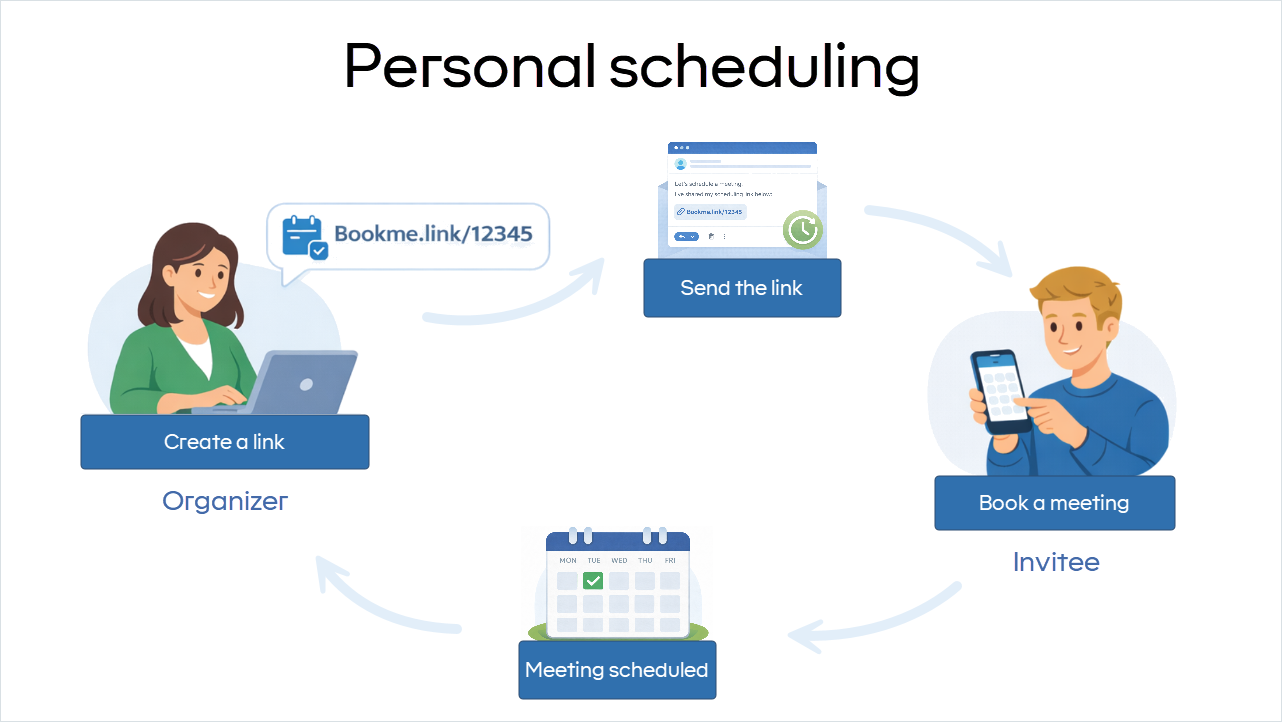
Common examples include discovery calls, follow-up meetings, or customer check-ins.
Delegated or shared scheduling#
You create a link on behalf of another user or for a shared calendar. The meeting is created in the delegator’s calendar or in the shared calendar.
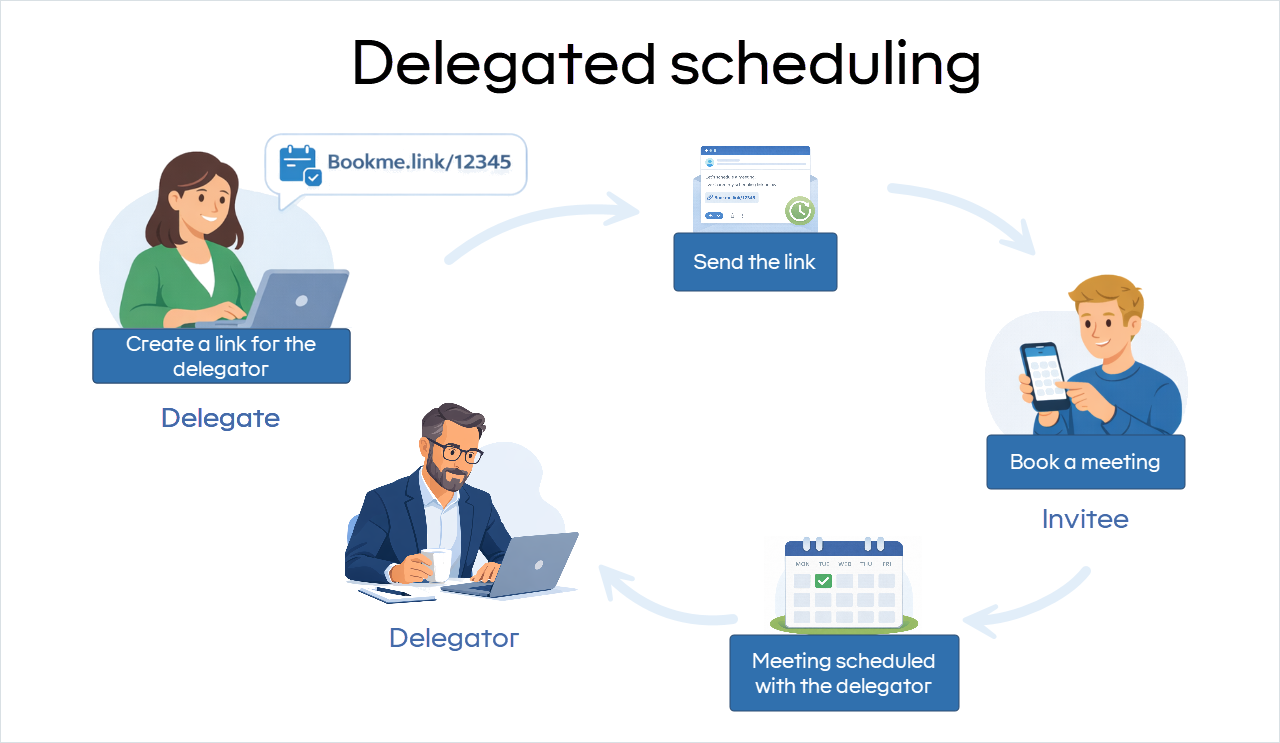
Common examples include assistants scheduling meetings for executives or teams coordinating meetings through a shared mailbox.
Group scheduling#
Recipients book a meeting that includes multiple participants from your organization. Availability is calculated using the calendars of all required internal participants.
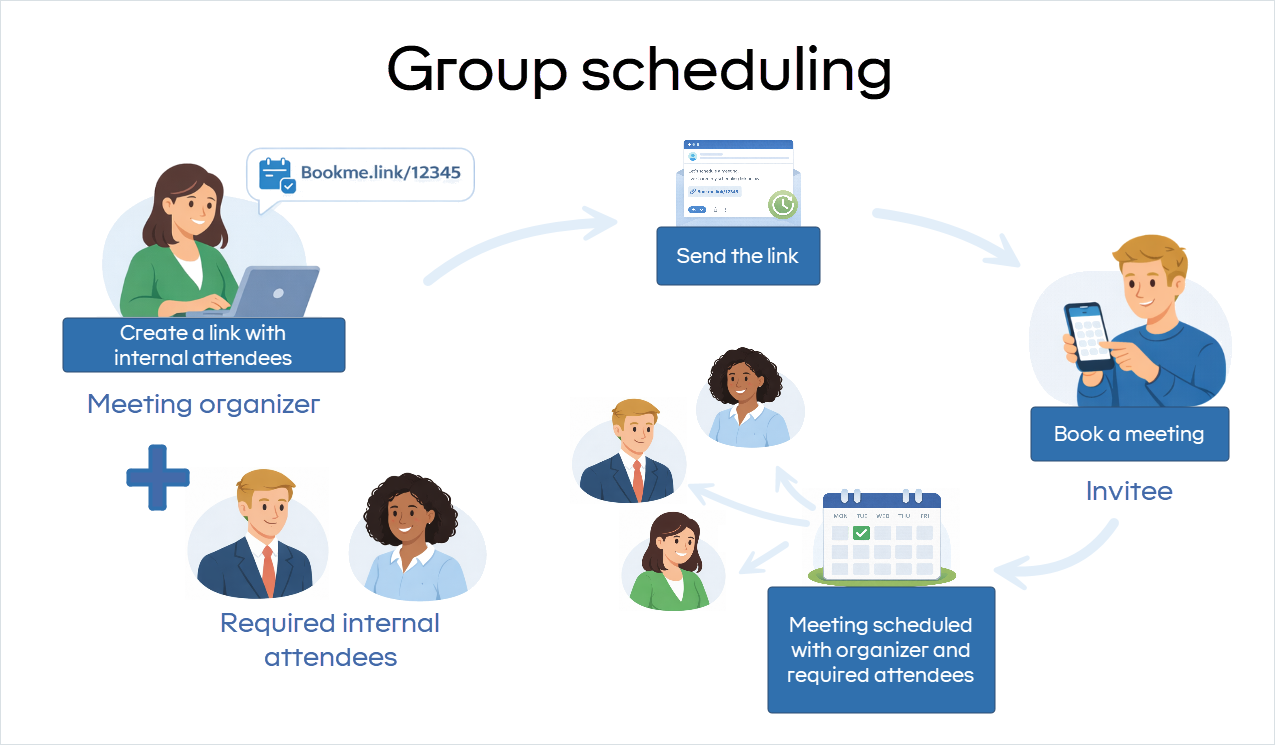
This is useful for meetings that require several team members, such as product demos or technical discussions.
Round-robin scheduling#
Recipients book a meeting with one available team member. Meetings are automatically distributed among participants.
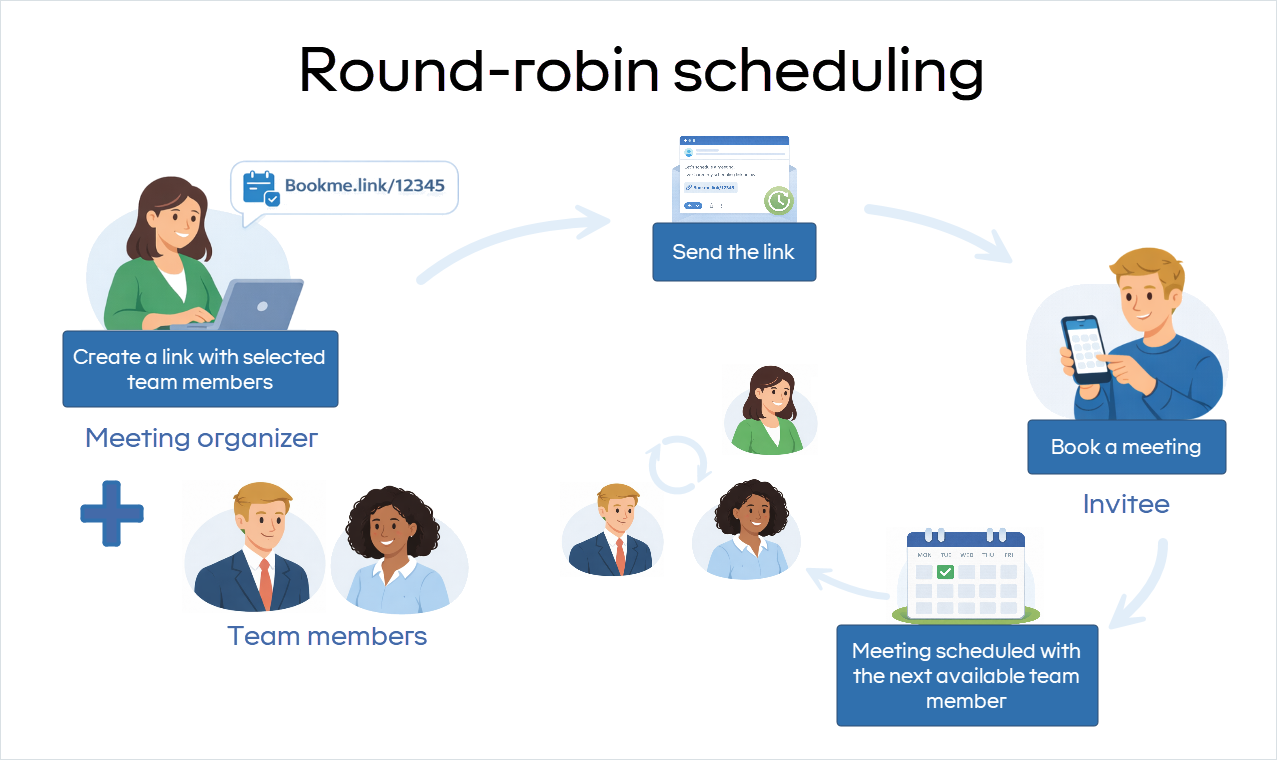
This scenario is commonly used for inbound demo requests or support calls handled by a team.
Scheduling scenario availability by email provider#
Scheduling scenario |
Microsoft Exchange |
Microsoft 365 |
Google Workspace |
|---|---|---|---|
Personal scheduling |
Yes |
Yes |
Yes |
Shared or delegated scheduling |
Yes |
Yes |
No |
Group scheduling |
Yes |
Yes |
Yes |
Round-robin scheduling |
No |
Yes* |
No |
* Round-robin scheduling is currently supported only for Microsoft 365 users connected through Microsoft Graph.