Revenue Grid Knowledge Base - Home Revenue Grid Knowledge Base - Home
  • Platform
  • Context Panel and Context Sync
  • Smart Sequences
  • Foresight
    • Kora AI
    • Salesforce Scheduler Adapter
    • Developers
  • Website
  • Facebook
  • X
  • LinkedIn
  • Platform
  • Context Panel and Context Sync
  • Smart Sequences
  • Foresight
  • Kora AI
  • Salesforce Scheduler Adapter
  • Developers
  • Website
  • Facebook
  • X
  • LinkedIn

Section Navigation

  • Overview
    • Context Panel and Context Sync features
    • Context Panel vs. Context Sync features
    • Context Panel features by platform
  • Setup
    • Install Context Panel for Outlook across different configurations
    • Install Context Panel in Outlook for Microsoft 365
    • Install Context Panel in Outlook for Mac
    • Install Context Panel in Outlook from a manifest file
    • Install Context Panel for Gmail
    • Install Context Panel on Android or iOS
    • Sign up for Revenue Grid using the registration wizard
    • Activate Context Sync
  • Get started
    • How Context Panel and Context Sync work
    • Adaptive sync intervals
    • Actions in Context Panel
    • Open Context Panel in Outlook for Microsoft 365
    • Revenue Grid for Salesforce and Gmail
  • Save activities
    • Emails saving overview
    • Ways to save emails
    • Create follow-up tasks when saving emails
    • Save calendar items
    • Saving from Gmail
    • Initial search and applied filters
    • Saving dialogs
    • Attachment saving
    • Auto-saving patterns
    • Email sync inclusion policies
    • Save all emails in thread
    • Crop previous emails in thread
    • Save Email Messages to additional Salesforce objects
    • Calendar sync patterns
    • Lock event fields during calendar synchronization
    • Event sync by attendee
    • Calendar sync exceptions
    • Syncing Salesforce Events to Outlook and Google Calendar
    • Email and domain blocklisting
    • Save blocklisted emails through Context Panel
    • Encrypted and S/MIME-signed emails
    • Confidential email handling
    • Save confidential emails using Context Panel
    • Confidential event handling
    • Save confidential events through Context Panel
    • Handle inbox SPAM
    • Activity linking
    • Object fields mapping
  • Work with Context Panel
    • About Context Panel
    • Pin Context Panel
    • Create new records
    • Search existing records
    • View related objects
    • Create a task, follow-up or log a call
    • Work with Salesforce activities
    • Add quick memos to Salesforce records
    • Open associated website or LinkedIn page
    • Work with Salesforce layouts and fields
    • Salesforce custom buttons
    • Set stale thread reminder
    • Smart Actions
      • Book Me
        • About Book me
        • Availability calculations
        • Meeting locations
        • Salesforce integration
        • Create links
          • Create personal link
          • Create group link
          • Create delegated or shared link
          • Create round-robin link
          • Quick Send Availability
        • Manage booking experience
          • Booking experience
          • Customize booking confirmation page
        • Manage links
          • Invalidate link
      • Time Slots in Outlook
      • Time Slots in Gmail
      • Salesforce reports
      • Salesforce templates
      • Tracking email opens
    • Context Panel on mobile devices
      • Using on Android devices
      • Using on iOS devices
    • Connect 360 Degree SMS
  • Use Context Sync
    • About Context Sync
    • Contact sync
    • Person Account sync
    • Task sync
    • Handling email aliases
    • Item deduplication
    • Historical sync and time zones matching
    • Smart description
    • Special sync patterns
  • Settings
    • Connectivity settings
      • Reconnect accounts
      • Change email address (Microsoft 365)
      • Change Salesforce account
      • Integration with Salesforce Customer / Partner Community
      • Authorize Customer / Partner Community
      • Zoom connectivity
        • Connect Zoom
        • Manage connectivity
    • Connected applications
    • Context Sync settings
      • Open Context Sync settings
      • Pause sync
      • Resume sync
      • Force sync
      • Configure Context Sync settings
      • Choose what to sync
      • Blocklist email addresses and domains
      • View sync statistics and connection statuses
      • Handle sync issues
    • Context Panel settings
      • Overview
      • Manage Context Panel objects
      • Configure attachments saving
      • Enable country picklist code
      • Configure object record cards
      • Create custom list view
      • Context Panel advanced settings
      • Manage Context Panel settings
    • Book Me defaults
      • Manage defaults
      • Book Me defaults reference
    • Other settings
      • Configure localizations
      • Set work hours in Outlook
      • Uninstall Context Panel and Context Sync
      • Uninstall Revenue Grid for Salesforce and Gmail
  • Admin guide
    • Deployment
      • Prepare environment
        • Allow-list Revenue Grid IPs
        • Install connected app
      • Open admin settings
      • Create profiles
      • Select authorization scenario
      • Set up mailbox access
        • About MS Graph connectivity
        • MS Graph delegated access
        • MS Graph app-only access
        • About EWS connectivity
        • Exchange basic authentication
        • Exchange impersonation
        • Google direct logon
        • Google access via service account
      • Set up Salesforce access
      • Provision users
      • Mass install Context Panel
        • Mass install Context Panel (Microsoft 365)
        • Mass install Context Panel (Microsoft Exchange)
        • Mass install Context Panel (Google)
    • Presets
      • About presets
      • Start working with presets
      • Create a settings preset
      • Assign and apply presets
      • Configure and update presets
      • Manage presets
      • Configure Context Sync settings using presets
      • Configure Context Panel settings using presets
      • Auto-crop email threads
    • Administration
      • Manage profiles
      • Manage users
      • Manage user licenses
      • Monitor users and profiles
      • Manage allowed Salesforce orgs
      • Set up Context Sync settings (legacy)
      • Context Sync settings reference
      • Blocklist emails and domains
      • Set up Context Panel settings (legacy)
      • Attachments handling and related settings
      • Manage access to Context Panel settings
      • Set up email thread auto-save
      • Set up follow-up task creation on email save
      • Configure the event participation package
      • Manage Kora AI Lite access
      • Advanced configuration with global settings
    • Connectivity
      • Grant Microsoft 365 tenant-wide consent
      • Configure EWS app-only
      • Configure RBAC for existing app
      • Revoke Microsoft Entra ID permissions
      • Restore Salesforce connectivity
      • Set up Salesforce service account
      • Create Zoom OAuth app
      • Pre-approve the Revenue Grid app in Zoom marketplace
      • EWS access in Exchange Online
        • Keep EWS access until April 2027
        • Check EWS status
        • Enable EWS for your organization
        • Enable EWS for user mailboxes
      • Migration
        • Migrate from EWS to MS Graph delegated
        • Migrate from EWS to MS Graph app-only
    • Integration
      • Generate tenant URL
      • Generate integration credentials
      • Create an integration user
      • Verify an integration user
      • Configure My Domain in Salesforce
    • Managed package
      • Install package
      • Connect additional organizations
      • Update package
      • Uninstall package
      • Package components
    • Widgets in Salesforce
      • Add widgets (admins)
      • Add widgets (users)
      • Replace old widgets
      • Switch old app
      • Replace app tabs (admins)
      • Replace app tabs (users)
    • Instant Sync
      • Configure Instant Sync
      • Fine-tune Instant Sync triggering
      • Change the integration user
    • Context Panel mass removal
      • Mass remove Context Panel (Microsoft 365)
      • Mass remove Context Panel (Google Workspace)
    • Shared and delegated access
      • Delegated mailbox access
      • Delegated calendars access
      • Working with shared mailboxes
      • Convert shared mailbox to regular one
    • Advanced calendaring
      • Enable advanced calendaring
      • Sync rooms availability to Salesforce calendar
    • Scheduler API
      • Scheduler API endpoints
      • Generate API keys
  • Troubleshooting
    • Basic Context Panel troubleshooting
    • Authorize Context Sync in Azure / Microsoft 365 admin settings
    • Salesforce API calls limit
    • Context Sync error codes
    • Diagnostic mode for troubleshooting
    • Revoke a mailbox access token
    • Instant Sync troubleshooting
    • Configure meeting rooms for EWS
    • Managed package issues
      • Managed Package installation problem
      • Revenue Grid widgets errors
      • Unavailable Canvas apps
      • Disable triggers
    • Issues and errors
      • Context Panel login page endless loading
      • Context Panel loading issue
      • Context Panel icons are grayed out
      • Context Panel icon is missing in New Outlook
      • Save email button is disabled
      • Chrome extension startup errors
      • Add-in could not be started
      • Wrong Context Panel version was installed
      • UTF-7 email encoding issue
      • Add-in has been disabled to keep you safe
      • Need Admin Approval
      • Need Admin Approval (NAA)
      • Browser version troubleshooting
      • Salesforce OAuth error
      • Unable to share or import Context Panel settings
      • Attachment display issues
      • Unexpected email synchronization
      • Two deleted tasks appear in Salesforce after sync
      • Event duplication
      • Event sync issue
      • Sync error caused by Contacts filters
      • Contacts sync issue on iOS devices
      • Book Me link displays incorrect time
      • Book Me events linked to wrong contact
      • You have no authorization for this page or action error
      • Email cannot be saved to a custom object
    • How to's
      • Clear Edge cache & cookies
      • Clear cache on MacOS
      • Export Outlook items
      • Obtain Outlook add-in manifests
      • Delay or schedule emails sending
  • Context Panel and Context Sync
  • Work with Context Panel
  • Smart Actions
  • Book Me
  • Create Book Me links
  • Create a delegated or shared Book Me link

Create a delegated or shared Book Me link#

2 min read

Supported platforms:Exchange Server Microsoft 365

Delegated or shared scheduling allows you to create a Book Me link on behalf of another user or for a shared calendar. This allows recipients to book meetings directly in the delegator’s calendar or in the shared calendar.

Delegated and shared scheduling are supported for Microsoft Exchange and Microsoft 365 calendars.

How availability is calculated#

When a delegated or shared Book Me link is used, availability is calculated based only on the calendar of the selected Organizer (delegator or shared calendar).

For more information about availability rules, see How Book Me calculates availability.

Salesforce event linking behavior#

A meeting created using a delegated or shared Book Me link is saved to the calendar of the selected Organizer.

If Context Sync is enabled for that user, the meeting is automatically saved to Salesforce and linked to the specified records.

If the delegator or shared calendar owner does not have Context Sync enabled, the meeting is still created in their calendar, but it is not automatically saved to Salesforce.

For details, see Automatic linking of booked events to Salesforce.

Create a delegated or shared Book Me link#

The process is similar to creating a personal Book Me link, with one key difference: you must select the calendar owner in the Organizer field.

Before you begin#

To create a delegated or shared Book Me link, ensure that:

  • You have Editor or Author permission for the delegator’s calendar, or Edit permission for the shared calendar.

  • The calendar belongs to the same Microsoft Exchange or Microsoft 365 organization.

Configuration steps#

  1. Open or create an email.

  2. Open the Context Panel.

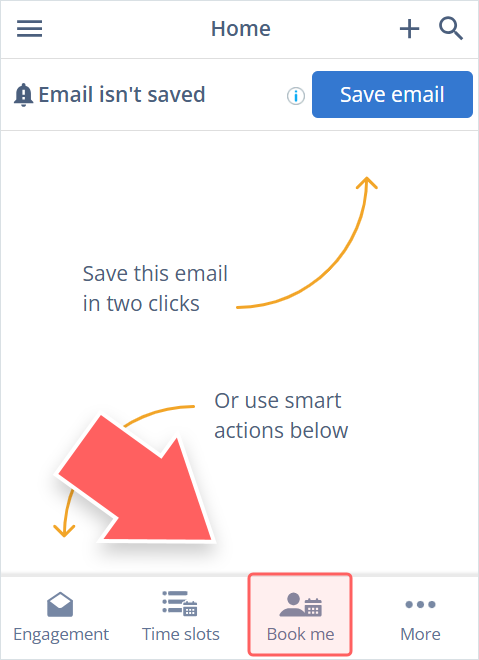
  3. Select Book Me.

    The Book Me icon in the smart actions toolbar in the Context Panel
  4. In the Organizer field, select:

    • the delegator, if you are creating the link on behalf of another user, or

    • the shared calendar owner, if the meeting should be scheduled in a shared calendar.
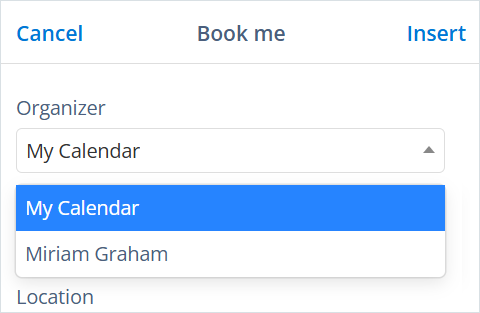
    The Organizer menu in the Book Me creation form in the Context Panel
  5. If you select a delegator as the organizer, your email is automatically added as a required attendee. Remove your email from the attendee list if you do not need to attend the meeting.

  6. Configure the remaining booking settings as needed.

  7. Select Insert to add the link to the email.
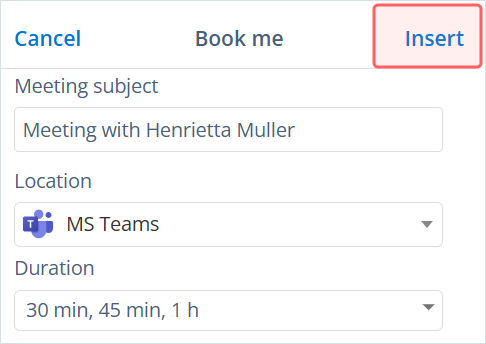
    The Insert button in the Book Me creation form in the Context Panel

For detailed instructions on configuring meeting settings, see Create a personal Book Me link.

previous

Create a group Book Me link

next

Share meeting requests fairly with round-robin scheduling

On this page
  • How availability is calculated
  • Salesforce event linking behavior
  • Create a delegated or shared Book Me link
    • Before you begin
    • Configuration steps

Was this article helpful?

© Copyright 2026, Revenue Grid.