

Create a group Book Me link#
Supported platforms: Exchange Server
 Microsoft 365
 Google
Group scheduling allows recipients to book a meeting that includes multiple participants from your organization. Availability is calculated based on all required participants to ensure everyone can attend.
This is useful for meetings that require several team members, such as product demos or technical discussions.
Availability in group scheduling#
When creating a group Book Me link, you add internal participants as required attendees. Book Me then checks the calendars of the meeting organizer and all required internal attendees when generating available time slots.
Only time slots that are available for all required internal participants appear on the booking page.
Internal participants are users who belong to the same Microsoft 365, Microsoft Exchange, or Google Workspace organization as the meeting organizer.
Optional attendees do not affect availability calculations. This also applies to required attendees who do not belong to the meeting organizer’s organization.
For more details about how availability is calculated, see How Book Me calculates availability.
Create a group Book Me link#
The process for creating a group Book Me link is similar to creating a personal Book Me link, with one key difference: you must add the internal participants whose availability should be included.
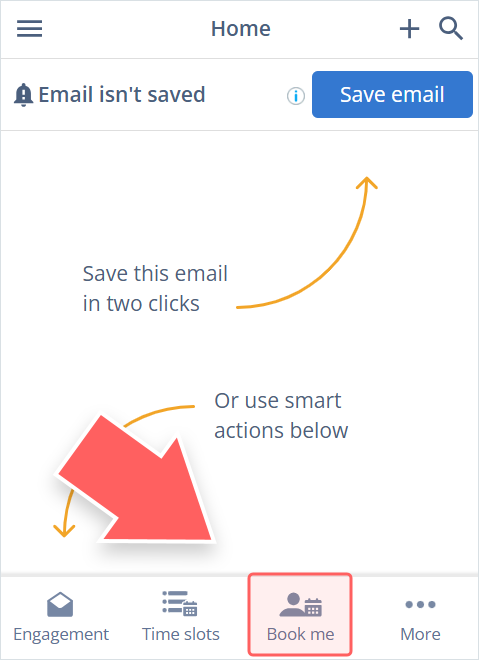
Open or create an email.
Open the Context Panel.
Select Book Me.
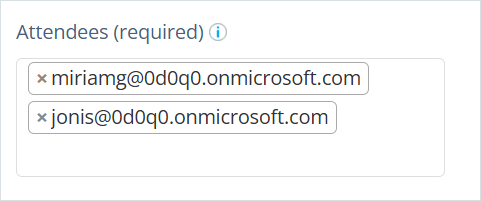
In Attendees (required), add the internal participants whose calendars should be included when calculating available meeting time slots.
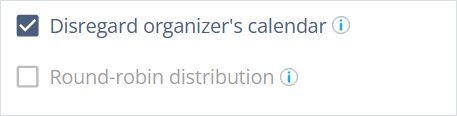
If the meeting organizer does not need to attend the meeting, select Disregard organizer’s calendar so that the organizer’s calendar does not affect the available time slots.
Configure the remaining booking settings as needed.
Select Insert to add the link to the email.
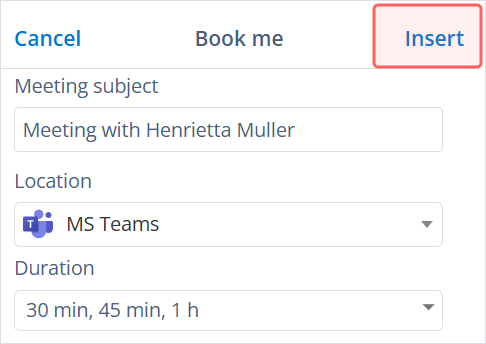
For detailed instructions on configuring meeting settings, see Create a personal Book Me link.