Migrate from Exchange Web Services (EWS) to Microsoft Graph app-only access#
Supported platforms: Microsoft 365
Migrate Revenue Grid mailbox connectivity from EWS delegated or app-only access to Microsoft Graph app-only access to prepare for Microsoft’s retirement of EWS in Exchange Online.
With Microsoft Graph app-only access, Revenue Grid uses its application identity to access Microsoft 365 without requiring users to authorize their mailboxes individually. Required application permissions are authorized through Microsoft Entra ID and, for Exchange mailbox access, Exchange Online RBAC for Applications.
For instructions on migrating to Microsoft Graph delegated access, see Migrate from EWS to Microsoft Graph delegated access.
Before you begin#
Understand how Revenue Grid uses Microsoft Graph#
Before migrating, see How Revenue Grid uses Microsoft Graph to connect to Microsoft 365 to understand:
The differences between delegated and app-only access
Which permissions Revenue Grid uses and how they are authorized
Known Microsoft Graph limitations that may affect Revenue Grid functionality
Once you’re familiar with the integration model, confirm the prerequisites below.
Prerequisites#
Make sure that:
You have a Platform admin or Profile admin account in Revenue Grid.
You have a Microsoft 365 admin account that can grant tenant-wide admin consent.
The Exchange Online PowerShell module is installed.
Your administrator account is a member of the Organization Management role group in Exchange Online or is assigned the Exchange Administrator role in Microsoft Entra ID.
Migrate to Microsoft Graph app-only access#
To migrate from EWS connectivity to Microsoft Graph app-only access:
Configure Exchange mailbox access for Microsoft Graph through Exchange RBAC
Change the mailbox access type in Revenue Grid and grant the required Microsoft Entra ID permissions
Review and revoke unnecessary Microsoft Entra ID permissions
Complete the steps in this order to maintain mailbox access during migration and ensure that Exchange RBAC controls the intended mailboxes.
Step 1: Configure Exchange mailbox access for Microsoft Graph through Exchange RBAC#
Exchange Online RBAC for Applications grants the Revenue Grid application the Exchange mailbox permissions required for Microsoft Graph app-only connectivity. You can grant these permissions organization-wide or scope them to specific mailboxes.
Get the Revenue Grid application IDs#
Get the identifiers of the Revenue Grid service principal in your Microsoft 365 tenant.
Open the Microsoft Entra admin center.
Go to Enterprise applications > All applications.
Find and open the Revenue Inbox app.
Important
Don’t use Revenue Inbox EwsAppOnly, which is used for EWS app-only connectivity.
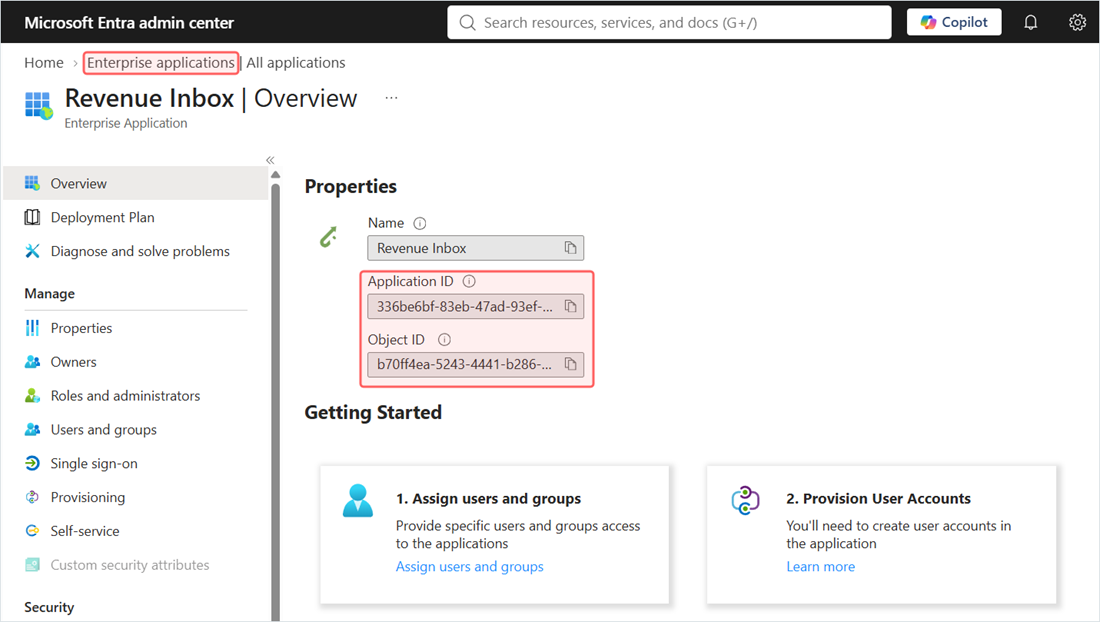
On the Overview page, copy the Application ID and Object ID.
Important
Use the Application ID and Object ID from Enterprise applications, not App registrations. The Object IDs displayed in these areas are different. Exchange Online requires the service principal Object ID from Enterprise applications.
The examples in this article use the following example values:
Application ID: 336be6bf-83eb-47ad-93ef-123456789abc
Object ID:      b70ff4ea-5243-4441-b286-abcdef123456
Replace these values with the IDs you copied from the Revenue Inbox enterprise application.
Connect to Exchange Online#
Open PowerShell and connect to Exchange Online:
Connect-ExchangeOnline
For instructions, see Connect to Exchange Online PowerShell.
Register the Revenue Grid service principal in Exchange Online#
Create a pointer in Exchange Online to the Revenue Grid service principal in Microsoft Entra ID:
New-ServicePrincipal -AppId "<RevenueGridAppId>" -ObjectId "<ServicePrincipalObjectId>" -DisplayName "Revenue Grid"
Replace:
<RevenueGridAppId>with the Revenue Grid application’s Application ID.<ServicePrincipalObjectId>with the Revenue Grid application’s Object ID.
Example:
New-ServicePrincipal -AppId "336be6bf-83eb-47ad-93ef-123456789abc" -ObjectId "b70ff4ea-5243-4441-b286-abcdef123456" -DisplayName "Revenue Grid"
If the service principal is already registered in Exchange Online, you don’t need to create it again.
Choose the mailbox access scope#
You can grant Revenue Grid access to all Exchange Online mailboxes in your organization or limit access to specific mailboxes.
If Revenue Grid should access all mailboxes, you don’t need to create a resource scope. Skip to Assign the required Exchange application roles and omit the resource scope when assigning each role.
To limit access to specific mailboxes, configure a resource scope using one of the following methods.
Use a group to define the mailbox scope#
If you have a Microsoft 365 group, mail-enabled security group, or distribution list containing the mailboxes Revenue Grid should access, you can use its membership to define the management scope.
Get the distinguished name of the group:
Get-Group "<GroupEmailAddress>" | Format-List DistinguishedName
Example:
Get-Group "[email protected]" | Format-List DistinguishedName
Then create a management scope using the distinguished name returned by the previous command:
New-ManagementScope -Name "<ScopeName>" -RecipientRestrictionFilter "MemberOfGroup -eq '<DistinguishedName>'"
Important
Only direct group membership is included in the scope. Nested group members aren’t included.
Supported group types include only Microsoft 365 groups, mail-enabled security groups, and distribution lists.
Use a recipient property to define the mailbox scope#
You can also define a management scope based on a supported recipient property:
New-ManagementScope -Name "<ScopeName>" -RecipientRestrictionFilter "<RecipientProperty> -eq '<Value>'"
For example, to include mailboxes whose Department property is Sales:
New-ManagementScope -Name "Revenue Grid mailboxes" -RecipientRestrictionFilter "Department -eq 'Sales'"
You can use other supported recipient properties, such as custom attributes, depending on how your organization identifies the mailboxes Revenue Grid should access.
Use a Microsoft Entra administrative unit#
If your organization uses Microsoft Entra administrative units to organize users, you can use an administrative unit as the resource scope instead of creating an Exchange management scope.
In this case, you don’t need to run New-ManagementScope. Use the -RecipientAdministrativeUnitScope parameter when assigning the Exchange application roles, as described in the next section.
Assign the required Exchange application roles#
Assign the Exchange application roles required for the Revenue Grid functionality your organization uses. How you assign each role depends on the mailbox access scope you selected.
To determine which permissions must be granted through Exchange RBAC, see How Revenue Grid uses Microsoft Graph to connect to Microsoft 365 | Application permissions.
For organization-wide access#
Don’t specify a resource scope:
New-ManagementRoleAssignment -App "<ServicePrincipalObjectId>" -Role "<ApplicationRole>"
For example, to grant Application Mail.ReadWrite organization-wide:
New-ManagementRoleAssignment -App "b70ff4ea-5243-4441-b286-abcdef123456" -Role "Application Mail.ReadWrite"
Repeat the command for each required Exchange application role.
For an Exchange management scope#
Specify the management scope using -CustomResourceScope:
New-ManagementRoleAssignment -App "<ServicePrincipalObjectId>" -Role "<ApplicationRole>" -CustomResourceScope "<ScopeName>"
For example, to grant Application Mail.ReadWrite to mailboxes in the Revenue Grid mailboxes scope:
New-ManagementRoleAssignment -App "b70ff4ea-5243-4441-b286-abcdef123456" -Role "Application Mail.ReadWrite" -CustomResourceScope "Revenue Grid mailboxes"
Repeat the command for each required Exchange application role, using the same mailbox scope.
For example, to also grant Application Calendars.ReadWrite:
New-ManagementRoleAssignment -App "b70ff4ea-5243-4441-b286-abcdef123456" -Role "Application Calendars.ReadWrite" -CustomResourceScope "Revenue Grid mailboxes"
For a Microsoft Entra administrative unit#
Specify the administrative unit using -RecipientAdministrativeUnitScope:
New-ManagementRoleAssignment -App "<ServicePrincipalObjectId>" -Role "<ApplicationRole>" -RecipientAdministrativeUnitScope "<AdministrativeUnitId>"
Replace <AdministrativeUnitId> with the ID of your Microsoft Entra administrative unit.
For example:
New-ManagementRoleAssignment -App "b70ff4ea-5243-4441-b286-abcdef123456" -Role "Application Mail.ReadWrite" -RecipientAdministrativeUnitScope "aaaaaaaa-bbbb-cccc-dddd-eeeeeeeeeeee"
Verify the Exchange RBAC configuration#
Verify that the Revenue Grid service principal has the expected Exchange RBAC authorization.
Run:
Test-ServicePrincipalAuthorization -Identity "<ServicePrincipalObjectId>" -Resource "<MailboxEmailAddress>" | Format-Table
For example, suppose alex.wilson@contoso.com is included in the Revenue Grid mailboxes scope:
Test-ServicePrincipalAuthorization -Identity "b70ff4ea-5243-4441-b286-abcdef123456" -Resource "[email protected]" | Format-Table
The command returns the Exchange application role assignments for the service principal and indicates whether the specified mailbox is within the scope of each assignment.
For example:
RoleName                         GrantedPermissions       AllowedResourceScope        ScopeType               InScope
--------                         ------------------       --------------------        ---------               -------
Application Mail.ReadWrite       Mail.ReadWrite           Revenue Grid mailboxes      CustomRecipientScope    True
Application Calendars.ReadWrite  Calendars.ReadWrite      Revenue Grid mailboxes      CustomRecipientScope    True
Verify that InScope is True for each role required to access the mailbox.
If you configured access to specific mailboxes, you can also run the command for a mailbox that shouldn’t be accessible. For the scoped roles, InScope should be False.
Important
Test-ServicePrincipalAuthorization verifies Exchange RBAC assignments only. It doesn’t include application permissions granted through Microsoft Entra ID.
Changes to Exchange RBAC authorization can take from 30 minutes to 2 hours to propagate. Test-ServicePrincipalAuthorization bypasses the permission cache, so test results are immediate. However, actual API access through Microsoft Graph may take longer to reflect changes.
Step 2: Change the mailbox access type in Revenue Grid and grant the required Microsoft Entra ID permissions#
After you configure and verify Exchange RBAC authorization, change the profile’s mailbox access type from EWS to Microsoft Graph app-only access and grant admin consent for the required Microsoft Entra ID permissions.
Sign in to the Revenue Grid Platform.
In the upper-right corner, select your profile icon, and then select Settings.
Under Administration, go to Profiles.
Open the profile you want to migrate, and then go to the Connectivity tab.
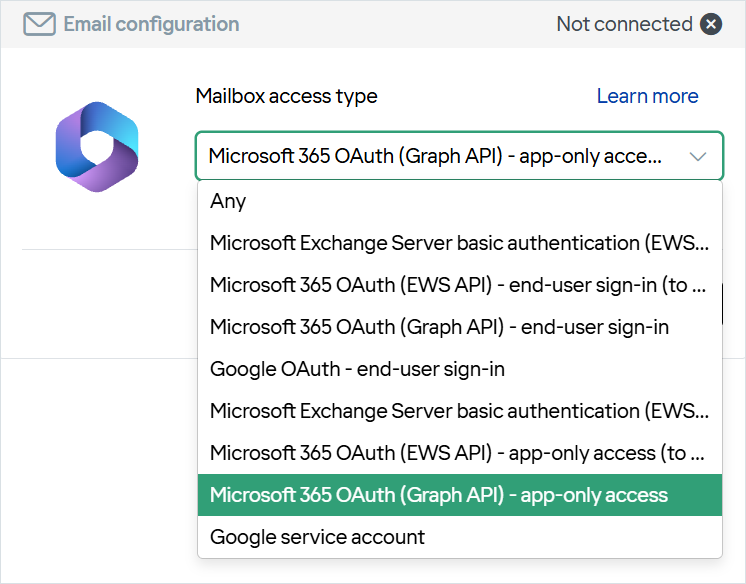
Under Email configuration, select: Microsoft 365 OAuth (Graph API) - app-only access
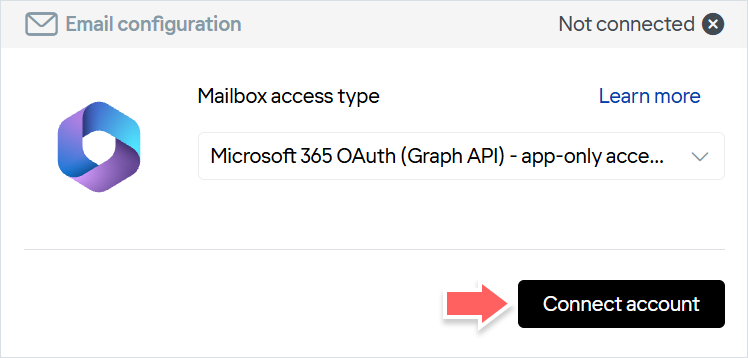
Click Connect account.
Sign in with Microsoft 365 admin credentials.
Review the requested permissions, and then select Accept.
When the connection is successful, Email configuration displays Connected.
Step 3: Review and revoke unnecessary Microsoft Entra ID permissions#
After you verify the Exchange RBAC configuration and grant admin consent for the Microsoft Graph app-only connection, ensure that no organization-wide Microsoft Entra ID permissions provide the same Exchange mailbox access. If they do, revoke them.
Microsoft Entra ID application permissions and Exchange Online RBAC assignments are independent and additive. If an organization-wide Microsoft Entra ID mailbox permission remains granted, a scoped Exchange RBAC assignment doesn’t restrict the access provided by that permission.
For example, if you assigned Application Mail.ReadWrite through Exchange RBAC for Microsoft Graph app-only connectivity, revoke the corresponding organization-wide Mail.ReadWrite application permission from Microsoft Entra ID. See How Revenue Grid uses Microsoft Graph to connect to Microsoft 365 for the mapping between Microsoft Graph application permissions and Exchange RBAC application roles.
You may also want to remove permissions for Revenue Grid functionality your organization doesn’t use or permissions that were granted together when you provided admin consent but aren’t required for your configuration.
Important
Before revoking a permission, make sure that it isn’t required by another Revenue Grid profile or functionality in your organization.
To review and revoke permissions:
Open the Microsoft Entra admin center.
Go to Enterprise applications > All applications.
Find and open the Revenue Inbox app.
Important
Don’t use Revenue Inbox EwsAppOnly, which is used for EWS app-only connectivity.
Select Permissions, then open the Admin consent tab.
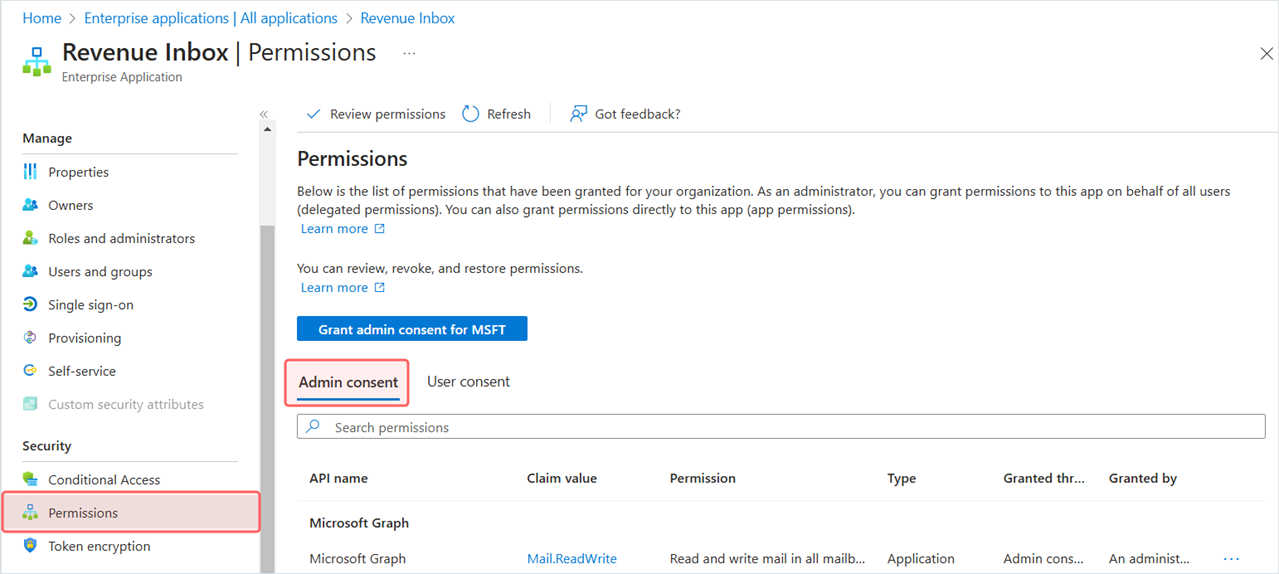
Review the application permissions granted to Revenue Grid.
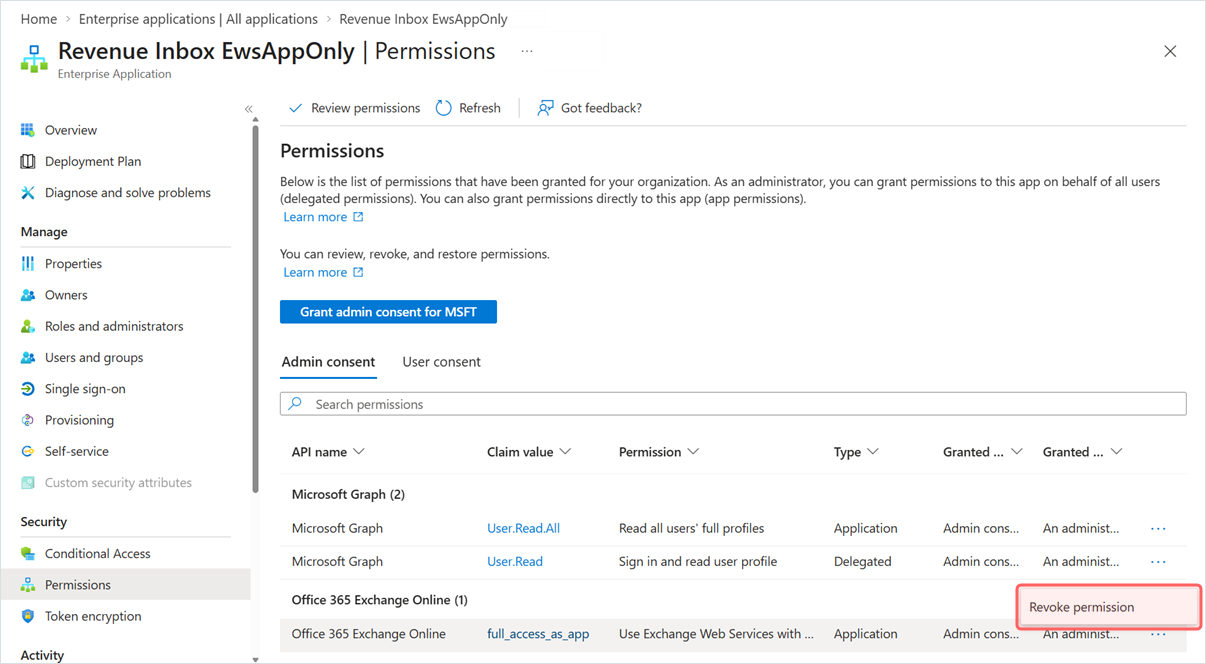
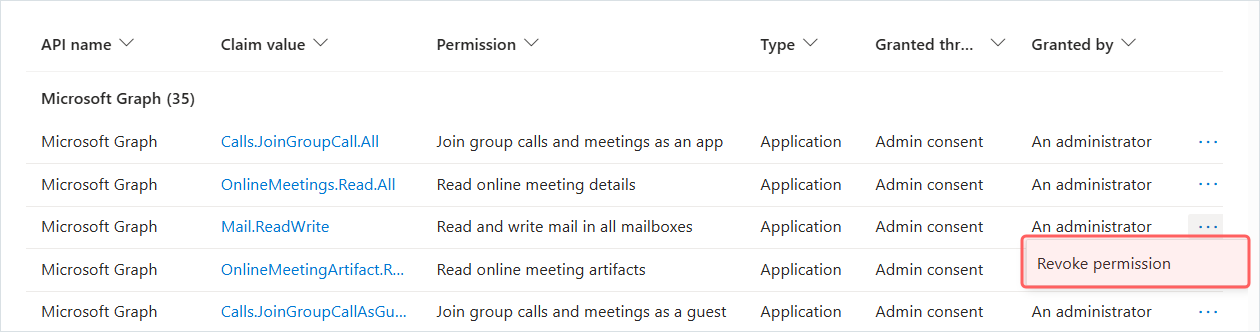
For each permission you want to revoke, select the ellipsis (…), and then select Revoke permission.
Step 4: Verify mailbox access in Revenue Grid#
Verify that Revenue Grid can access the expected mailboxes.
If you configured access to specific mailboxes, use at least two users for verification:
A user whose mailbox is included in the Exchange RBAC scope
A user whose mailbox isn’t included in the scope
To check connectivity:
Open Revenue Grid settings.
Under Administration, go to Profiles.
Open the migrated profile, and then go to the Connectivity tab.

In Email configuration, select Check users’ impersonated access.
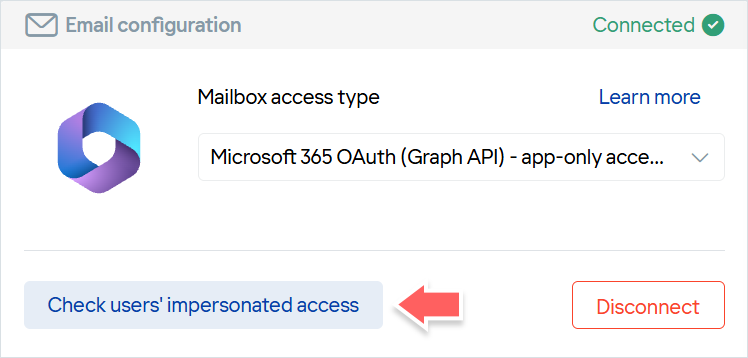
Review the connection status for the users assigned to the profile.

For a scoped configuration, the user whose mailbox is included in the Exchange RBAC scope should be connected. The user whose mailbox is outside the scope shouldn’t be connected.
If both mailboxes are accessible, verify that the Revenue Inbox application doesn’t still have a corresponding organization-wide Microsoft Graph mailbox permission in Microsoft Entra ID, as described in Step 3.
If you recently changed an Exchange RBAC assignment and the result isn’t as expected, allow up to 2 hours for the permission cache to update, and then check access again.
Step 5: Verify successful migration#
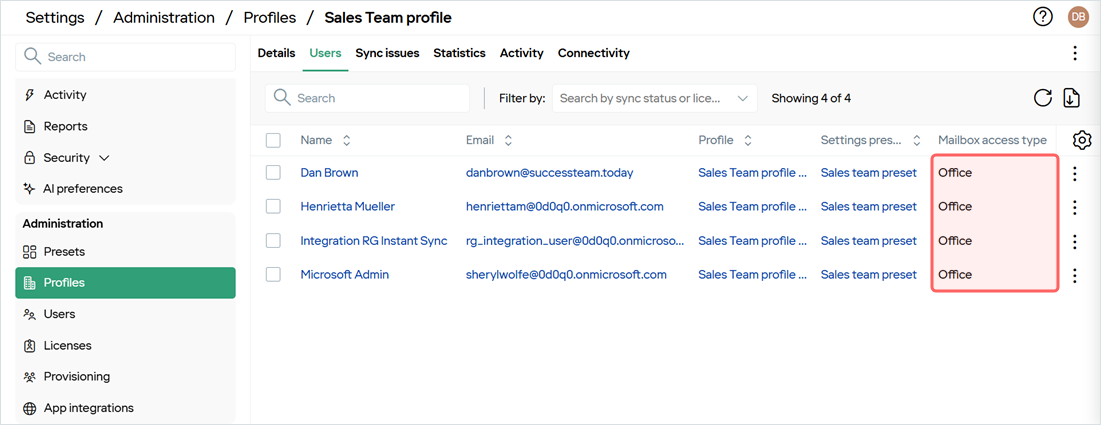
Confirm that the profile’s users are using Microsoft Graph instead of the previous EWS connection.
In the profile, go to the Users subtab.
Check that each user’s Mailbox access type shows Office instead of Exchange.
Step 6: Revoke permissions for the previous EWS app-only connection#
If you migrated from EWS app-only connectivity and no other Revenue Grid profiles use this connectivity, revoke the permissions granted to the Revenue Inbox EwsAppOnly enterprise application.
Important
If other Revenue Grid profiles still use EWS app-only connectivity, keep the permissions required by those profiles.
In the Microsoft Entra admin center, go to Enterprise applications > All applications.
Find and open the Revenue Inbox EwsAppOnly app.
Select Permissions, then open the Admin consent tab.
For each permission, select the ellipsis (…), and then select Revoke permission.