

Context Sync settings configuration for admins (legacy approach)#
Context Sync can automatically sync emails, calendar events, contacts, and tasks between users’ mail clients and Salesforce. As an administrator, you can control how this sync works across your organization—what data is saved, how it’s processed, and what rules apply.
This article explains how to configure Context Sync settings using the legacy configuration approach, which applies to environments that have not yet adopted settings presets or are using them selectively. If your organization uses presets, or plans to switch soon, see Configure Context Sync settings using settings presets.
What admins can control with Context Sync settings#
Admins can configure how user data is synced between mail clients and Salesforce. Key controls include:
Sync area |
Description |
|---|---|
Email sync |
Automatically save relevant emails, email threads, and prevent duplicates. |
Calendar sync |
Sync Salesforce events to mail calendars; save to Salesforce meetings and appointments created in the mail client. |
Contact sync |
Push Salesforce contacts to mail clients; prevent accidental deletion. |
Task sync |
Sync Salesforce tasks; prevent deletions in the mail client. |
Opportunity linking |
Link saved emails to relevant Salesforce opportunities. |
Attachment sync |
Limit synced file types to reduce storage use and control exposure. |
Blocklists |
Exclude specific email addresses or domains from being synced. |
For more details, see Reference guide to Context Sync settings.
About the legacy sync configuration approach#
Revenue Grid supports two methods for configuring synchronization settings: the legacy configuration approach and the modern preset-based approach.
The legacy approach allows you to set sync behavior both:
At the individual user level, for the specific users
At the profile level, for all users assigned to that profile
Context Sync settings for individual users can be configured in both legacy and preset-based configurations. Profile-level configuration is only available in the legacy approach. Once a profile is switched to preset mode, profile-level Context Sync settings can no longer be edited and must be managed through presets instead.
Important
In legacy profile-level configuration, some sync options—such as task sync, contact sync, and calendar down-sync—are not available. To configure these, use individual user settings or switch to presets.
For a detailed comparison of available Context Sync settings by configuration level, see Context Sync settings availability by configuration level.
Configure Context Sync settings for an individual user#
To change sync behavior for a single user:
Go to the Users tab.
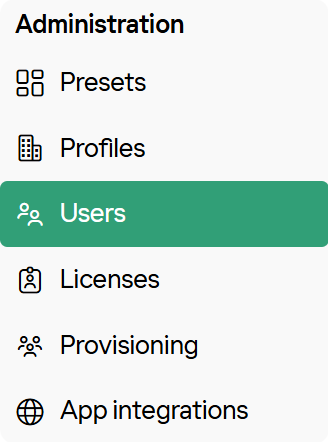
Search for the user and select their name to open the user details.
In the left pane, select Context Sync settings.
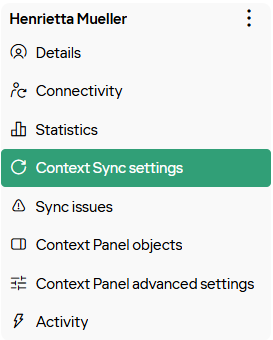
Adjust the Context Sync settings as needed.
For a complete list of available options, see Reference guide to Context Sync settings.
Click Save.
The new settings will be applied during the user’s next sync session.
Configure Context Sync settings for a profile#
Important
Context Sync settings configured at the profile level are enforced for all users in that profile and cannot be changed at the user level.
To define Context Sync settings for all users in a profile:
Go to the Profiles tab.
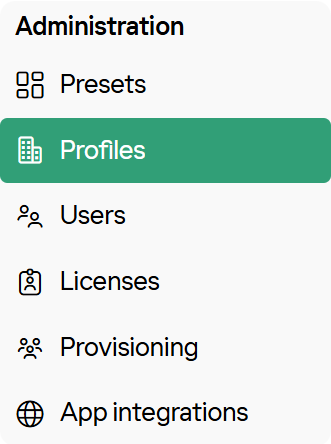
Search for and open the profile you want to configure.
In the Details tab, find the Context Sync section.
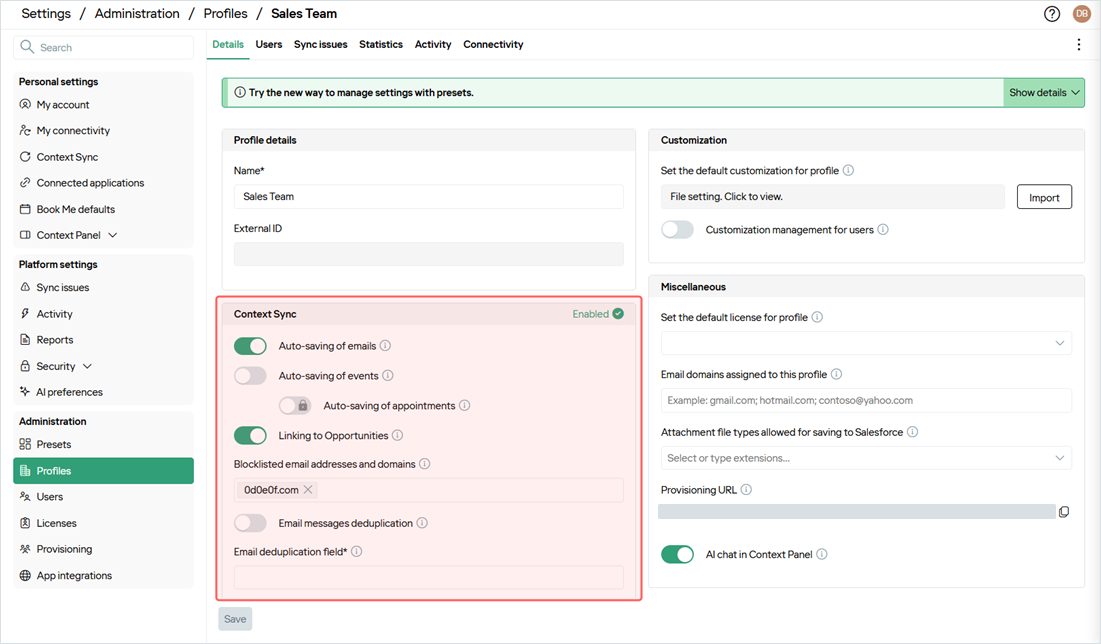
Modify the Context Sync settings as needed.
For a complete list of available options, see Reference guide to Context Sync settings.
Select Save.
The new settings will apply to all users in the profile during the user’s next sync session.