

Context Panel settings admin-level configuration with settings presets#
As an admin, you can control how Context Panel interacts with Salesforce for users—defining which objects are available, how records are displayed, and how users can search for and interact with related data.
This article explains how to configure Context Panel settings using settings presets, so you can apply a consistent setup at scale, saving time and reducing the risk of misconfiguration.
If your organization hasn’t yet transitioned to presets, see Context Panel settings configuration for admins (legacy approach).
What admins can control in Context Panel#
By configuring Context Panel settings, you can tailor how Salesforce records are displayed, linked, and saved to match your organization’s processes. Admins can:
Manage Context Panel objects: Define which Salesforce object types (e.g., Contacts, Opportunities) appear in Context Panel and are available for search and record association.
Configure object record cards: Customize how records appear for each object type, including visible fields and available actions.
Configure advanced Context Panel behavior: Control smart actions, engagement tracking, attachment handling, and how emails or calendar events are saved.
For more details, see the Context Panel settings overview.
How Context Panel settings configuration works with presets#
When settings presets are enabled for a user’s profile, Context Panel customization is managed centrally through the assigned preset. This means you configure the desired Context Panel behavior once in the preset and apply it to multiple users or entire profiles, ensuring consistency and saving time.
Admins can still configure Context Panel settings for individual users if needed, but once a preset is assigned to the user, the settings defined in the preset take priority and overwrite personal customizations when applied.
Preset configuration requirements#
These general requirements apply when using settings presets for configuring either Context Sync or Context Panel:
Presets must be enabled for the target users or profiles.
Only platform admins can edit preset settings.
Profile admins can view presets but only manage settings at the user level.
A platform admin must have an active Salesforce connection to configure Context Panel settings in a preset; otherwise, the settings are read-only.
The Salesforce visibility of the user whose access is used for configuration must be equal to or broader than that of the target users:
If a platform admin configures settings directly in a preset, their own Salesforce visibility must match or exceed that of the target users.
If the admin creates a preset from a reference user’s settings (recommended), the reference user must have equal or broader visibility than the users to whom the preset will be applied.
Note: Some requirements, such as the Salesforce connection, apply only to Context Panel configuration. Others are relevant to both sync and Context Panel settings.
Context Panel settings validation#
When you configure Context Panel settings in a preset, Revenue Grid validates them based on Salesforce data access and visibility. This ensures that users only receive configurations they’re authorized to use, and prevents issues caused by configuration mismatches.
Validation is performed depending on who is configuring the settings and where the configuration is applied from:
Configuration scenario |
Validation uses Salesforce access of |
|---|---|
You configure your own Context Panel settings |
You (the admin) |
You configure another user’s settings from Administration settings |
That user |
You configure settings in a preset |
You (the admin) |
If you don’t have an active Salesforce connection, Context Panel settings in a preset will be available in read-only mode until you connect.
How Context Panel settings apply through presets#
In Revenue Grid, all changes you make to Context Panel objects and advanced settings are treated as a single setting—called the Context Panel customization.
When applied through a preset, this customization always overwrites the user’s existing Context Panel configuration—regardless of whether you choose merge or override application mode.
How visibility differences affect settings application#
Context Panel settings applied through presets are filtered based on the admin’s and users’ Salesforce visibility. The following rules apply:
Visibility relationship |
Result |
|---|---|
Admin has greater visibility |
User receives only the settings they can access; restricted objects/fields are excluded. |
Admin has less visibility |
User receives only the objects the admin has access to. |
Admin and user have different visibility |
User receives only the objects both parties can access. |
If users have greater access, they may still work with additional objects not covered in the preset. However, if they reset to defaults or the admin reapplies the preset, those extra configurations will be lost.
Configure Context Panel settings in a preset#
There are two ways to configure Context Panel settings using presets:
Configure settings directly in a preset: Set up Context Panel settings in a preset and then assign the preset to users or profiles.
Create a preset from a user’s settings (recommended): Configure Context Panel customization for a reference user first, then import their settings into a new preset.
Select the option that best fits your workflow:
Important
The reference user must have equal or broader Salesforce visibility than the users to whom the preset will be assigned.
Important
To configure Context Panel settings directly in a preset, an admin must have an active Salesforce connection and equal or broader Salesforce visibility than the users to whom the preset will be assigned.
Go to Presets.
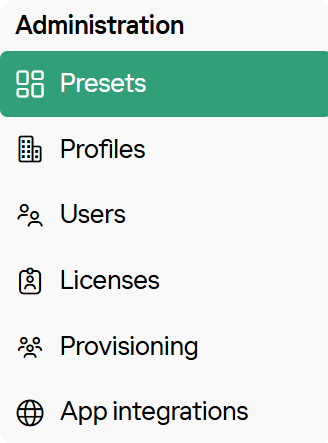
Clone an existing preset to create a new one.
Use the Context Panel objects and Context Panel advanced settings tabs to update the configuration:
Click Save (for each tab individually).
Ask users to refresh Context Panel.