

Configure user-authorized mailbox access for Google Workspace#
Supported platforms: Google
Set up Revenue Grid so users with Google Workspace accounts can authorize access to their own mailboxes. This method uses direct sign-in by end users and does not require admin-level permissions.
Before you begin#
Make sure the following prerequisites are met:
You have a platform admin or profile admin account in Revenue Grid.
All required user profiles have been created in Revenue Grid.
Set up user-authorized mailbox access type for Google Workspace users#
Open the Revenue Grid settings.
Under the Administration section, go to Profiles.
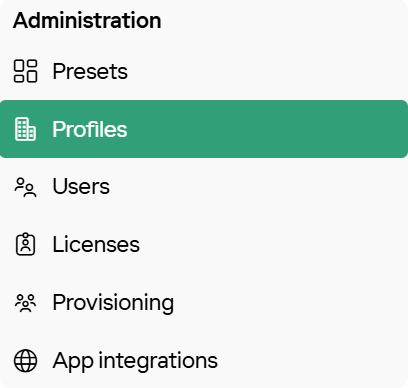
Open the profile you want to configure and go to the Connectivity tab.

In the Email configuration section, open the Mailbox access type dropdown and select Google Direct Logon.
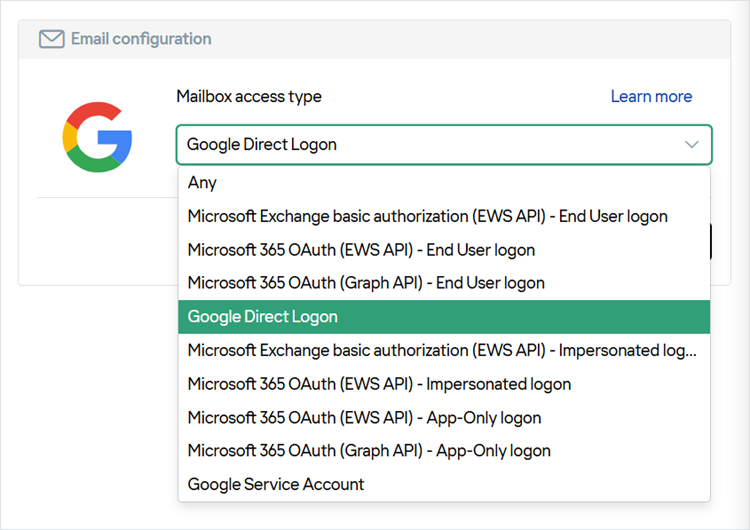
Click Save to apply the settings.
Now, only users with Google Workspace accounts can now be assigned to this profile. Each user will connect their mailbox by signing in with their Google credentials during onboarding.