

Verify an integration user for connecting Revenue Grid to Salesforce#
To enable the Revenue Grid Instant Sync or Salesforce Scheduler Adapter, you must connect your Salesforce organization to Revenue Grid using a dedicated integration user.
If you already have a user in mind, use this guide to verify whether it’s properly configured for the integration.
If no suitable user exists, see Create an integration user for connecting Revenue Grid to Salesforce.
Integration user requirements#
Before creating or assigning a user for the integration, ensure the following conditions are met:
The user has the System Administrator profile in Salesforce.
The user is provisioned to the correct Revenue Grid tenant.
The user has the Platform admin role in Revenue Grid.
Use a dedicated integration user account
Avoid using personal accounts to prevent issues caused by password resets, permission changes, or deactivation.
Verify an existing integration user#
Use these steps to check whether an existing Salesforce user meets all the requirements:
Check the user’s Salesforce profile#
Sign in to Salesforce and open the Setup page.
In the Quick Find box, search for Users, and open the page.
Locate the user and check the Profile column.
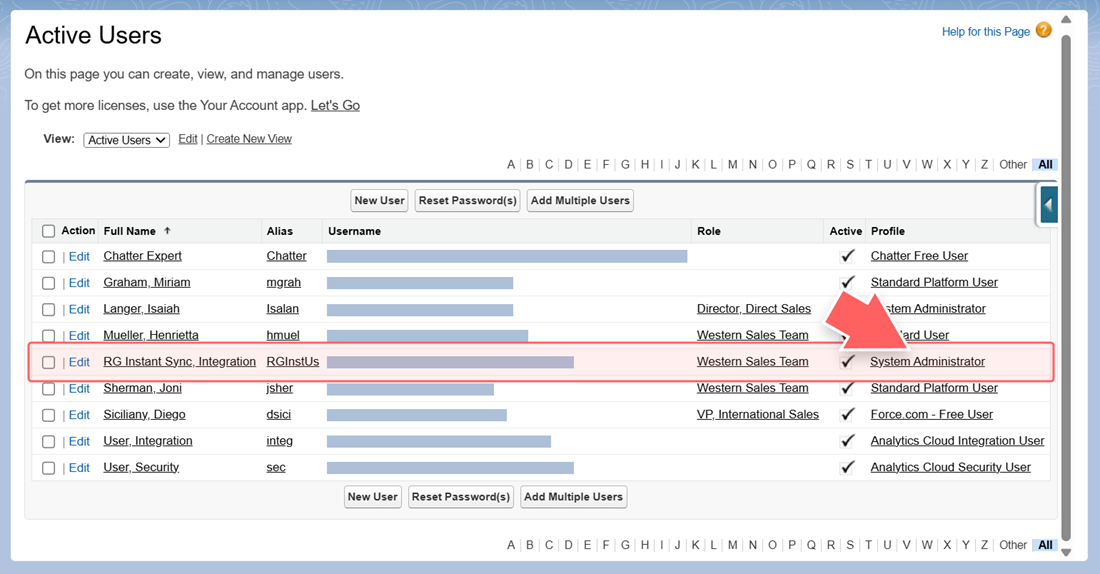
Confirm the profile is set to System Administrator.
If not, you must update the user’s profile or create a new System Administrator user.
Check if the user is provisioned in Revenue Grid#
Sign in to the Revenue Grid web app with the Platform admin credentials.
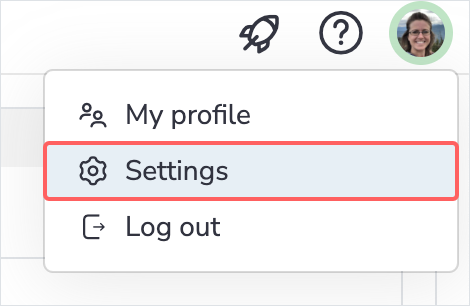
Click your profile picture in the upper-right corner, and select Settings.
Go to Administration → Users.
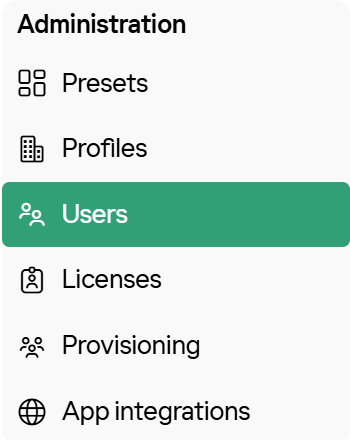
Search for the user by name or email.
If the user appears in the list, they’re provisioned.
If not, follow Provision the user to Revenue Grid.
Check the user’s role in Revenue Grid#
In the Revenue Grid web app, go to Administration → Users.
Find the user and select their name to open the user details.
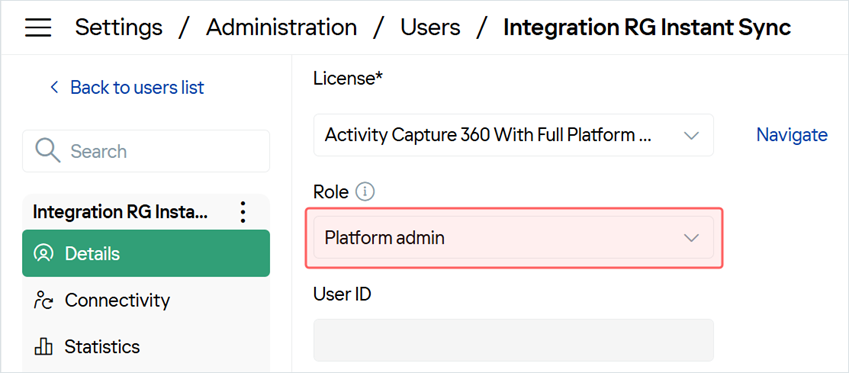
In the Role field, confirm the user is assigned the Platform admin role.
If not, follow Assign the Platform admin role.
Once you’ve verified that the user meets all integration requirements in both Salesforce and Revenue Grid, you’re ready to proceed with connecting your organization and enabling Instant Sync or the Salesforce Scheduler Adapter.
If the user doesn’t meet the requirements, follow the steps in Create an integration user for connecting Revenue Grid to Salesforce.