

Restore admin-authorized Salesforce connection after token expiration#
Supported platforms: Exchange Server
 Microsoft 365
 Google
In some cases, the Salesforce refresh token used by a Revenue Grid service account may expire. When this happens, Context Sync is interrupted for all affected users, and the Salesforce connection must be manually restored by an administrator.
This guide explains how to detect the issue and restore the connection.
How to know the token has expired#
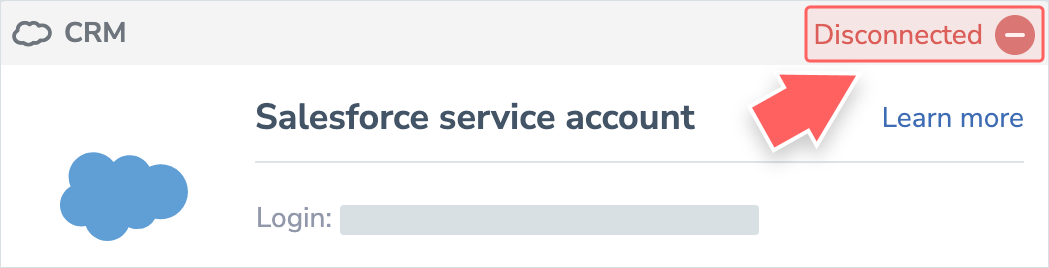
When a refresh token expires, the CRM section in the affected user profile’s Connectivity tab will show the status: Disconnected.
Additionally, in the Administration settings, for the affected profile, you may observe the following:
On the Users tab, the Effective synchronization status for impacted users changes to Disabled.

On the Statistics tab, you may see an error message for these users such as:
invalid_grant: expired access/refresh token
This indicates that the access token is no longer valid and must be refreshed.
Steps to restore the connection#
Before you begin, ensure you have:
Access to a dedicated Salesforce service account that was created specifically for Revenue Grid authorization. See Configure admin-authorized access for Salesforce using service account.
A platform admin or profile admin account in Revenue Grid.
To obtain a new token and restore the connection:
Open Revenue Grid administration settings.
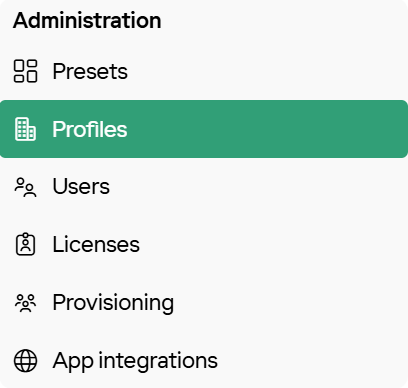
Go to Profiles.
Open the profile that uses the expired service account and go to the Connectivity tab.

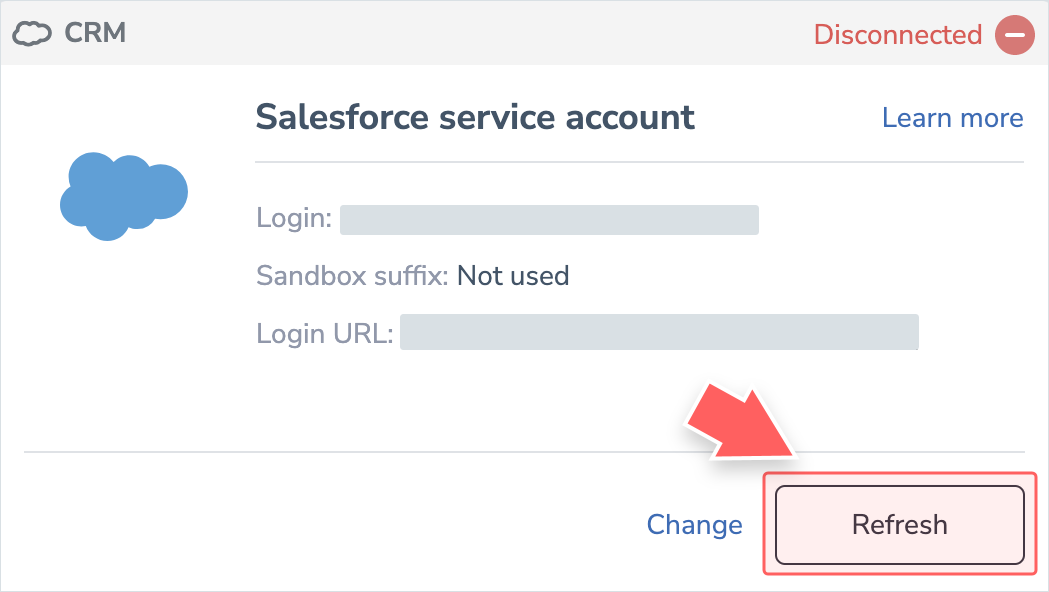
In the CRM section, click Refresh.
Sign in using the dedicated service account credentials.
Upon successful login, a new refresh token will be issued, and the CRM status will update to Connected.