

Pre-approve the Revenue Grid app in Zoom App Marketplace#
If your Zoom account requires admin pre-approval for Zoom App Marketplace apps, you must approve the Revenue Grid app before users can connect their Zoom accounts to Revenue Grid.
After the app is pre-approved, users in your Zoom account can install it and connect their Zoom accounts in Revenue Grid.
If the app is not pre-approved, users attempting to connect will see the following error: “You cannot authorize Revenue Grid. Unable to install this app because it needs pre-approval by your account admin. Please contact your account admin for more details.”
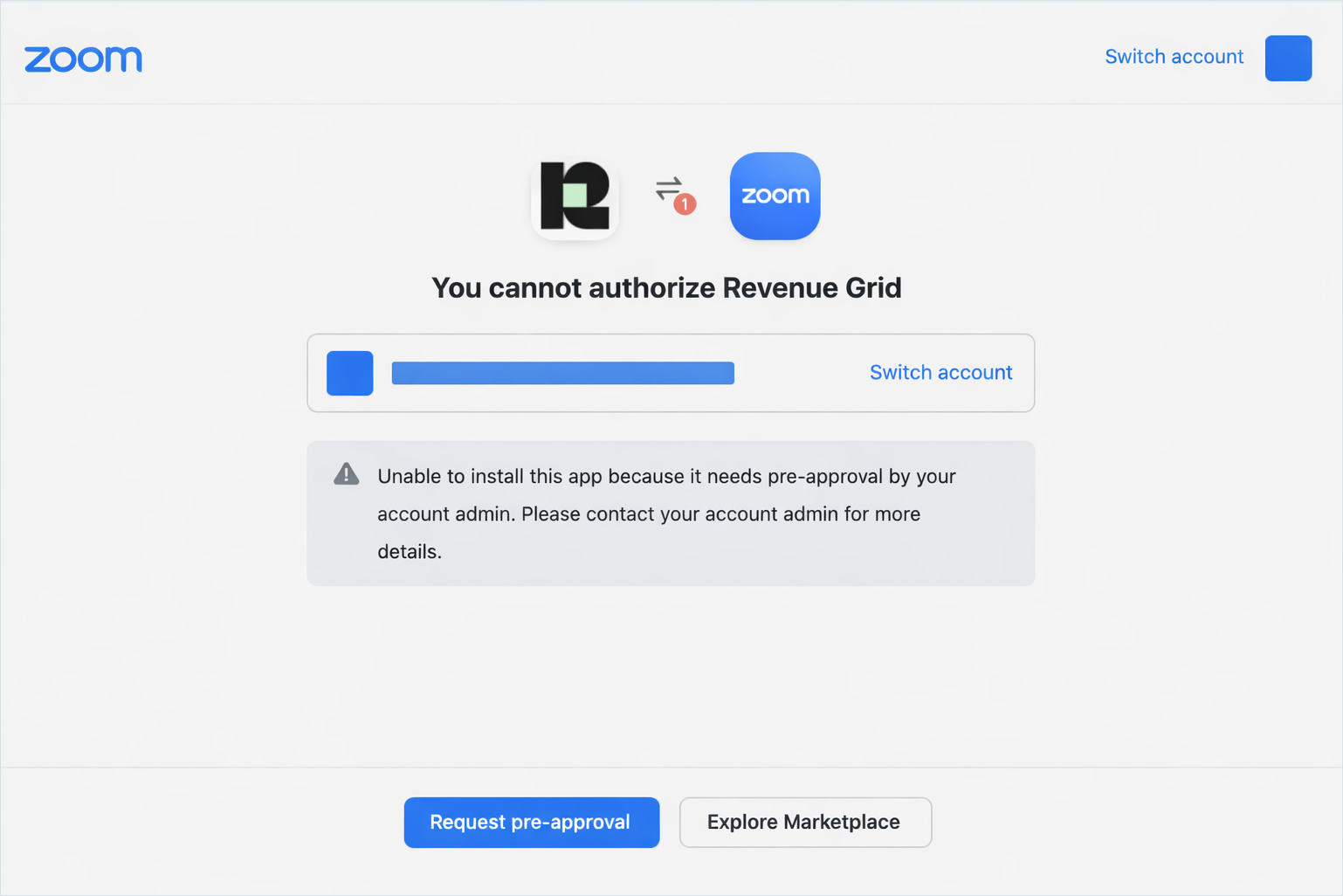
This article explains how to pre-approve the app in the Zoom App Marketplace web portal.
For more information about approving and managing apps, see Zoom documentation: Approving apps and managing app requests in Zoom.
Prerequisites#
You must have a Zoom account owner or admin role.
Pre-approve the Revenue Grid Zoom app#
Go to the Zoom App Marketplace.
Sign in using your Zoom admin or owner account.
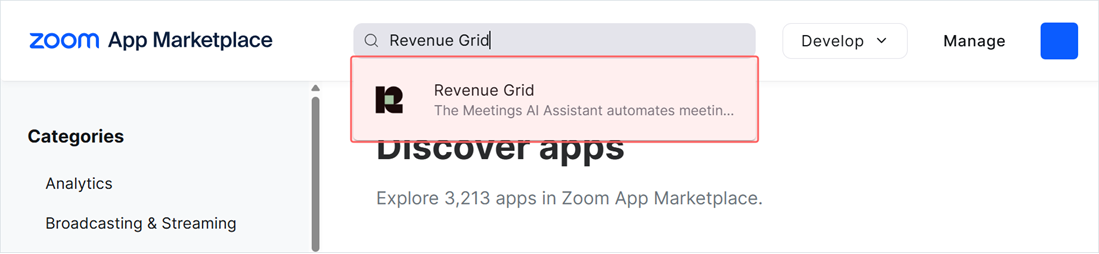
In the search field, enter Revenue Grid, then select Revenue Grid from the search results.
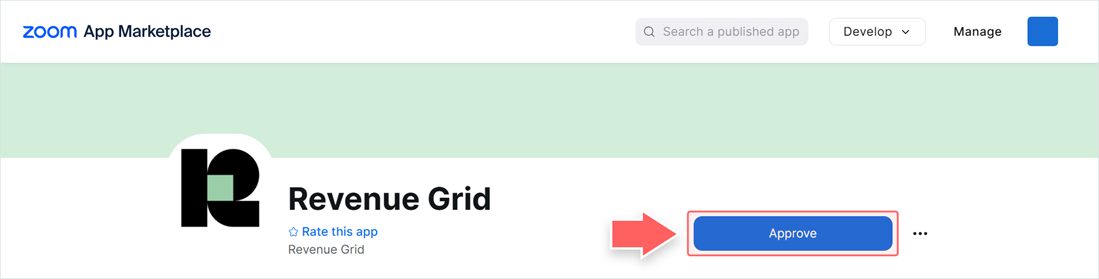
Select Approve.
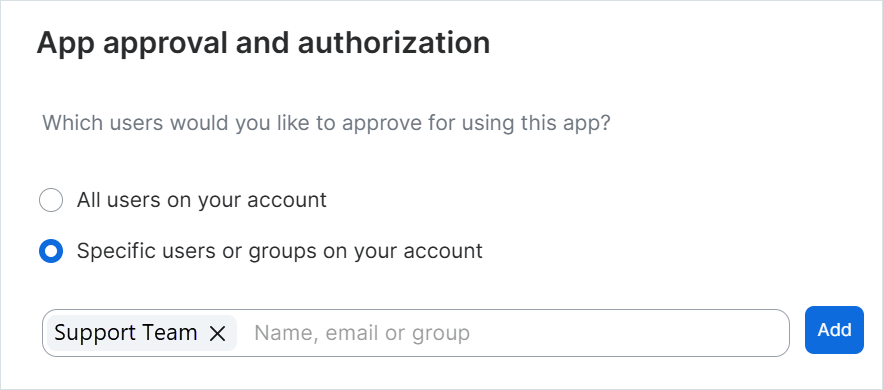
Choose who can use the app:
All users on your account
Specific users or groups on your account
Enter the name or email of the user, or the name of the group.
Select Add.
(Optional) Select I’d like to authorize this app on behalf of some or all of these approved users to automatically authorize the app for the selected users.
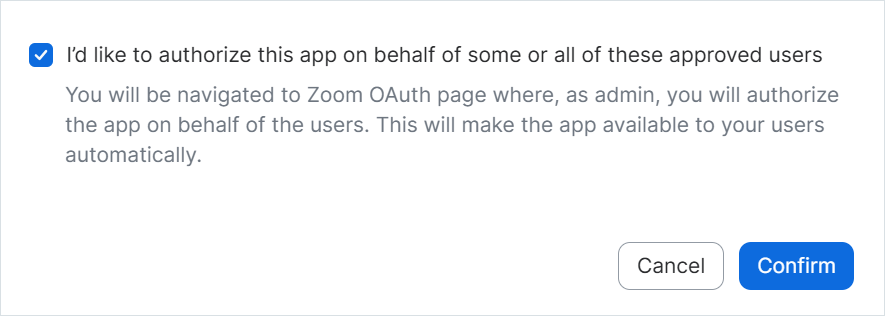
Select Confirm.
If you selected I’d like to authorize this app on behalf of some or all of these approved users:
Review the required Revenue Grid permissions.
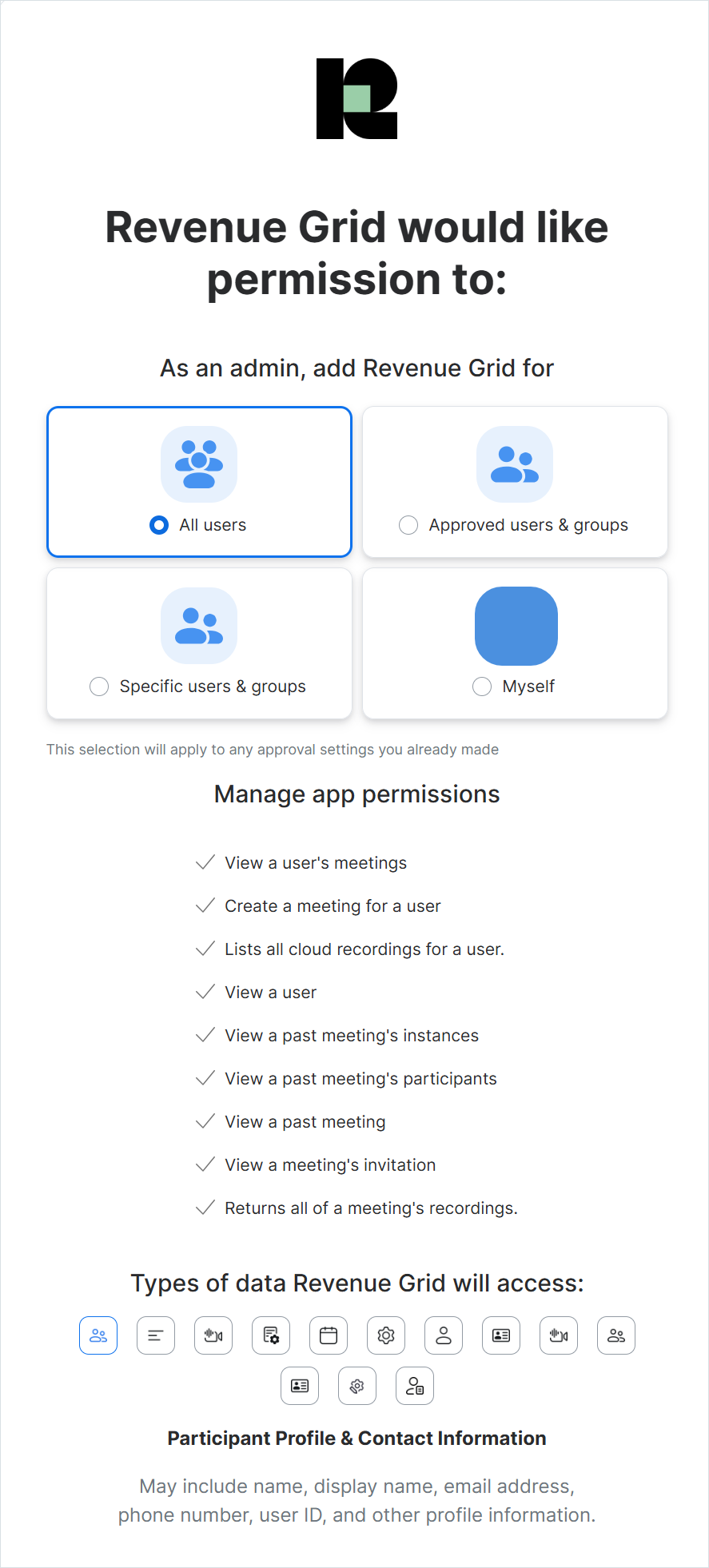
(Optional) Choose whether to send email notifications to the users you added.
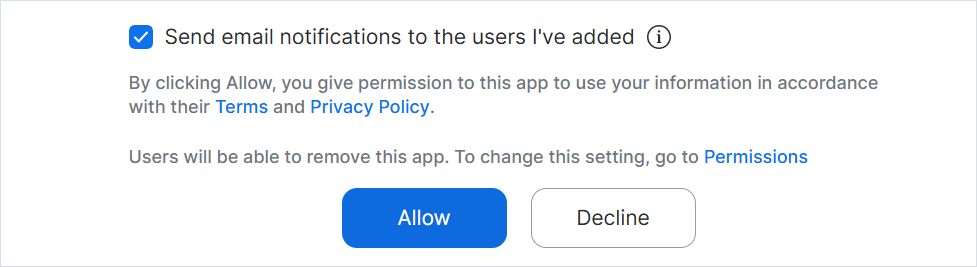
Select Allow.
After the app is approved, the selected users can connect their Zoom accounts to Revenue Grid.