

Configure user-authorized access for Microsoft Exchange on-premises (basic authentication)#
Supported platforms: Exchange Server
Set up Revenue Grid to allow users to connect their on-premises Microsoft Exchange mailboxes individually using basic authentication. This access method uses Exchange Web Services (EWS) and requires each user to provide their credentials during sign-in.
Before you begin#
Make sure the following prerequisites are met:
You have a platform admin or profile admin account in Revenue Grid.
All required user profiles have been created in Revenue Grid.
You know the correct EWS endpoint URL for your Exchange environment. If you’re unsure of your EWS endpoint, contact your Exchange administrator. Example EWS URL:
https://mail.yourcompany.com/EWS/Exchange.asmx
For instructions on how to create profiles, see Create and configure user profiles.
Set user-authorized mailbox access for Microsoft Exchange#
Open the Revenue Grid settings.
Under the Administration section, go to Profiles.
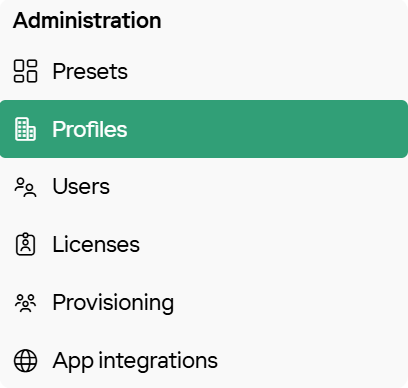
Select the profile you want to configure and open the Connectivity tab.

In the Email configuration section, open the Mailbox access type menu and select: Microsoft Exchange basic authorization (EWS API) – End User logon.
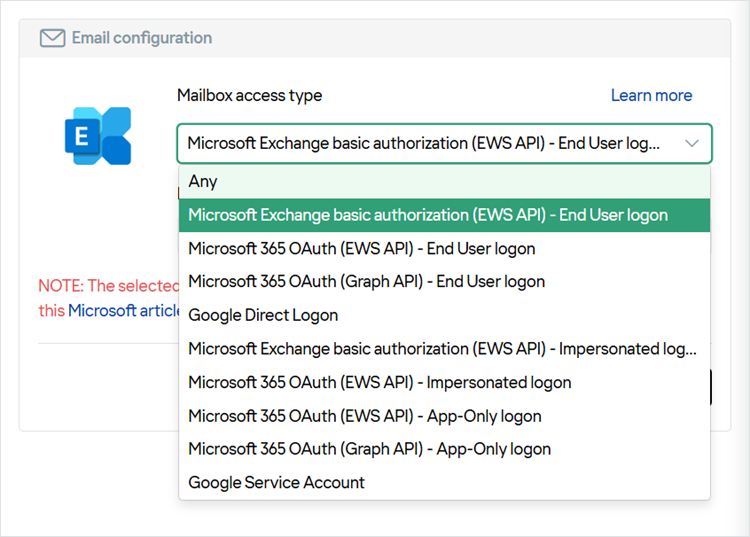
In the Exchange Web Services (EWS) URL field, verify or manually enter the EWS endpoint.
Click Save.
Now, only users with Microsoft Exchange (on-premises) mailboxes can be assigned to this profile. Each user will authorize Revenue Grid to access their mailbox by entering their Exchange credentials during sign-in.