

Enable auto-cropping of previous email messages when saving to Salesforce#
This article explains how Revenue Grid admins can enable automatic removal of previous message history from email bodies when emails are saved to Salesforce to keep Salesforce records clean and focused.
What is auto-cropping of previous messages#
In email conversations, each reply typically includes all previous messages in the thread, along with signatures. When these emails are saved to Salesforce, this extra data can clutter records and make it harder to review relevant details.
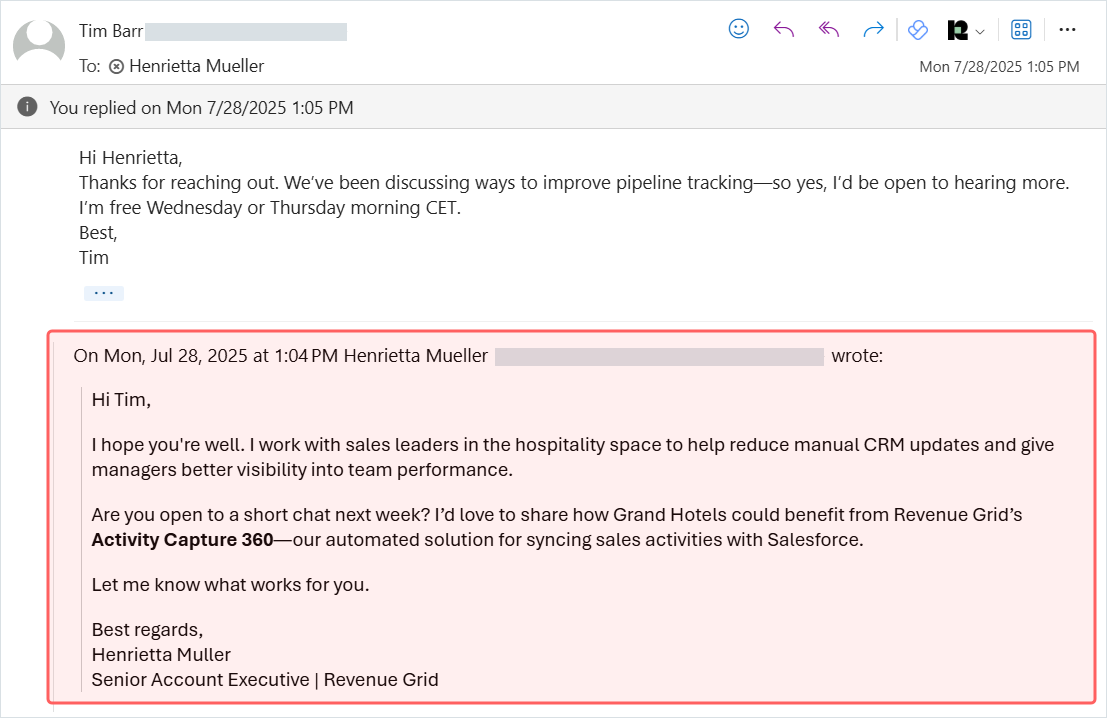
Auto-cropping removes quoted message history and signatures before saving emails to Salesforce. This can happen automatically during sync or when a user manually saves an email through Context Panel, depending on configuration.
How admins control auto-cropping#
Admins manage auto-cropping of previous messages using two settings in presets:
Context Sync setting: Crop previous messages in thread#
Located in the Context Sync settings tab of a preset, this setting enables or disables automatic cropping of previous messages during sync.
When enabled:
Quoted message history is automatically removed from email bodies during sync.
The Context Panel-specific setting, Crop previous messages by default in Context Panel, becomes available both in the Context Panel advanced settings tab of the preset and in users’ personal Context Panel settings.
When disabled:
Emails are saved with the full conversation history.
Context Panel setting: Crop previous messages by default in Context Panel#
Important
The setting is available only if Crop previous messages in thread is enabled in Context Sync settings of the same preset.
This setting appears in the Context Panel advanced settings tab of the preset and in the user-level Context Panel settings.
When enabled:
The option to crop previous messages is preselected in Context Panel when users manually save emails.
Users can deselect the option for individual emails in Context Panel.
If Auto-save all emails in thread is enabled, cropping still applies, but the checkbox is hidden from Context Panel.
Configure auto-cropping during sync#
To enable automatic cropping of previous email content during sync:
Make sure that all preset configuration requirements are met.
Sign in to the Revenue Grid web platform.
Navigate to Administration → Presets.
Open the desired preset and go to the Context Sync settings tab.
In the Emails section, under Email content processing, enable Crop previous messages in thread.
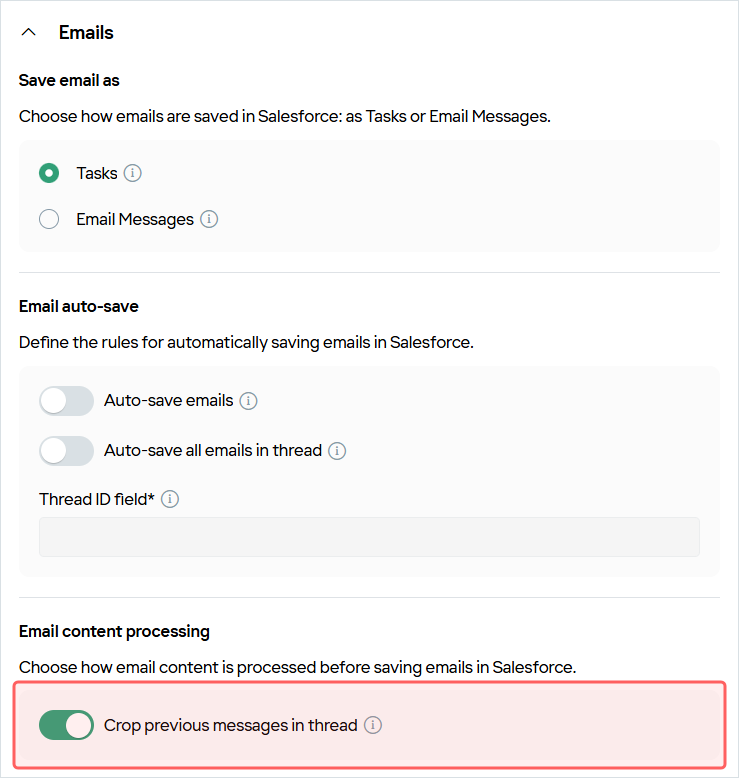
Select Save.
Choose how to apply changes:
Save and reapply – override
Save and reapply – merge
Select Save again to confirm.
Configure default cropping in Context Panel#
Important
This setting is available only if Crop previous messages in thread is enabled in Context Sync settings of the same preset.
To preselect cropping in Context Panel when saving emails manually:
Make sure that all preset configuration requirements are met.
Sign in to the Revenue Grid web platform.
Navigate to Administration → Presets.
Open the desired preset and go to Context Panel advanced settings tab.
In the Events & Email saving section, enable Crop previous messages by default in Context Panel.
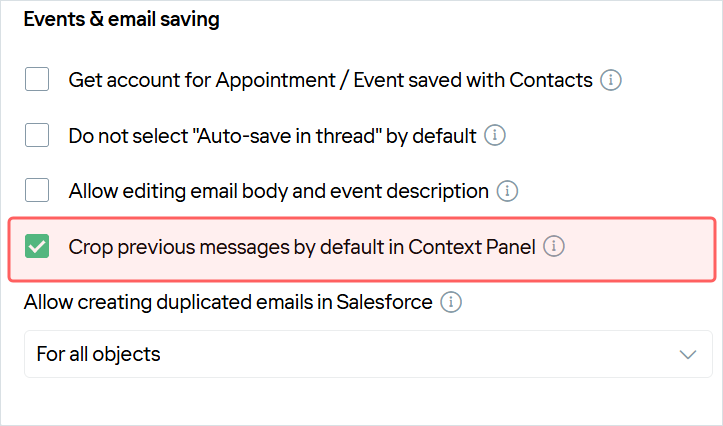
Select Save.
Choose how to apply changes:
Save and reapply – override
Save and reapply – merge
Select Save again to confirm.
When cropping might not apply#
Cropping may not function as expected in the following situations:
The subject line of the email was changed manually while composing a reply.
Fragments of earlier messages were copied and pasted into the new email.
The original message or conversation thread was deleted from the user’s mailbox (Microsoft Exchange Server or Microsoft 365) before the reply was saved to Salesforce.
In these cases, previous message content may not be detected correctly.