

Manage your Zoom connectivity#
Supported platforms: Exchange Server
 Microsoft 365
 Google
You can manage your Zoom connection in Revenue Grid if you need to reauthorize access or stop using Zoom with the platform. These actions help ensure that Revenue Grid can continue accessing your Zoom meeting information and recordings, or allow you to remove the connection when it is no longer needed.
Refresh your Zoom connection#
You may need to refresh your Zoom connection in the following cases:
You changed your Zoom login or password.
Revenue Grid requires updated permissions for Zoom integration.
Important for Book Me and Time Slots
Refresh your connection when you are not expecting new bookings. While the connection is being updated, recipients cannot book Zoom meetings through your existing Book Me or Time Slots links.
If you change the Zoom account during the refresh process, any existing Book Me or Time Slots links that use Zoom as the meeting location will stop working. Your recipients will no longer be able to use those links to book meetings. Previously scheduled meetings will not be affected.
To refresh your Zoom connection:
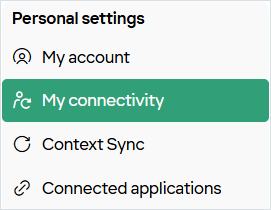
In the Personal settings section, go to the My connectivity tab.
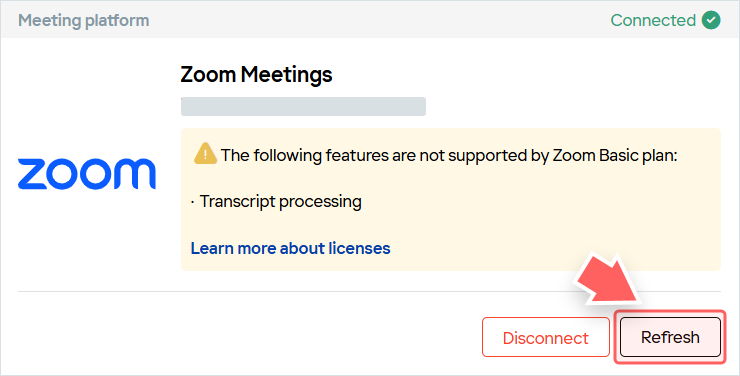
In the Meeting platform section, select Refresh.
If you need to change your Zoom account or update credentials:
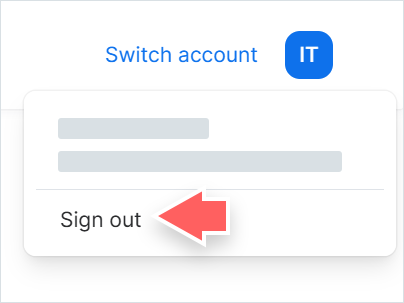
In the Zoom sign-in window, hover over your profile icon in the top-right corner and select Sign out.
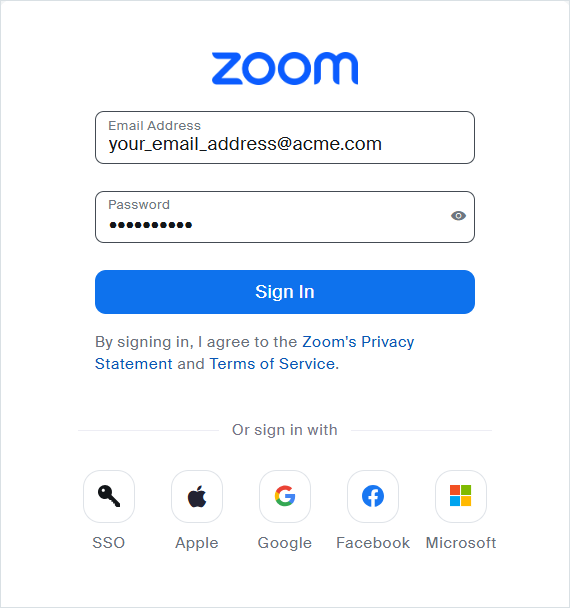
Sign in with your new Zoom credentials.
Review the permissions requested by Revenue Grid, select Allow this app to use my shared access permissions, and then select Allow.
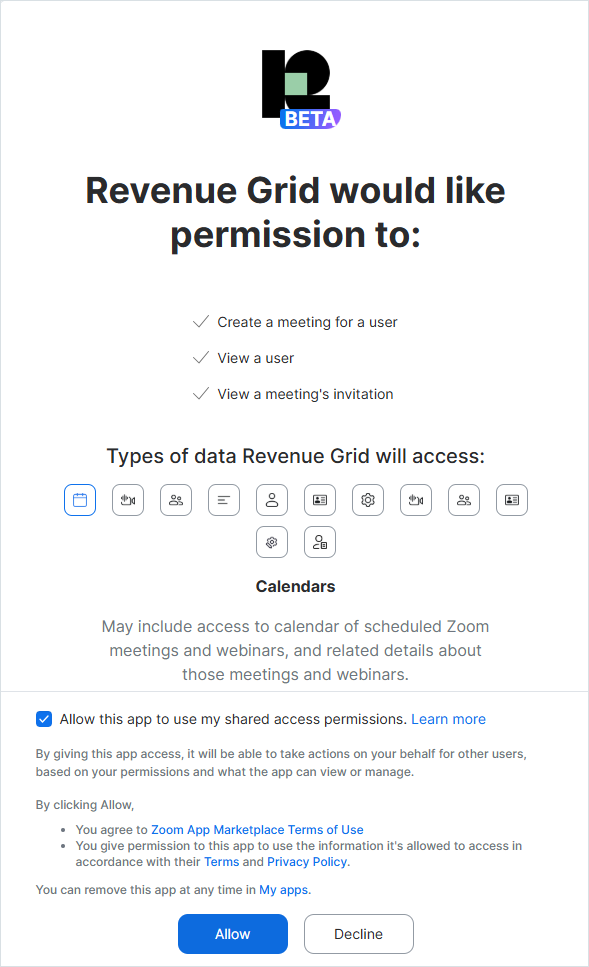
Your Zoom connection will be updated and available for new meeting links.
Disconnect your Zoom account#
Important for Book Me and Time Slots
After disconnecting your Zoom account, recipients will no longer be able to book Zoom meetings with you through existing Book Me or Time Slots links. Previously scheduled Zoom meetings will remain on your calendar.
To disconnect your Zoom account:
In the Personal settings section, go to the My connectivity tab.
In the Meeting platform section, select Disconnect.
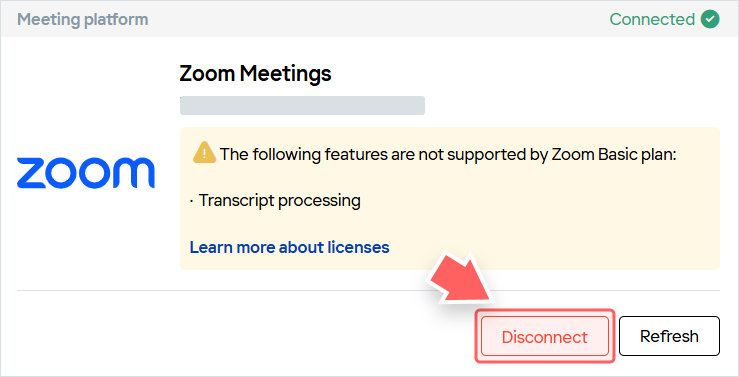
Your Zoom account will be disconnected from Revenue Grid.