

Use AI to write sequence emails#
Instead of writing sequence emails from scratch, you can use the built-in Help me write feature to generate professional email drafts based on a short description of what you want to say.
Requirements#
Help me write requires at least one supported Revenue Grid AI feature to be enabled for your organization.
Supported AI features include:
If you are unsure whether AI features are enabled for your organization, contact your Revenue Grid administrator.
Where you can use Help me write#
Help me write is available when you create or edit:
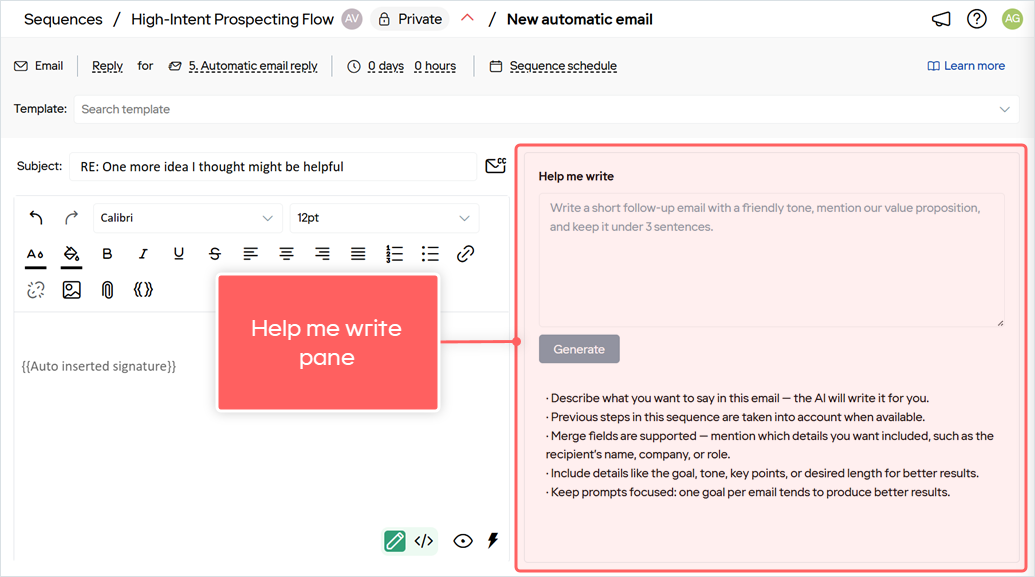
The Help me write pane appears on the right side of the email editor.
Generate an email draft#
To generate email content:
Open an email step or email template.
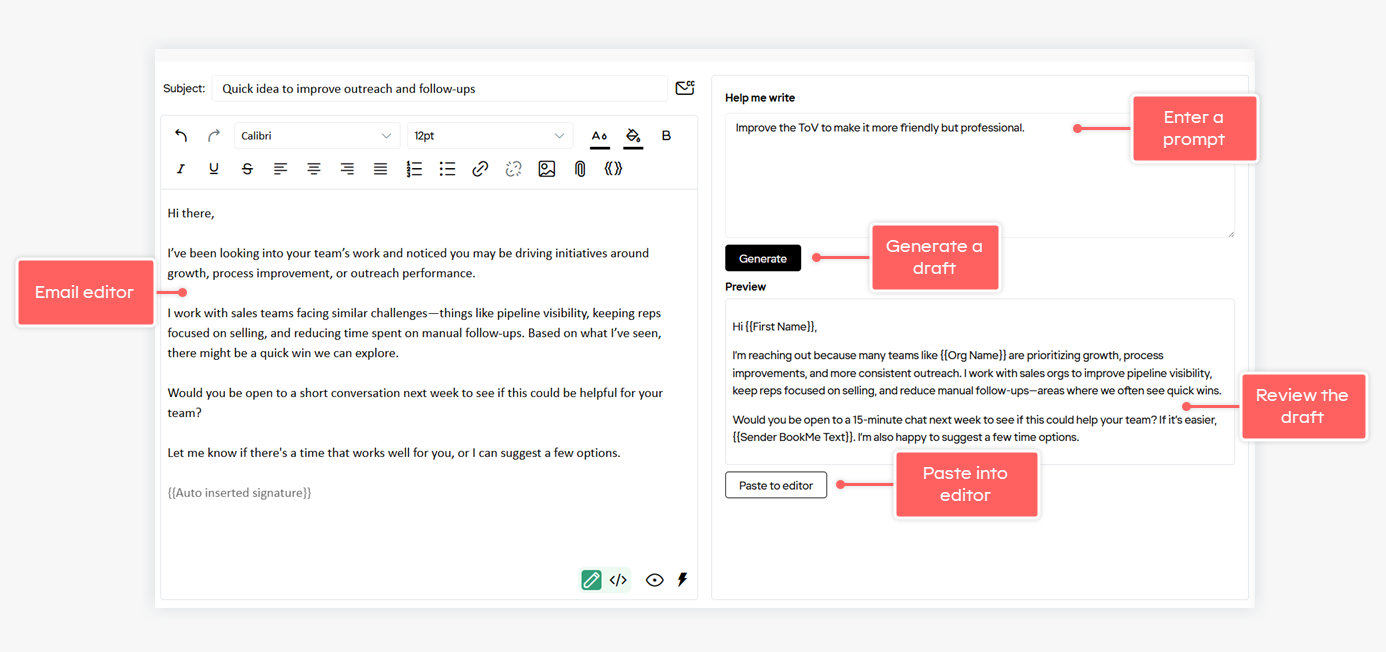
In the Help me write pane, enter a description of the email you want to create.
Select Generate.
Review the generated draft.
If needed, update your prompt and select Generate again.
When you are satisfied with the result, select Paste to editor.
The generated content is inserted into the email editor, where you can make additional changes before saving.
Show or hide the Help me write pane#
The Help me write pane is displayed by default when you open an email editor.
To hide or show the pane:
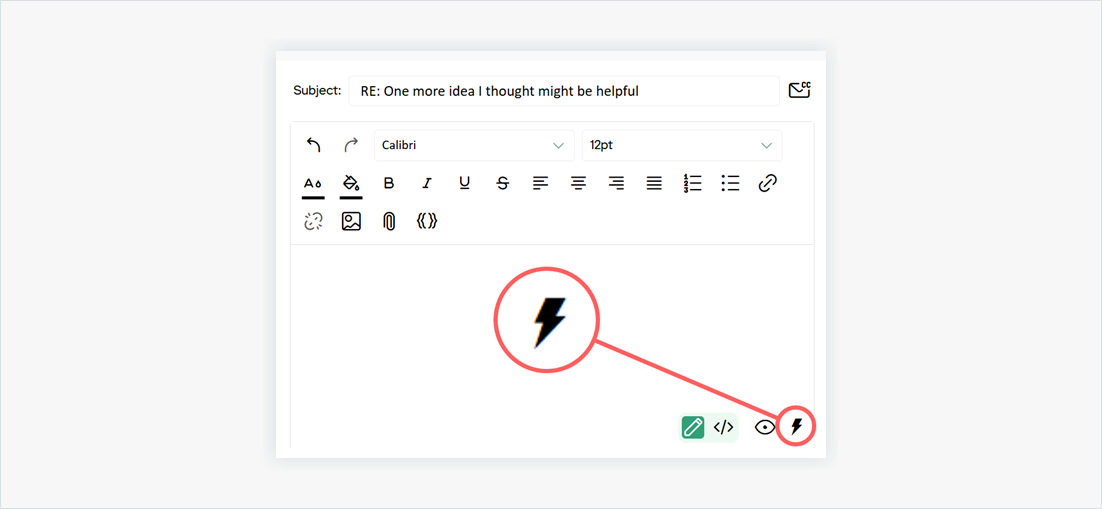
In the bottom-right corner of the email editor, select the lightning icon.
Select the icon again to reopen the pane.
Replace generated content#
You can generate new versions of an email as many times as needed by updating the prompt and selecting Generate again.
When you select Paste to editor, the generated content replaces the current content in the email editor.
Important
If the email editor already contains content, that content is replaced when you select Paste to editor. The generated text cannot be inserted as additional content alongside the existing email body.
If you want to restore previous content, use:
Ctrl+Z on Windows
Cmd+Z on macOS
How Help me write uses context#
Help me write uses more than just the prompt you enter.
When generating content, the AI receives:
Your prompt
The current content of the email editor
The content of other active email steps in the sequence, when editing a sequence step
Because the feature understands the sequence context, it can generate emails that follow naturally from previous outreach.
Merge field support#
Help me write recognizes merge fields and preserves them when generating content.
For example:
{{First Name}}
{{Company}}
{{Sender First Name}}
The feature may also include additional merge fields when they help personalize the email.
For more information about merge fields, see Using merge fields️ when creating steps, templates and signatures.
Tips for better results#
To generate more relevant content:
Clearly describe the goal of the email.
Specify the desired tone, such as friendly, professional, or concise.
Include important details you want mentioned.
Specify the desired length.
Mention any merge fields that should be included.
Focus each prompt on a single email objective.
Example prompts:
Write a friendly follow-up email after no response. Keep it under three sentences.
Create a professional introduction email for a VP of Sales. Mention improving outbound efficiency and include the recipient’s company name.
Rewrite this email to sound more conversational while keeping the same call to action.