

Set up your signatures#
Before you create sequences, set up your email signatures and define how they are auto-inserted into email-type steps. This ensures consistent branding and reduces the need to manually add your signature to every email.
Signature types#
Smart Sequences supports two signatures:
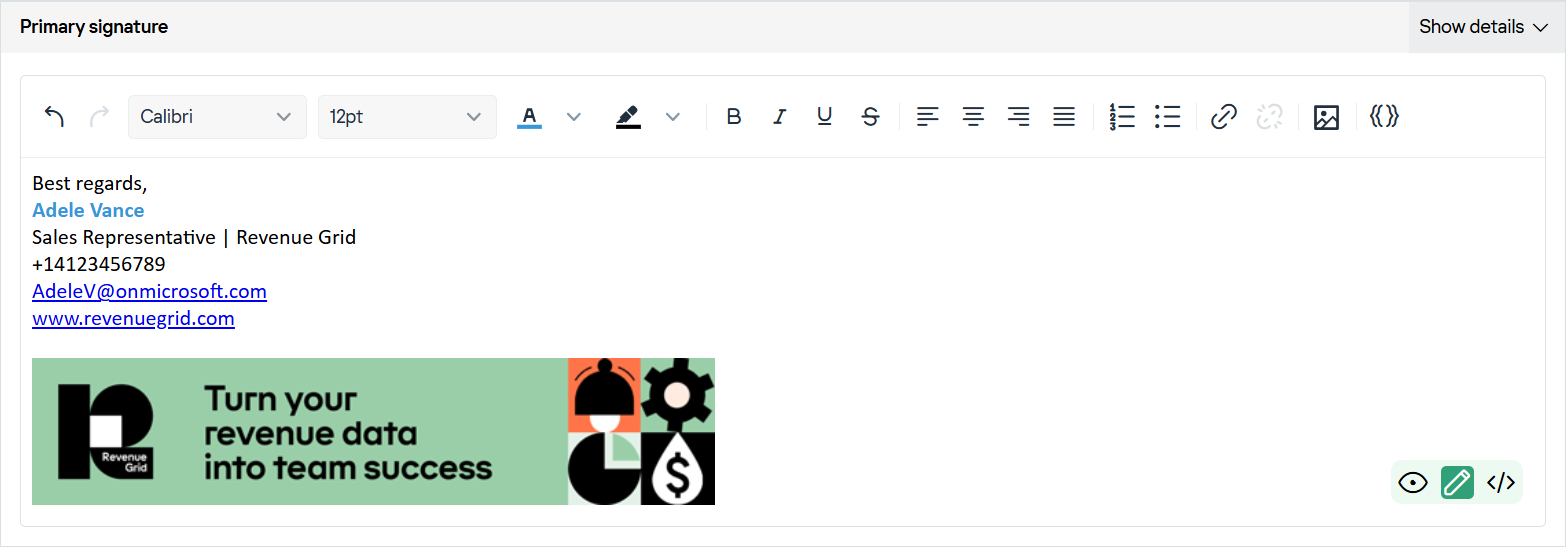
Primary signature: Use for general outreach and first-touch emails to new prospects.
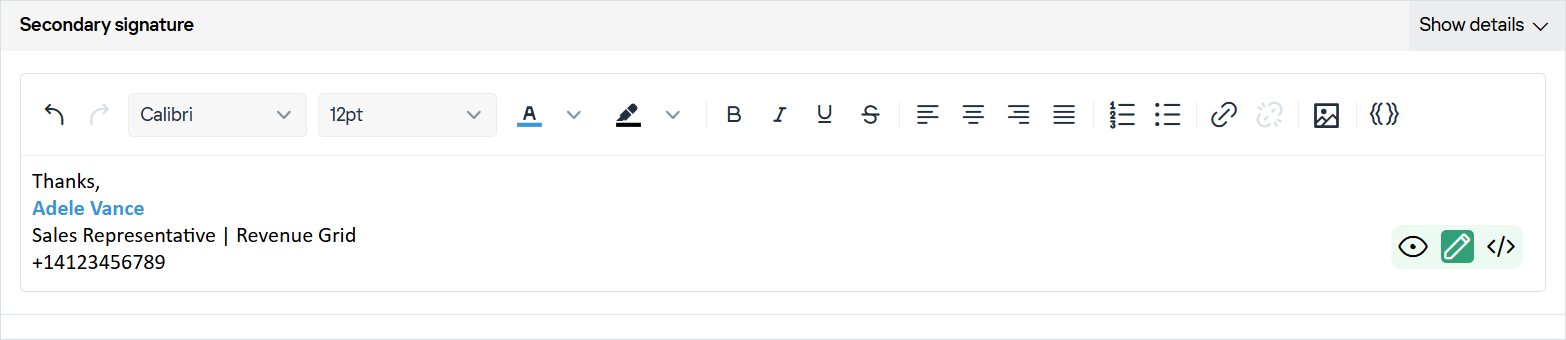
Secondary signature: Use for alternate cases, such as a different language, tone, or follow-up replies.
Create or edit your signatures#
Warning
These settings are available only if allowed by your admin in platform-level Smart Sequences settings.
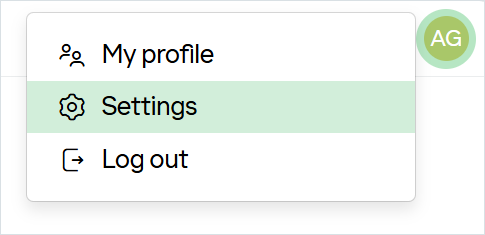
In the top-right corner, select the profile icon, and then select Settings.
In Personal settings, expand Smart Sequences, and then select Signature.
In the Primary signature and Secondary signature editors, set up your content.
Select the edit icon to open edit mode, and use the toolbar to format text.
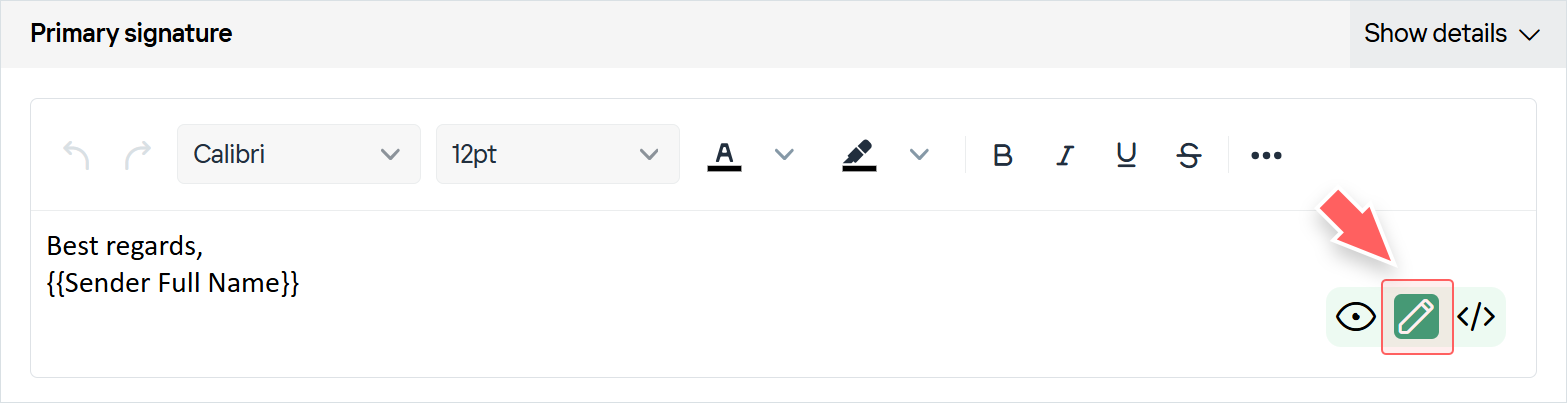
Select the code icon to edit the HTML markup directly.
Select the eye icon to preview how the signature will appear in sequence emails.
Select Save.
Set up signature auto-inserting#
Warning
These settings are available only if allowed by your admin in platform-level Smart Sequences settings.
In the top-right corner, select the profile icon, and then select Settings.
In Personal settings, expand Smart Sequences, and then select Signature.
In Auto-insertion rule, choose one of the options:
Option
Description
Add primary signature to sequence emails
Adds the primary signature to all email steps.
Add primary signature to the 1st email and secondary to all next emails (default)
Adds the primary signature to the first step, and the secondary signature to every following email step in the sequence.
Add primary signature only to the 1st email in every new thread
Adds the primary signature only to “New thread” email steps, not to “Reply” steps. You choose the type when adding or editing an email step.
Do not add signature
No signatures are added automatically to sequence emails.
Select Save.