

Set up and insert unsubscribe text in sequence emails#
Smart Sequences automatically generates a unique unsubscribe link for every sequence you create. Configure an unsubscribe text with this link embedded and add it to your sequence emails so prospects can easily opt out of future outreach.
When a prospect clicks the unsubscribe link and confirms their choice, their status changes to Unsubscribed in Smart Sequences, and no further emails are sent to them, even if they remain assigned to the sequence.
Configure your unsubscribe text#
Warning
You may not be able to edit the unsubscribe text if your admin has disabled this option in the platform settings.
The unsubscribe text is a customizable opt-out message. It can include:
A clickable unsubscribe link
Text-only opt-out instructions
A combination of both
To configure the unsubscribe text:
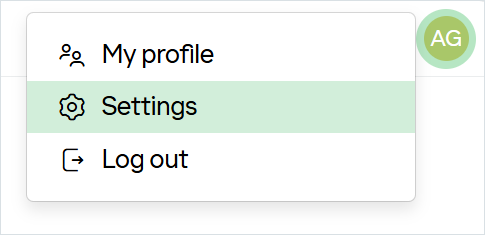
In the top-right corner, open the profile menu, and select Settings.
In Personal settings, expand Smart Sequences, and select Merge fields.
In the Unsubscribe text editor, edit the default text as needed—for example: “Want to take a break from our emails? Unsubscribe here.”
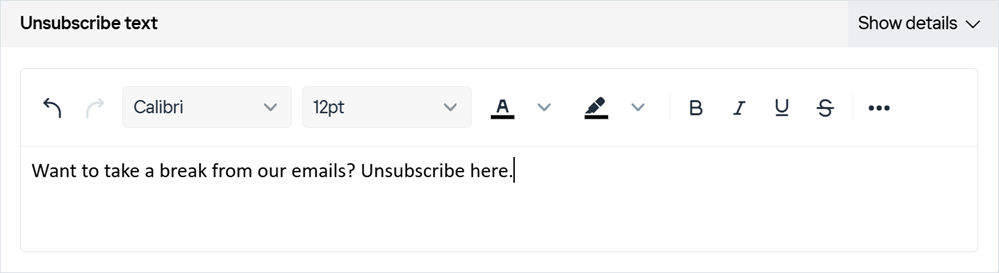
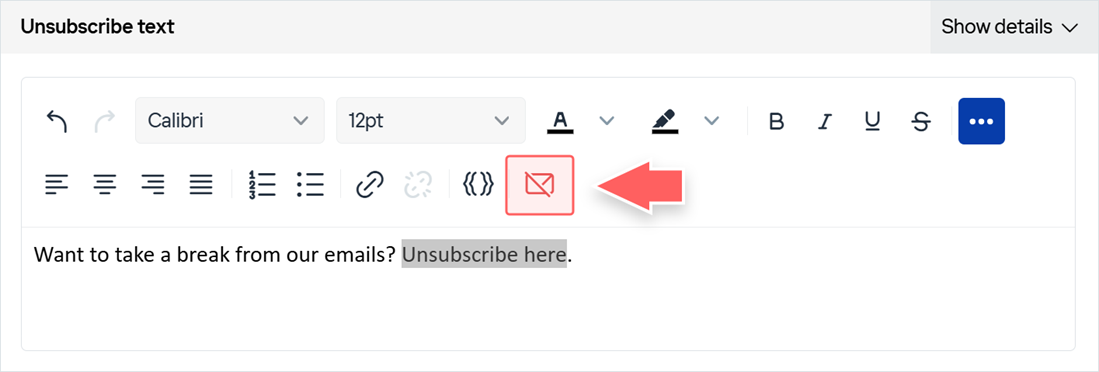
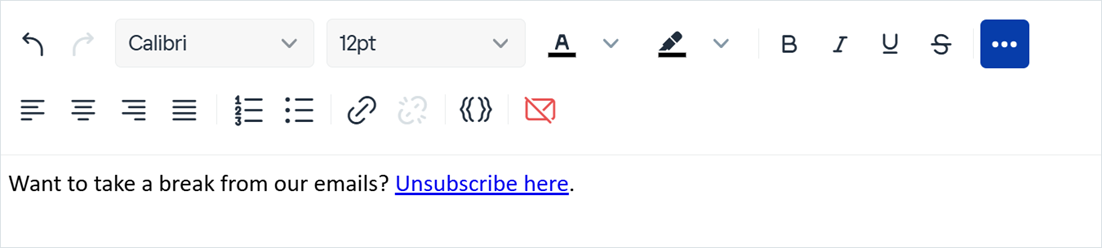
To add a clickable unsubscribe link, select the word or phrase you want to link, and then select the unsubscribe link icon from the toolbar.
Select Save.
Your custom unsubscribe text is now ready to use in sequences.
Insert unsubscribe text into a sequence email#
To manually add your unsubscribe text into a specific email step:
Open the email step in your sequence.
Place the cursor where you want the unsubscribe text to appear.
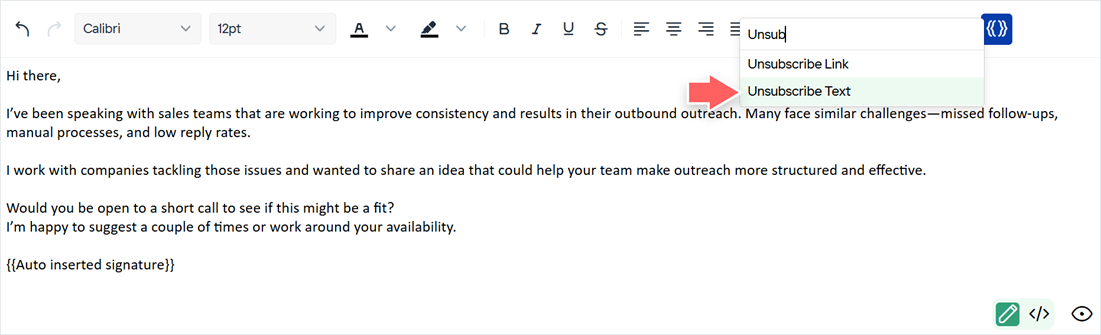
Type
{{or select the merge field{{}}icon in the editor toolbar.
Select Unsubscribe text from the list.
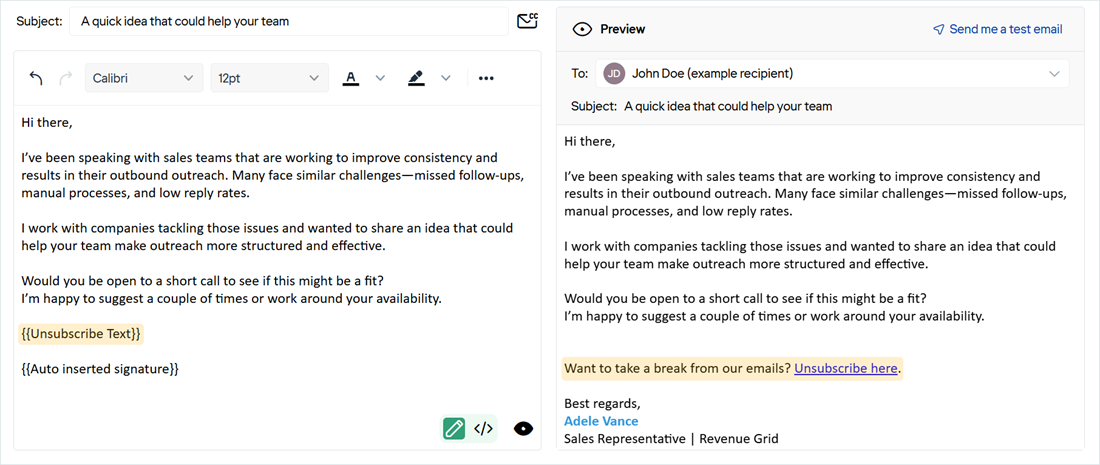
The merge field will be inserted into the message and replaced with your configured text when sent.
Insert a plain unsubscribe link#
You can also add just the unsubscribe link without any surrounding text.
To insert the plain link:
In the email editor, place your cursor where the link should appear.
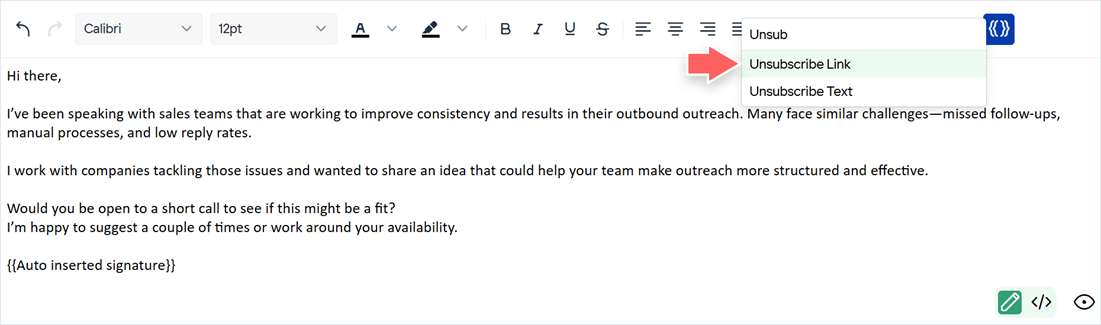
Type
{{or select the merge field{{}}icon in the toolbar.
Select Unsubscribe link.
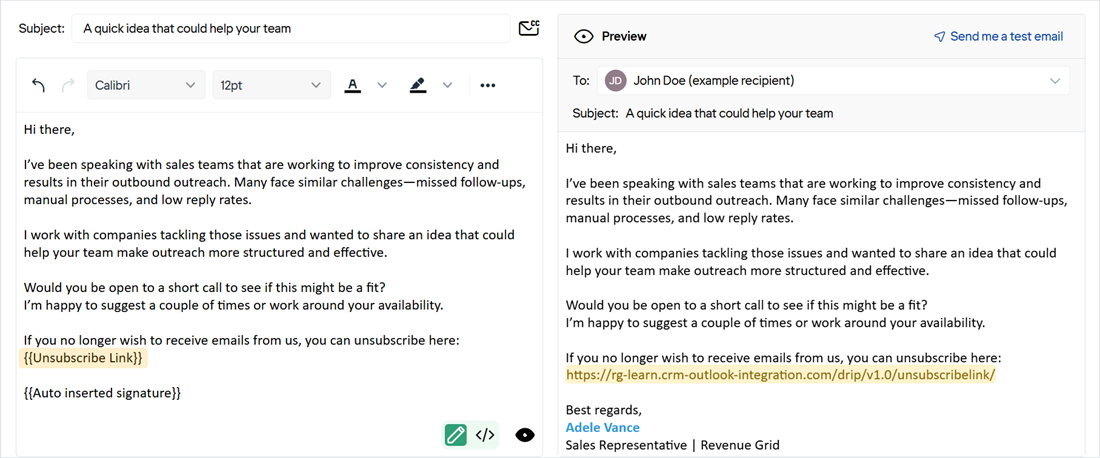
The merge field will be inserted into the email and replaced with a unique unsubscribe URL when the step is sent.
Automatically insert unsubscribe text into all emails#
Warning
You may not be able to set up unsubscribe text auto-insertion if your admin has disabled this option in the platform-level settings.
To save time and ensure compliance across all email steps:
Open the sequence and go to the Settings tab.

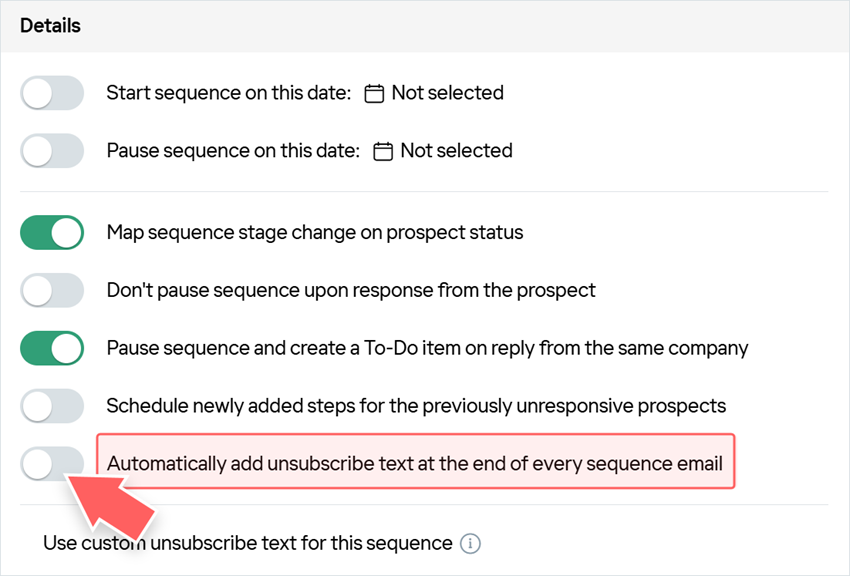
In the Details section, turn on Automatically add unsubscribe text at the end of every sequence email.
Select Save.
The {{Auto inserted unsubscribe text}} merge field will now be included at the end of each email in the sequence.
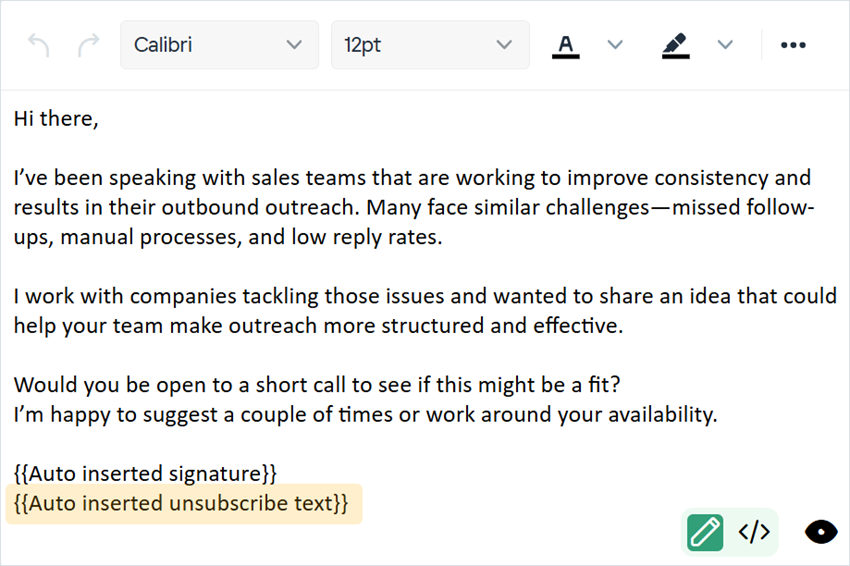
Note: When unsubscribe text auto-inserting is enabled, the manual merge fields for unsubscribe text and link will be unavailable.