

Automatically remove recipients from a sequence#
Keep your sequences clean and relevant by setting up automated rules that remove recipients who no longer meet your outreach criteria. This helps prevent sending the wrong message to the wrong person—for example, continuing to email someone who’s already become a customer or has been marked disqualified.
With automated recipient removal, Smart Sequences checks your Salesforce data and removes recipients from a sequence when their record matches the rule you’ve defined.
How automated recipient removal works#
Automated recipient removal is based on exit criteria — a rule that looks at specific Salesforce field values on the Lead or Contact object. For example, you can create a rule that removes recipients when:
Lead.Status=DisqualifiedContact.Lifecycle Stage=Customer
Once the rule is applied to a sequence, Smart Sequences monitors all active recipients and checks their data during each sync with Salesforce. If a recipient’s Salesforce record matches the exit criterion:
They are automatically removed from the sequence
No further steps are sent to them
Their status changes to Removed by rule
If a recipient’s record does not match the removal rule, they remain active in the sequence and continue receiving steps as scheduled.
You can edit the rule to change its conditions, or remove it completely if you no longer want the system to monitor the sequence for that condition.
Create an exit criterion#
Before you can apply a removal rule to a sequence, create the rule in your platform settings.
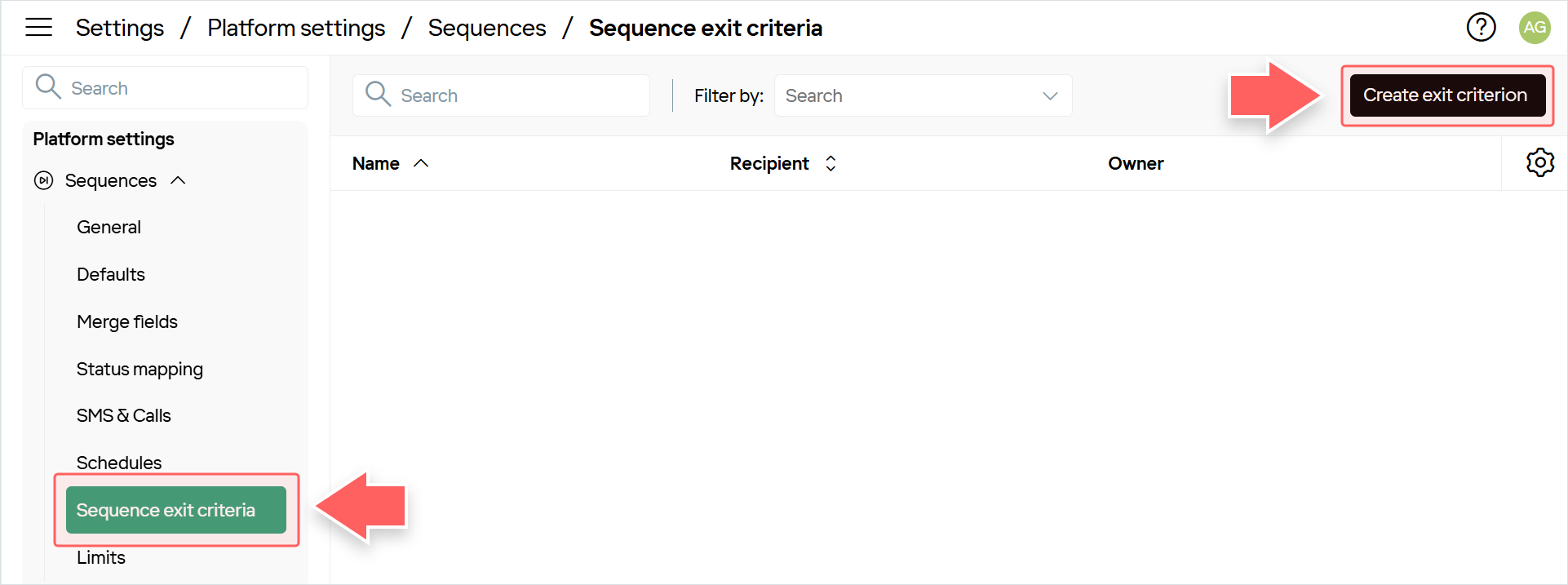
Go to Settings → Platform settings → Smart Sequences → Sequence exit criteria, and select Create exit criterion.
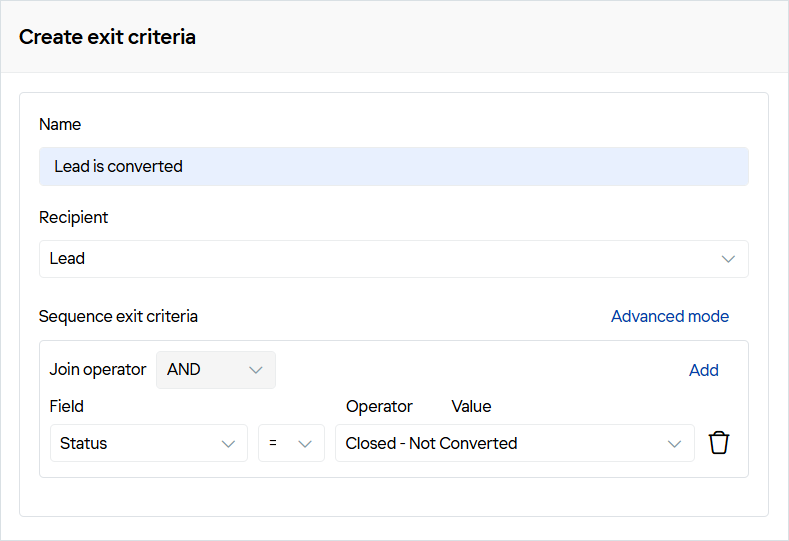
Enter a name for your rule (for example, “Disqualified Leads”).
Under Recipient, choose whether the rule applies to Lead or Contact.
Build the rule using available Salesforce fields and filters (both standard and custom fields are supported).
Select Save.
The rule is now saved and ready to be used in any sequence.
Apply the rule to a sequence#
Once your exit criterion is created, apply it to any active sequence.
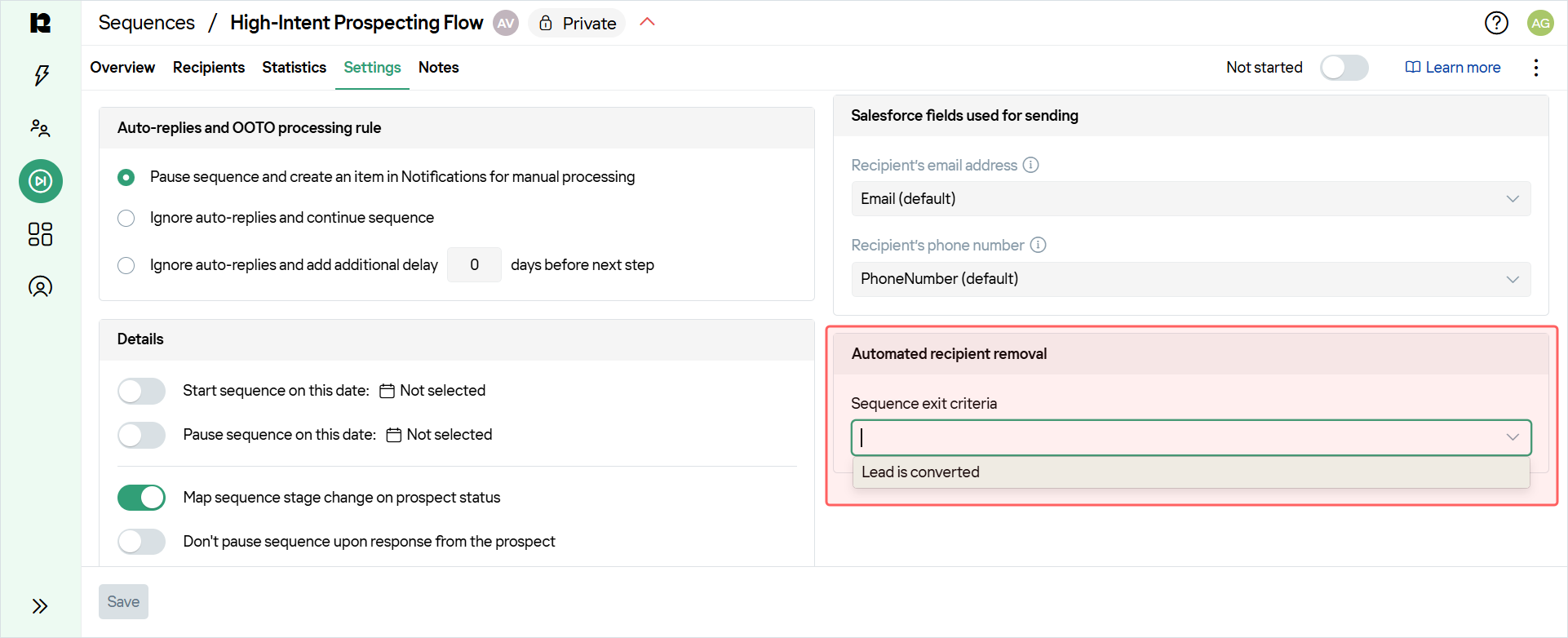
Open the sequence and go to the Settings subtab.

Find the Automated recipient removal section.
In the Sequence exit criterion box, select the rule you want to apply.
Select Save.
Smart Sequences will now evaluate all recipients in the sequence based on the rule and remove anyone who meets the condition.
Delete a rule from a sequence#
If you no longer want the system to automatically remove recipients, you can remove the rule from the sequence.
Open the sequence and go to the Settings subtab
Locate the Automated recipient removal section.
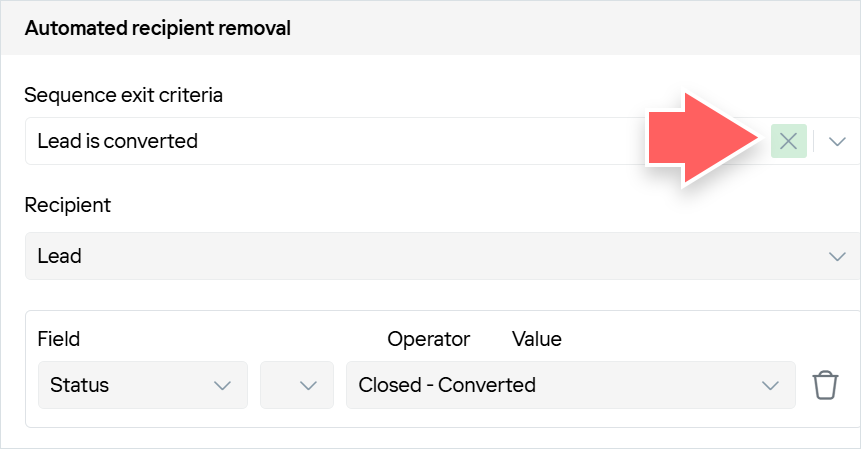
In the Sequence exit criterion box, select the close icon.
Select Save.
The rule will be removed from the sequence, and the system will stop all automated removal checks. No additional recipients will be removed based on the deleted rule.