

Map sequence attributes to Salesforce fields#
To make prospect engagement and sequence performance data available in Salesforce, choose which Smart Sequences data you need and map the corresponding Smart Sequences attributes to the Salesforce fields that should receive it.
How attribute mapping works#
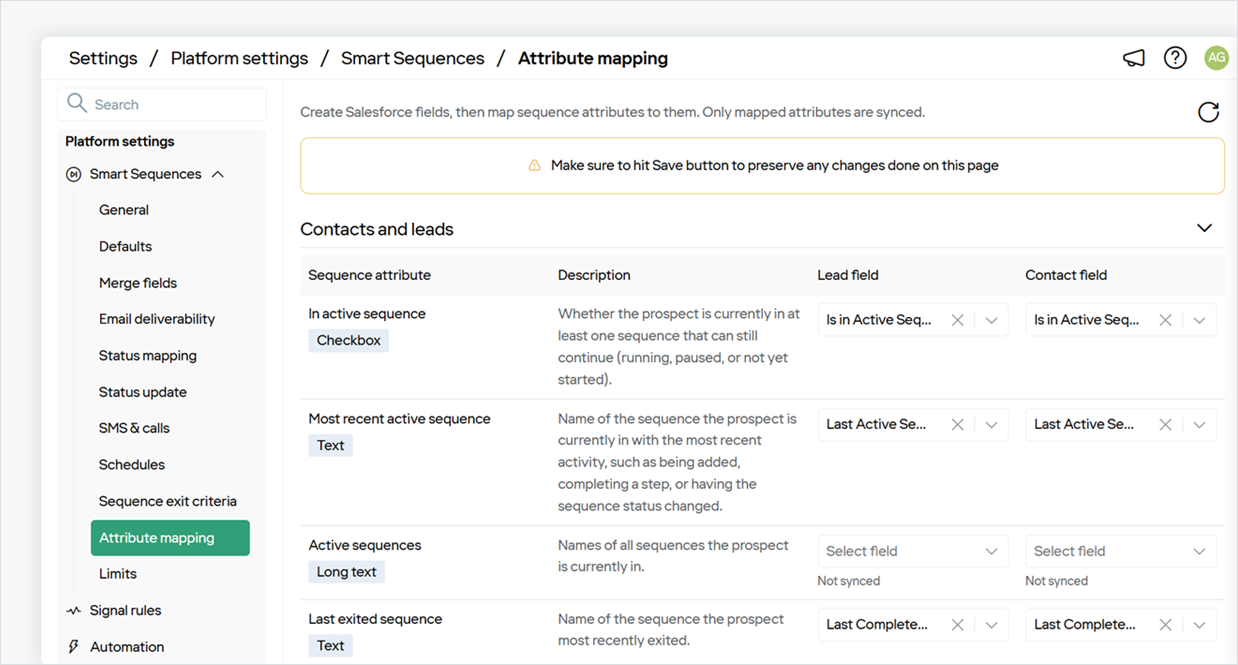
You can map Smart Sequences attributes to compatible fields on Salesforce Lead, Contact, Task, and Campaign objects. Each mapping determines which Salesforce field receives the corresponding value. Only mapped attributes are written to Salesforce.
Data is synced from Smart Sequences to Salesforce only. Smart Sequences updates mapped Salesforce fields when the corresponding data changes, for example, when a prospect is added to a sequence or completes a step. Changes to mapped Salesforce fields aren’t synced back to Smart Sequences.
Sync behavior by Salesforce object#
Lead and Contact: If a prospect is deleted from Smart Sequences, mapped values on the corresponding Salesforce Lead or Contact are cleared.
Task: Task attributes are populated only for Salesforce tasks related to a sequence. Call attributes are populated only for call tasks.
Campaign: If a sequence linked to a Salesforce Campaign is deleted, its mapped Campaign statistics are set to zero.
If you use Revenue Engage managed package fields#
If your Salesforce organization already has sequence fields installed with the Revenue Engage managed package, Revenue Grid automatically maps the corresponding Smart Sequences attributes to these fields. No additional setup is required to continue syncing data to them.
You can keep these mappings or map the attributes to other compatible Salesforce fields.
Before you begin#
Make sure that:
You have a Platform admin role in Revenue Grid.
The Salesforce fields you want to map already exist on the applicable Lead, Contact, Task, or Campaign object.
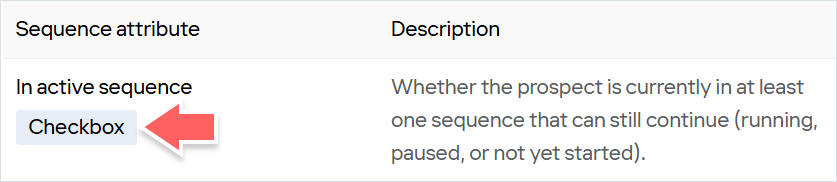
The Salesforce fields have types compatible with the Smart Sequences attributes. The Attribute mapping page shows the required field type and lists only compatible Salesforce fields.
Map sequence attributes to Salesforce fields#
In the Revenue Grid platform, open Settings.
Go to Platform settings → Smart Sequences → Attribute mapping.
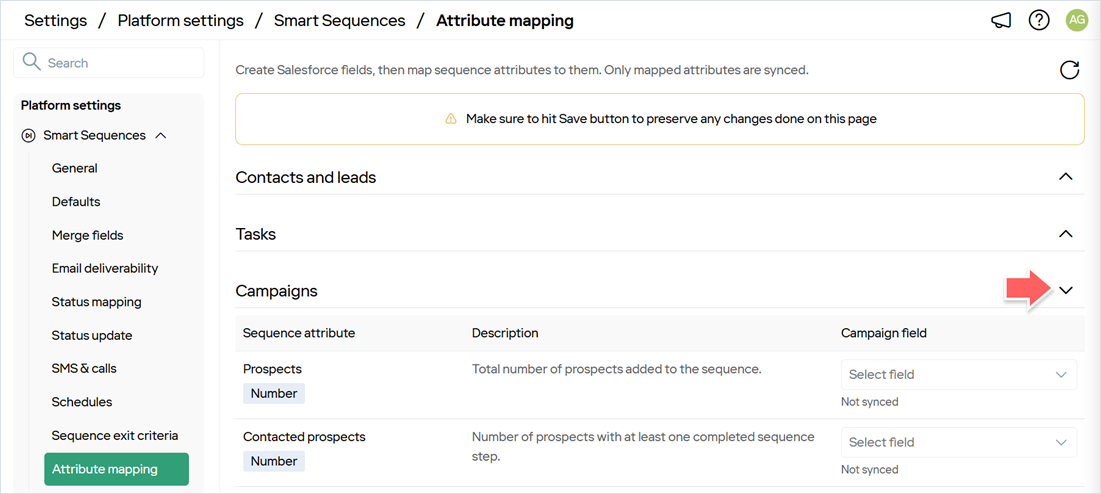
Expand the section for the Salesforce object you want to configure.
Find the Smart Sequences attribute you want to sync.
Select the Salesforce field that should receive the attribute value.
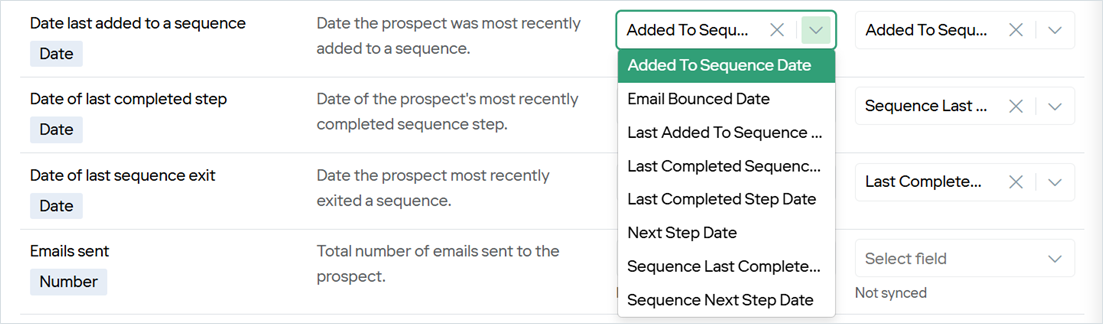
Repeat steps 3-5 for other attributes and Salesforce objects you want to sync.
Select Save.
Smart Sequences starts writing the mapped attributes to Salesforce when the corresponding data changes.
Refresh Salesforce fields#
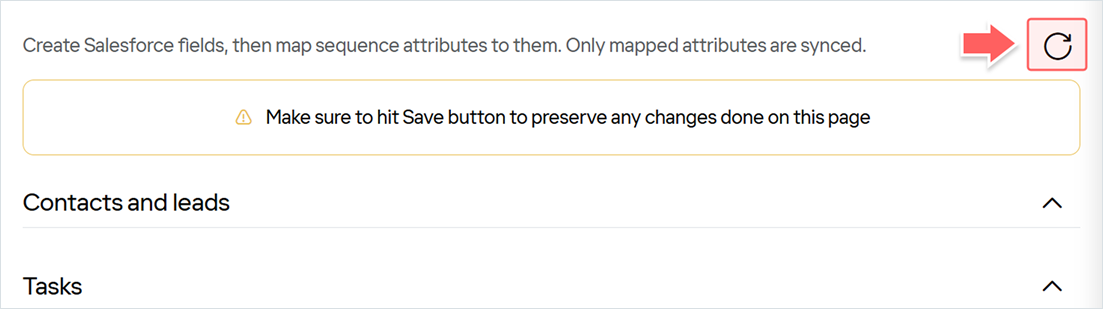
If you create or update fields in Salesforce while configuring attribute mapping, refresh the Salesforce fields to make the latest field configuration available in Smart Sequences.
To refresh the Salesforce fields:
On the Attribute mapping page, select the Refresh Salesforce fields () icon.
Change or remove a mapping#
You can change an existing mapping to write an attribute to another compatible Salesforce field or remove the mapping to stop syncing the attribute.
In the Revenue Grid settings, go to Platform settings → Smart Sequences → Attribute mapping.
Find the attribute you want to update.
Select another Salesforce field, or clear the existing mapping to stop syncing the attribute.
Select Save.