

Advanced sequence settings#
This article describes the advanced settings available when configuring a sequence. These settings allow more granular control over scheduling, data source mapping, automation behavior, and email compliance.
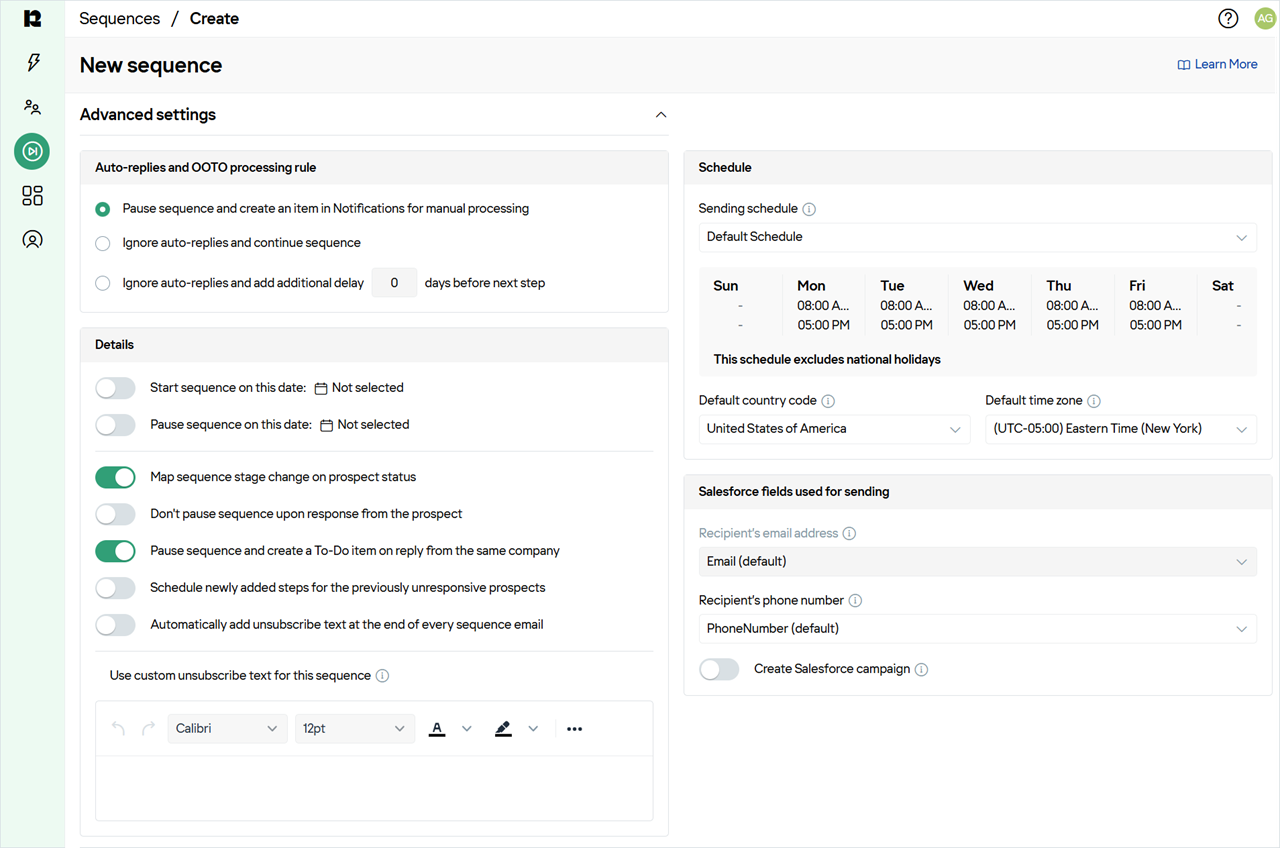
Schedule#
Setting |
Description |
|---|---|
Sending Schedule |
Specifies the timeframe during which sequence steps are sent. The schedule is based on the recipient’s country and time zone and excludes national holidays. You can override this schedule for individual steps if needed. |
Default country code |
Specifies the country calendar used to send steps for recipients who don’t have a country specified in Salesforce. This value applies only to the current sequence and overrides the default setting in Personal settings > Smart Sequences > General settings. |
Default time zone |
Specifies the time zone used to send steps for recipients who don’t have a time zone specified in Salesforce. This value applies only to the current sequence and overrides the default setting in Personal settings > Smart Sequences > General settings. |
Salesforce fields used for sending#
Setting |
Description |
|---|---|
Recipient’s email address |
Specifies the Salesforce field on Lead or Contact records used to send emails. If other fields with email values exist, they appear in the list. If only the primary email field is available, this setting is not editable. |
Recipient’s phone number |
Specifies the Salesforce field on Lead or Contact records used for SMS and Call step types. If other fields with phone number values exist, they appear in the list. If only the primary phone number field is available, this setting is not editable. |
Create Salesforce campaign |
When enabled, links the sequence to a Salesforce campaign. Prospects are synced from Salesforce into Revenue Grid and can only be added from Salesforce. Note: You can configure this setting only when creating the sequence. It cannot be changed afterward. |
Auto-replies and OOTO processing rule#
Setting |
Description |
|---|---|
Pause sequence and create an item in Notifications |
Pauses the sequence and creates a notification for manual processing of auto-replies, such as out-of-office messages. |
Ignore auto-replies and continue sequence |
Continues the sequence without pausing when an auto-reply is received. |
Ignore auto-replies and add additional delay {Days} before next step |
Continues the sequence after an auto-reply but adds a delay before the next step, based on the number of days specified. |
Details#
Setting |
Description |
|---|---|
Reply detection |
Defines which incoming emails are treated as replies from the prospect.
|
Reply handling |
Defines what happens when a reply is detected.
|
Attempt AI-assisted reply processing |
Automatically analyzes common prospect replies and finishes sequences with the appropriate outcome when possible. Replies that require additional interpretation continue through the standard reply handling workflow. This setting is available only when supported Revenue Grid AI features are enabled for the organization. |
Start sequence on the date |
Starts the sequence at a specific date and time. |
Pause sequence on the date |
Stops the sequence at a specific date and time. |
Map sequence stage change on person status |
Updates the recipient’s status based on changes to the sequence stage. |
Schedule newly added steps for the previously unresponsive recipients |
Sends newly added steps to recipients marked as Unresponsive. Their status changes back to Approaching. |
Automatically add unsubscribe text at the end of every sequence email |
Appends an unsubscribe link to each sequence email. This setting may not be editable if locked by an admin. |
Use custom unsubscribe text for this sequence |
Allows you to create and manage a custom unsubscribe message specific to the sequence. |
Automated recipient removal#
Setting |
Description |
|---|---|
Sequence exit criterion |
Defines a rule that automatically removes recipients from a sequence based on their Salesforce data. The rule is configured in Platform settings and applied to the sequence. When a recipient’s record matches the rule, they are removed from the sequence, no further steps are sent, and their status changes to Removed by rule. Recipients who do not match the rule remain in the sequence and continue receiving steps. |
Email deliverability#
Setting |
Description |
|---|---|
Track email opens |
Enables or disables email open tracking for a sequence. When disabled:
|
Track link clicks |
Enables or disables link click tracking for a sequence. When disabled:
|