

Set your default Smart Sequences settings#
Before you start using sequences, configure your default settings. This ensures that Smart Sequences schedules steps in your prospects’ business hours and uses the right phone numbers for outreach.
Set default country and time zone#
If a prospect record does not include a country or time zone, Smart Sequences will apply your default settings. This ensures that sequence steps are scheduled during your prospects’ business hours.
To set the default country and time zone:
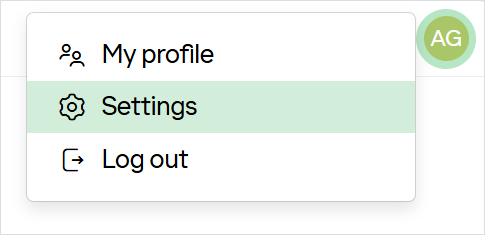
In the top-right corner, click the profile icon and select Settings.
In the Personal settings pane, expand Smart Sequences, and select General.
In the Sending section:
In the Default country code box, select or type the country whose calendar should be used to determine working days.
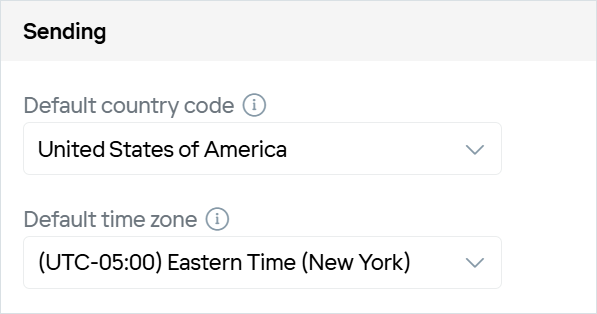
In the Default time zone box, select or type the time zone you want to apply.
Click Save.
Note
These defaults are applied only when the prospect’s country or time zone is not specified.
Set up phone settings#
If your organization uses a supported SMS and call provider that is connected to Revenue Grid, you can select which phone numbers to use for SMS messages and calls. For a list of supported SMS and call providers, see Supported SMS and call providers for Smart Sequences.
To set phone numbers:
In the top-right corner, click the profile icon and select Settings.
In the Personal settings pane, expand Smart Sequences, and select General.
In the Phone settings section:
In the SMS number box, select one of the available numbers for your SMS steps.
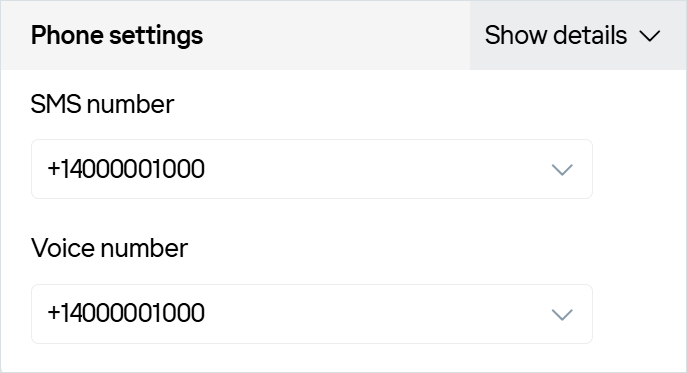
In the Voice number box, select one of the available numbers for your call steps.
Click Save.