

Choose the right sequence behavior with sequence goals#
Sequence goals define the purpose of a sequence and automatically apply the appropriate behavior. This allows you to configure sequences without manually adjusting multiple related settings.
By selecting a goal, you ensure that your outreach matches how you interact with recipients — whether you are prospecting new leads or communicating with existing contacts.
Where to set a sequence goal#
You select a sequence goal when creating a new sequence or editing an existing one.
When creating a sequence, the Sequence goal section appears in the setup view, below general settings such as name, priority, etc.
When editing a sequence, the Sequence goal section is located on the Settings tab, in the same position.
Below the selector, a Preconfigured defaults panel shows which settings are applied for the selected goal so you can review how the sequence will behave before configuring advanced settings.
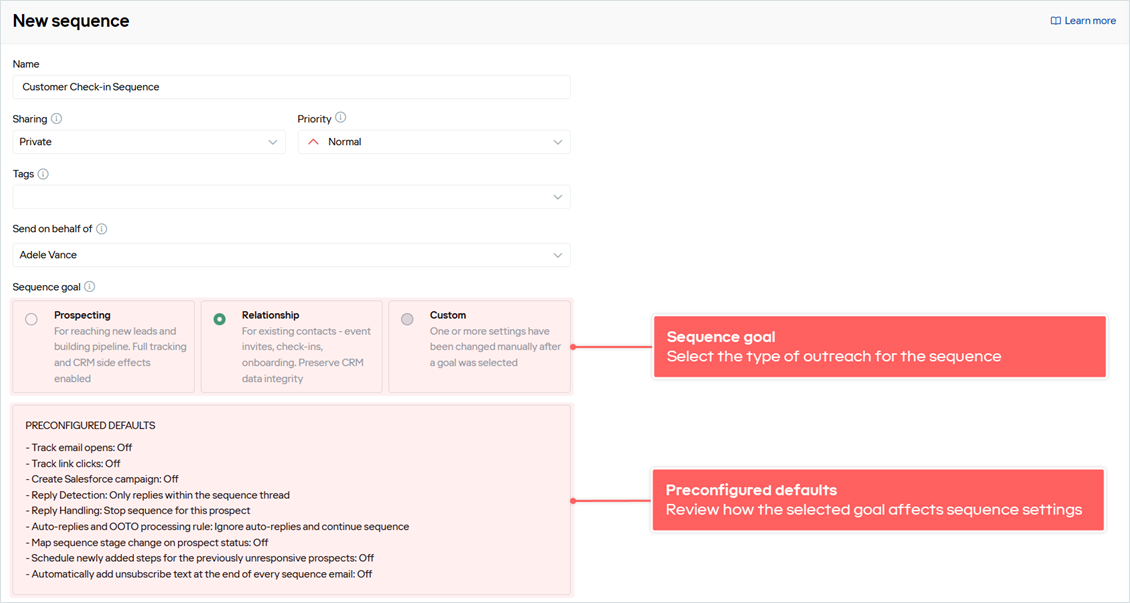
Why sequence goals matter#
Different types of outreach require different behavior because they serve different purposes.
Prospecting is focused on identifying interest and acting on it quickly. Engagement signals help you prioritize prospects, replies trigger follow-up actions, and CRM updates keep prospect status aligned with activity.
Relationship-based communication is focused on maintaining trust and delivering messages effectively. Tracking and automation are often unnecessary in this context and can add noise, interrupt communication, or create misleading CRM updates.
Sequence goals ensure that each sequence follows the appropriate approach without requiring manual configuration.
Available sequence goals#
Prospecting#
This is the default goal for all new sequences. It is designed for outreach to new leads and prospects, where capturing engagement and responding quickly is critical.
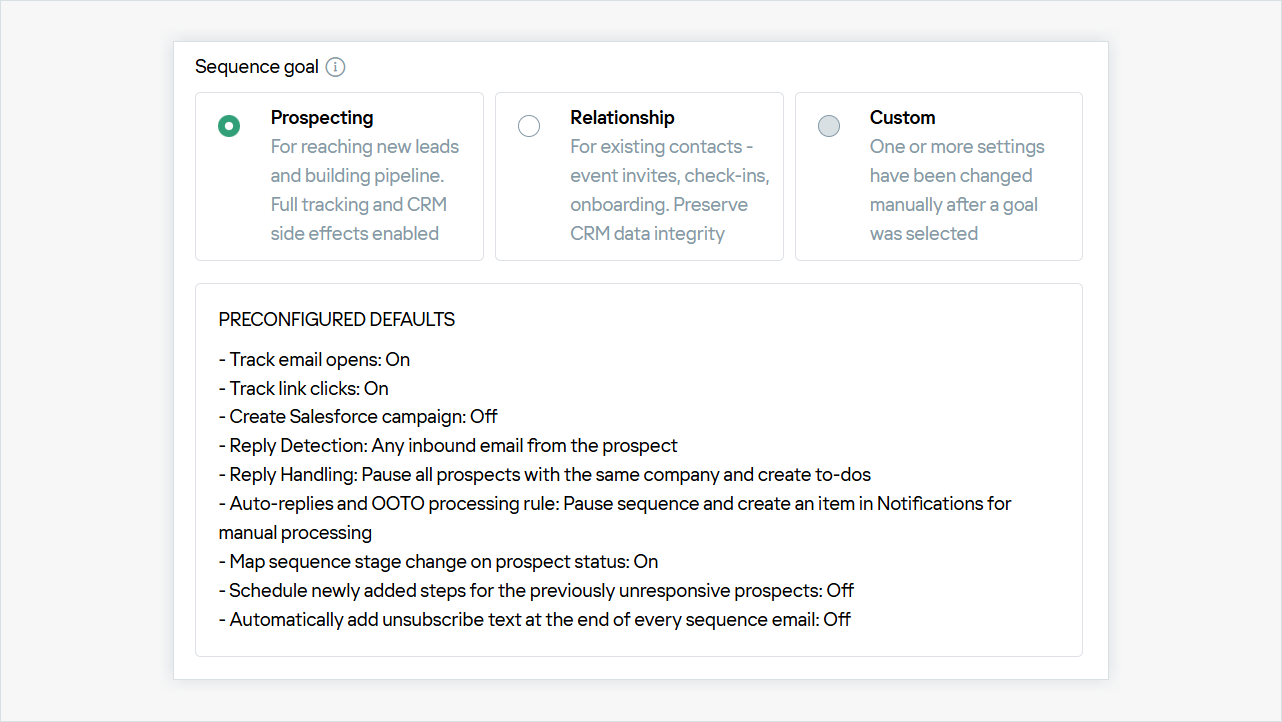
When selected, the sequence:
tracks email opens and link clicks to measure engagement
treats any inbound email from the prospect as a reply
pauses sequences and creates follow-up to-dos when replies are received, including for all prospects from the same company
pauses the sequence and creates a notification when an auto-reply (such as out-of-office) is detected
updates prospect status in Salesforce based on sequence progress
Use this goal when your objective is to identify interest, act on responses quickly, and keep CRM data aligned with prospect engagement.
Relationship#
This goal is designed for communication with existing contacts, such as customers, partners, or event participants, where maintaining a natural interaction is more important than tracking engagement.
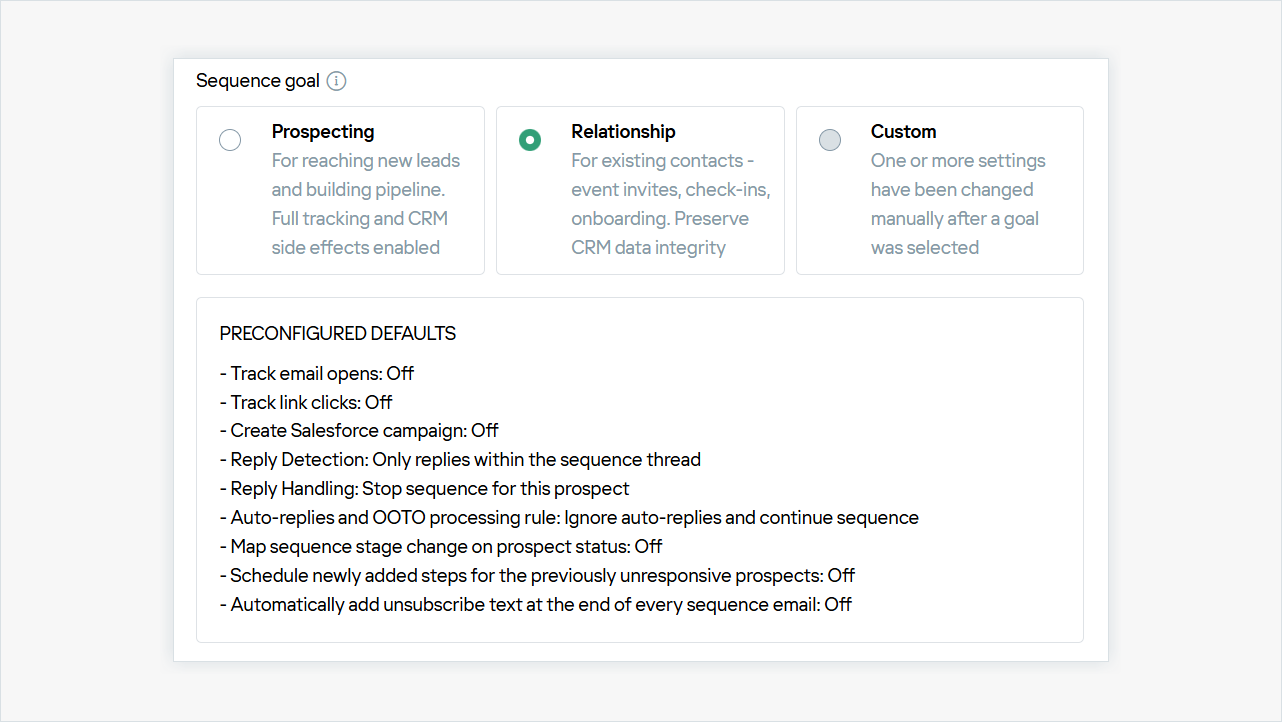
When selected, the sequence:
does not track email opens or link clicks
only treats replies within the sequence thread as responses
stops the sequence when a reply is received without creating follow-up tasks
ignores auto-replies and continues the sequence without interruption
does not update contact status in Salesforce
does not add unsubscribe text to emails
Use this goal for customer communication such as check-ins, onboarding, or event invitations, where prospecting side effects—such as task creation, CRM updates, and engagement tracking—are not needed and may add noise or feel intrusive.
Custom#
The Custom goal is assigned automatically when you modify any setting controlled by a sequence goal. This indicates that the sequence no longer matches a predefined configuration.
How sequence goals work#
Each goal applies a predefined configuration to a set of related settings, including:
email tracking
reply detection and handling
auto-reply processing
CRM updates
unsubscribe behavior
These settings remain visible and editable after a goal is selected.
You can change the goal at any time, including for active sequences. When you switch goals, all related settings are reset to match the selected configuration. Changes apply only to steps that have not yet been executed.