

Find what you need with smarter filters#
Filtering is now centered around what you’re looking for rather than requiring you to know which field contains the value.
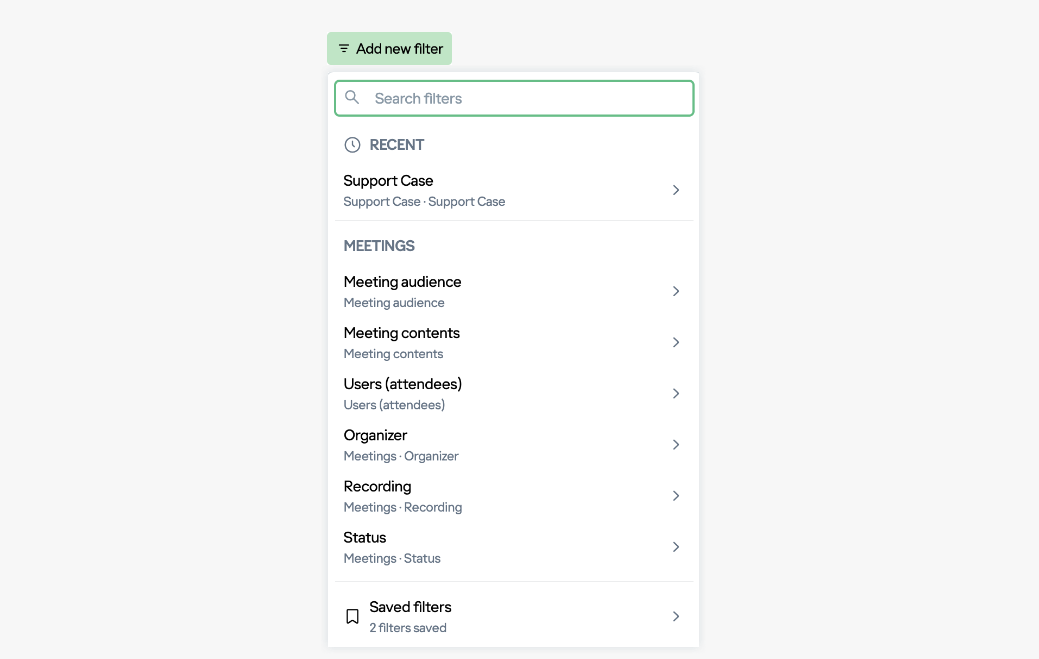
Start typing a value, such as a person’s name, account, or stage, and Revenue Grid suggests matching fields and values. For example, searching for “Steve” can suggest Steve Smith as an Opportunity Owner and Steve Brown as a Contact. Searching for “stage” can suggest values such as Stage 01 and Stage 02 even when the field containing them has a different name.
Technical fields that aren’t useful for filtering, such as Account ID, are hidden from the suggestions.
You can also:
Exclude values — Use NOT to find records that don’t match selected values.
Set number and date ranges — Define minimum and maximum values or date ranges for fields such as Amount and Close Date.
Access filters faster — Search and filters are now separate controls, reducing the steps needed to create a filter.
Saved filters continue working as before: you can still save, apply, update, and delete them.