

Set up the Revenue Grid plugin for Claude#
Connect Revenue Grid to Claude to access your customer data and insights directly from your Claude conversations.
To get started, add the Revenue Grid plugin from Claude’s plugin directory and connect your Revenue Grid account.
Requirements#
You have a paid Claude subscription (Pro, Max, Team, or Enterprise).
At least one of the following AI features is enabled for your Revenue Grid organization:
You have your organization’s Revenue Grid tenant URL.
If you’re unsure whether an AI feature is enabled, contact your Revenue Grid administrator.
Note
If you’re using a Claude Team or Enterprise plan, an organization owner might need to enable the Revenue Grid connector before you can connect your account.
Install the plugin#
Sign in to Claude.
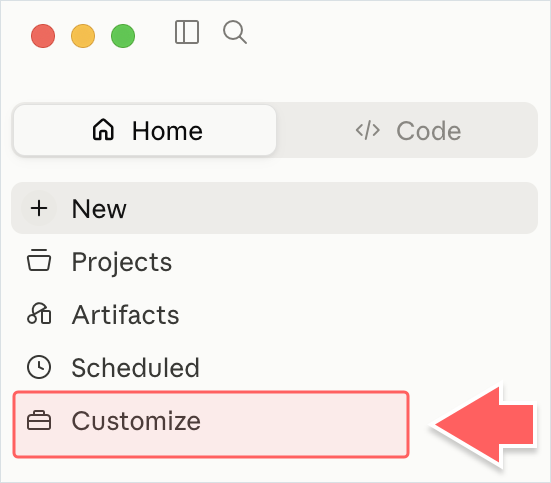
In the left sidebar, select Customize. If you’re using Cowork, open the Cowork tab first, then select Customize.
Select Plugins, then open the Discover tab.
Find and open Revenue Grid.
Select Add.
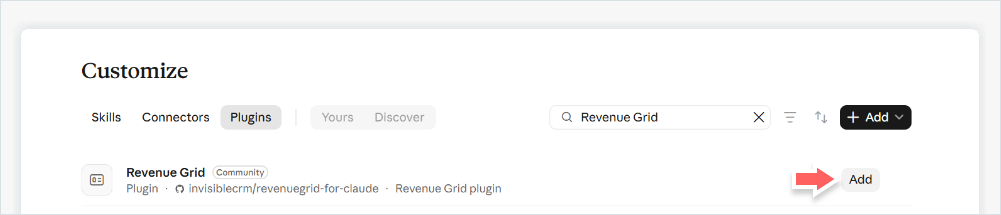
The Revenue Grid plugin is now added to your Claude account.
Connect your Revenue Grid account#
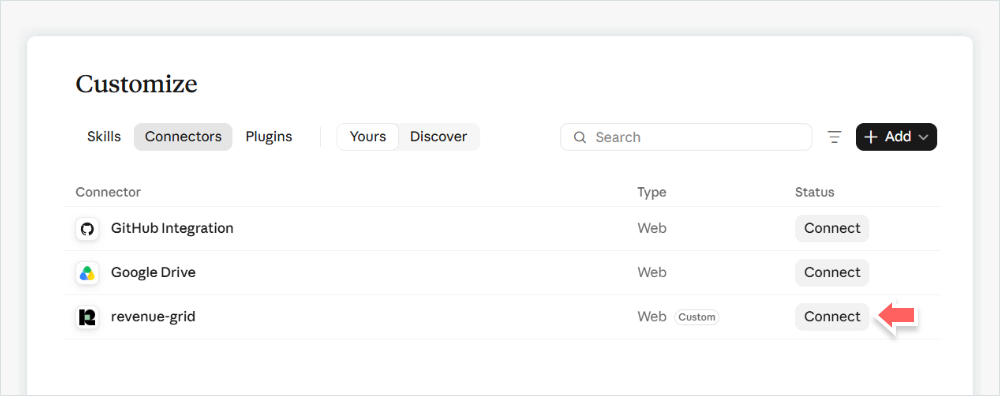
In Claude, go to Customize > Connectors.
On the Yours tab, find the Revenue Grid connector and select Connect.
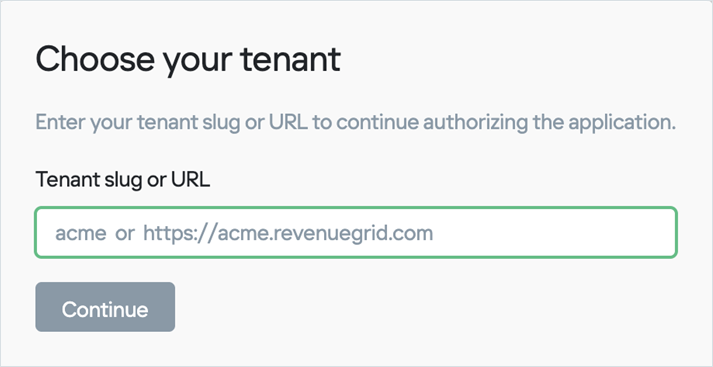
Enter your Revenue Grid tenant URL.
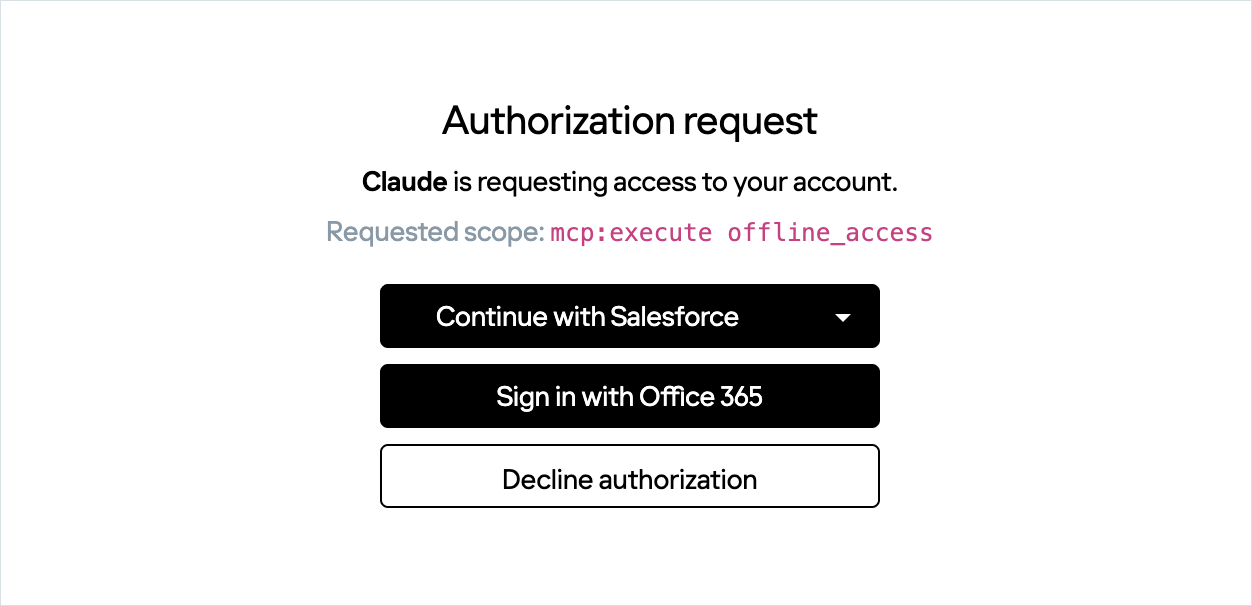
Sign in using your Revenue Grid credentials.
The Revenue Grid plugin is ready to use in Claude.