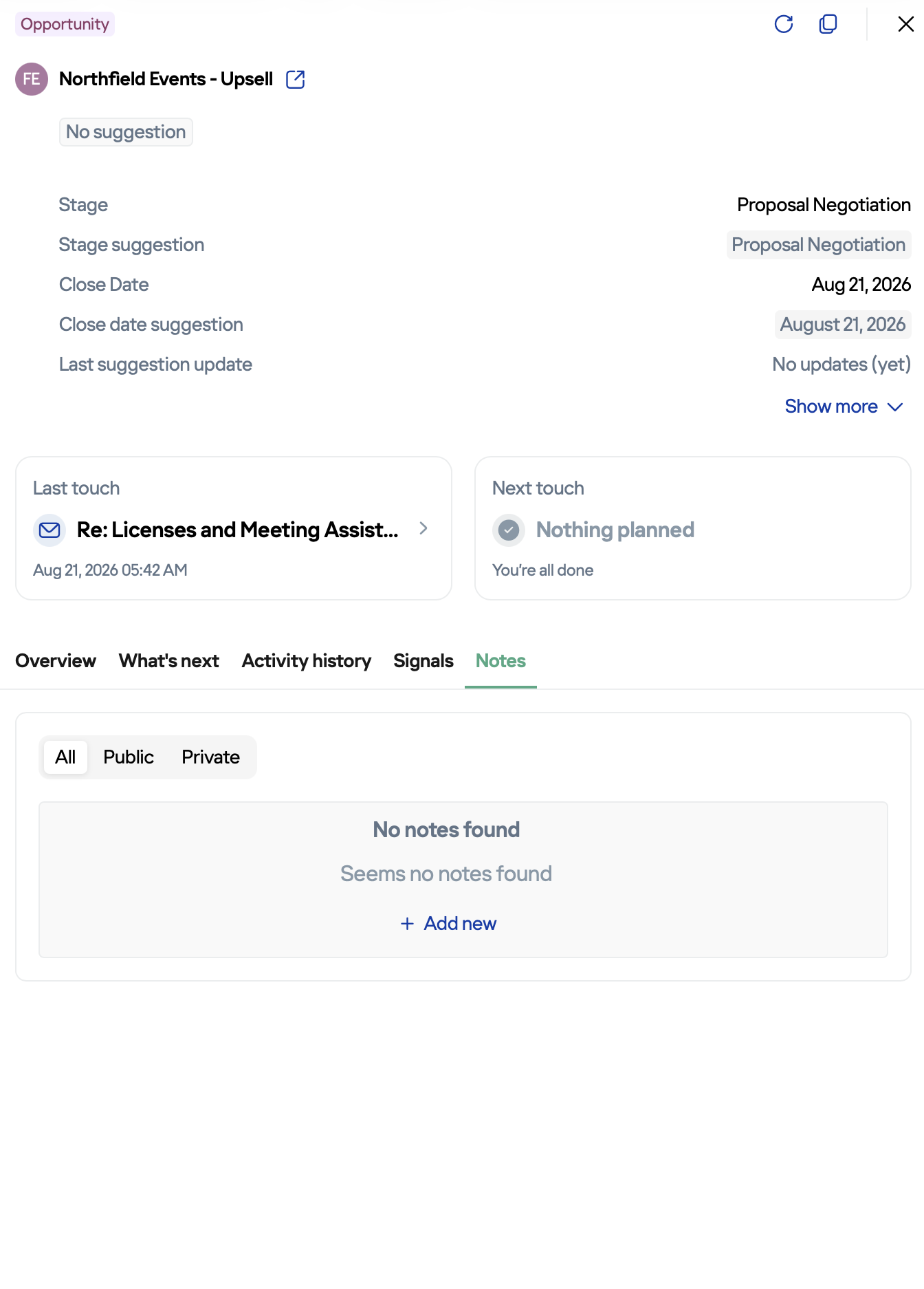
Diving into the opportunity#
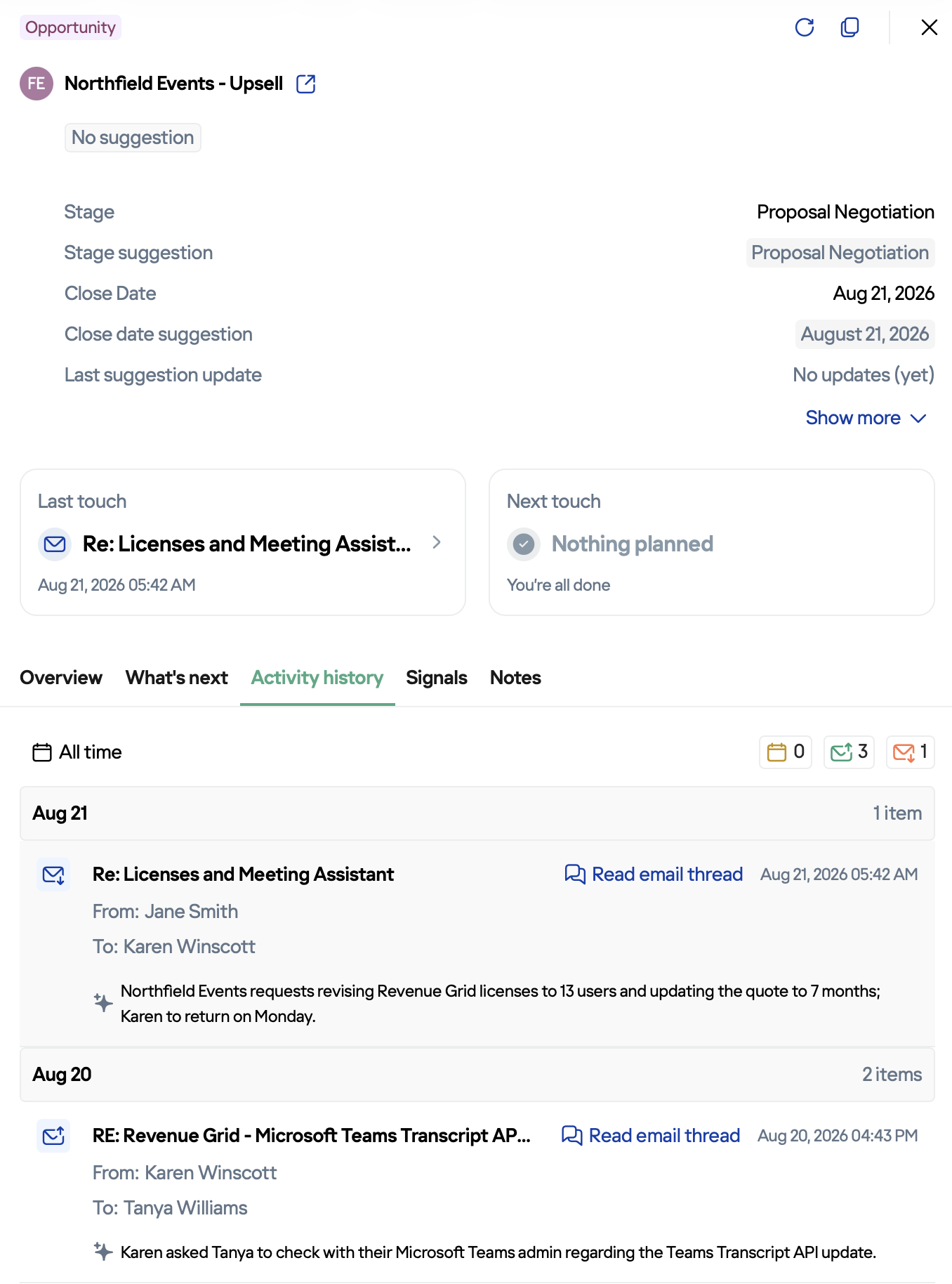
When you select an opportunity in Revenue IQ, an Opportunity drawer opens on the right side of the page, giving you a single, deeper view into that specific deal.
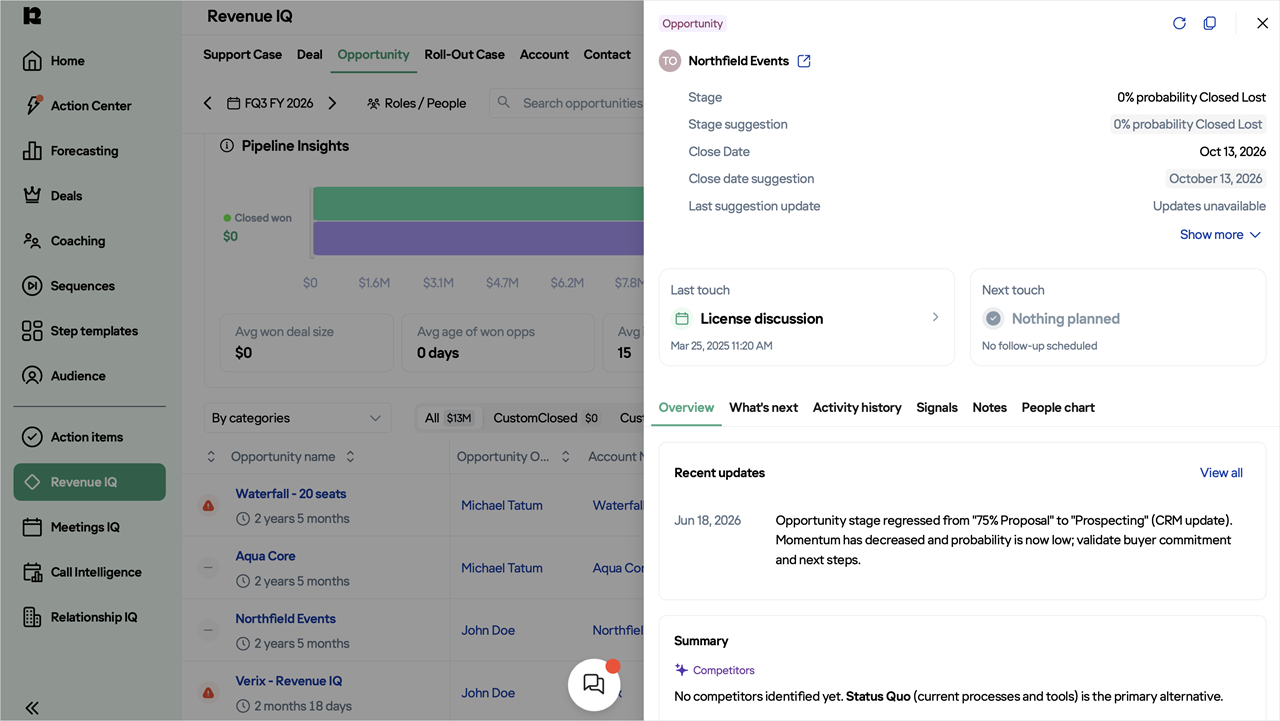
At the top of the drawer you’ll find the opportunity’s core details:
Opportunity name, with a shortcut icon to open the record directly in CRM.
Stage, Stage suggestion, Close Date, Close date suggestion, and Last suggestion update — Displays the current CRM values alongside Revenue IQ’s AI-generated predictions, so you can quickly identify any differences.
Show more: expands to reveal the rest of the opportunity’s Salesforce fields — Amount/TCV, Forecast Category, Lead Source, Deal Type, contract details, product seat counts, and more.
Just below, two cards give you an immediate read on engagement:
Last touch: your most recent communication with the prospect (e.g. an email thread), with a shortcut to open it.
Next touch: your next scheduled interaction, or a “Nothing planned” prompt if none is on the calendar yet.
The rest of the drawer is organized into tabs: Overview, What’s next, Activity history, and Notes.
Overview#
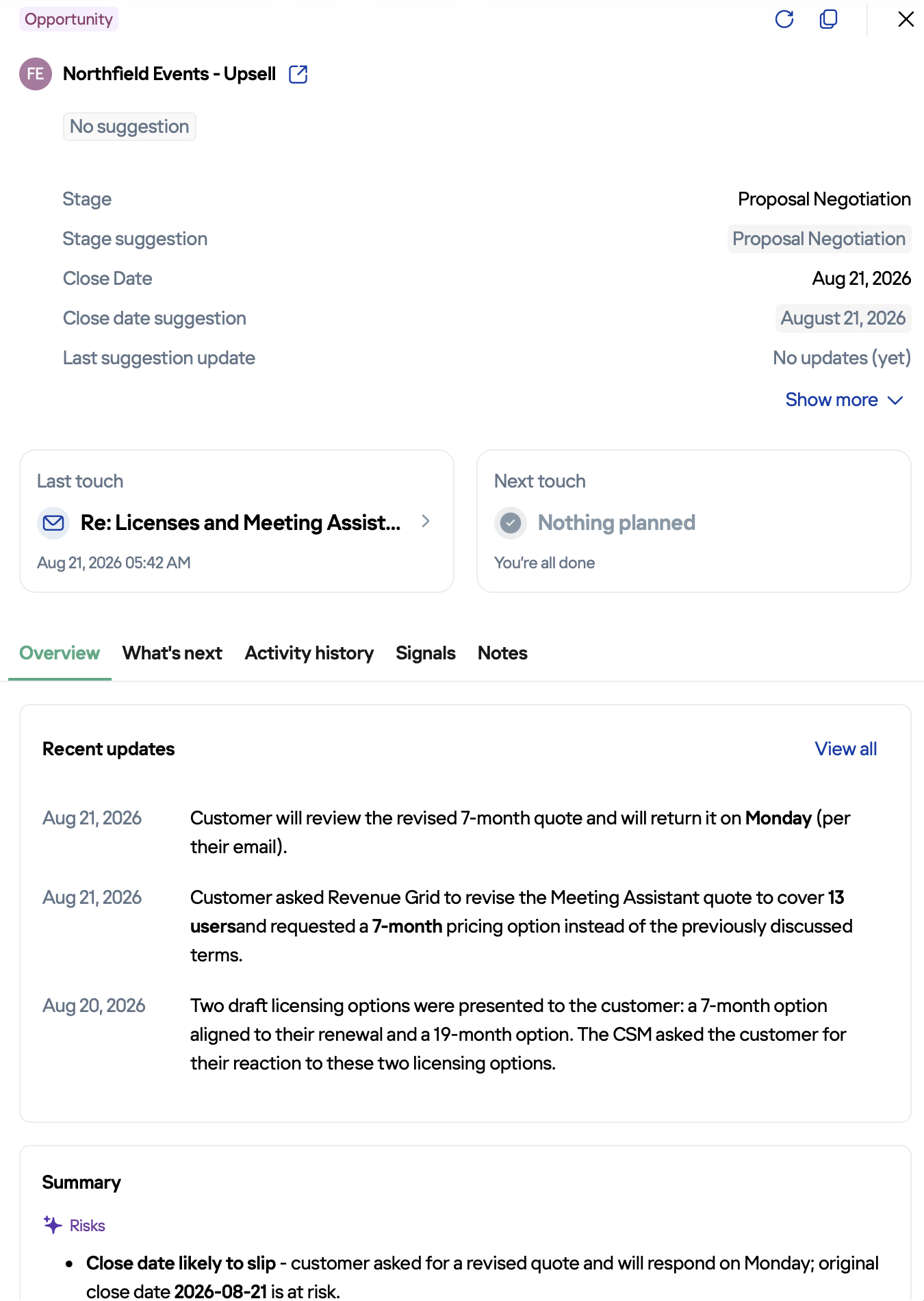
The Overview tab surfaces:
Recent updates: the latest few developments on the opportunity, drawn from your team’s communication history. Select View all to open the full Recent updates page.
Summary, including AI-identified Risks — flags on anything that could put the deal at risk, such as a close date that’s likely to slip.
What’s next#
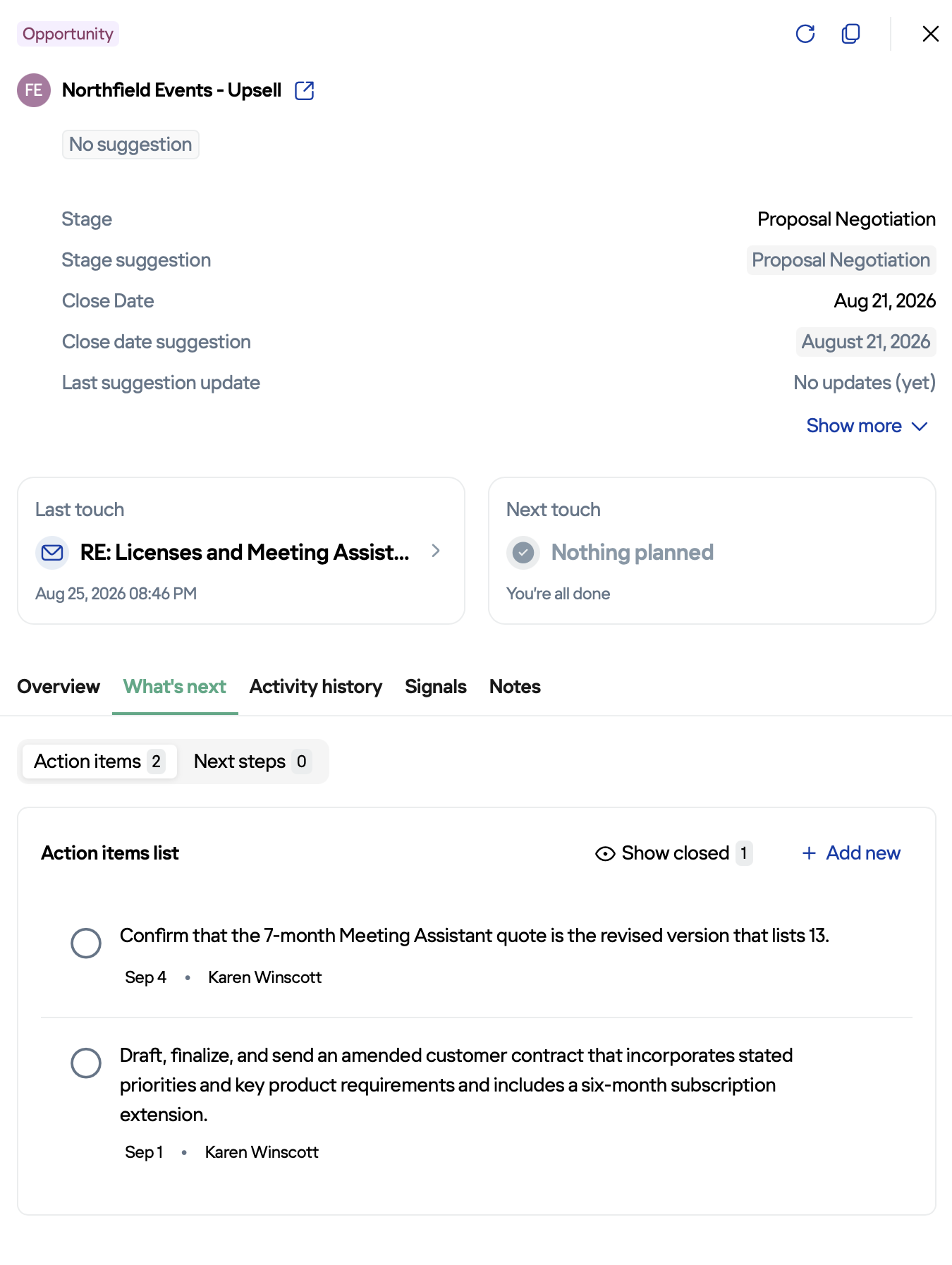
The What’s next tab combines what used to be two separate sections — Next steps and Action items — into a single tab with two sub-tabs:
Action items: tasks gathered automatically from your communication with the prospect — for example, a follow-up quote to prepare or a contract to send — each shown with a due date and owner. Select Show closed to review completed items, or Add new to create one manually. Check an item off once it’s done.
Next steps: AI-recommended actions for moving the deal forward. If Revenue IQ hasn’t analyzed the opportunity yet, you’ll see a “No next steps (yet)” message until they’re generated — you can still add your own manually via Add new in the meantime.
Activity history#
The Activity history tab logs every touchpoint with the prospect — meetings, sent emails, and received emails — with a count for each shown at the top. Choose a time range (for example, All time) to narrow the log down. Select any item to expand it in place and see the sender, recipient, and an AI-generated summary of what was discussed.
Notes#
The Notes tab is a space for your team to leave freeform notes on the opportunity, filterable by All, Public, or Private. Select Add new to post one.