

Configure MS Teams meeting processing for the Graph App Only configured profiles#
Preparation#
Run the console with the administrative privileges
Install required PowerShell modules and connect with you Azure account which have admin permissions based on the steps provided in the article - Install Microsoft Teams PowerShell - Microsoft Teams
Create and assign the policy#
Configure an application access policy using the cloud communications API - Microsoft Graph
New-CsApplicationAccessPolicy -Identity "Test-policy" -AppIds " 336be6bf-83eb-47ad-93ef-32250063f88d"
Explanation of Parameters:
Identity: Specifies the name of the new application access policy. In this case, the policy name is Test-policy.
The name must be unique within your tenant.
AppIds: Specifies the Revenue Inbox application IDs (AppIds) of the applications that are allowed or denied access by the policy.
In this case, the application with ID
336be6bf-83eb-47ad-93ef-32250063f88d(Revenue Inbox) will be added to the policy.
Microsoft provides options for assigning policies either directly to individual users or globally to the entire organization.
We recommend assigning the policy to a pre-configured security email-enabled or security non-email enabled group in Azure AD / Entra ID. This approach ensures that Revenue Grid processes only meeting-related information for users who are members of this group. However, you may choose to follow the steps outlined by Microsoft at their discretion. Our recommended approach is designed to ensure a high level of security and access control compliance.
Important
Microsoft 365 Groups (formerly Office 365 Groups) for assigning policies via Grant-CsApplicationAccessPolicy is not directly supported in all scenarios.
Article on how to create Group in Azure AD / Entra ID - Create a group with members and view all groups and members - Microsoft Entra
Steps to locate the group Object ID#
Navigate to the Microsoft Entra Admin Center (formerly Azure AD Admin Center).
Select Groups from the left-hand menu and click on All groups.
Click on the specific group for which you want to find the ID (e.g., RG2 MS Teams Meeting Data Access Group).
Under the Overview tab, locate the Object ID field in the Basic Information section.
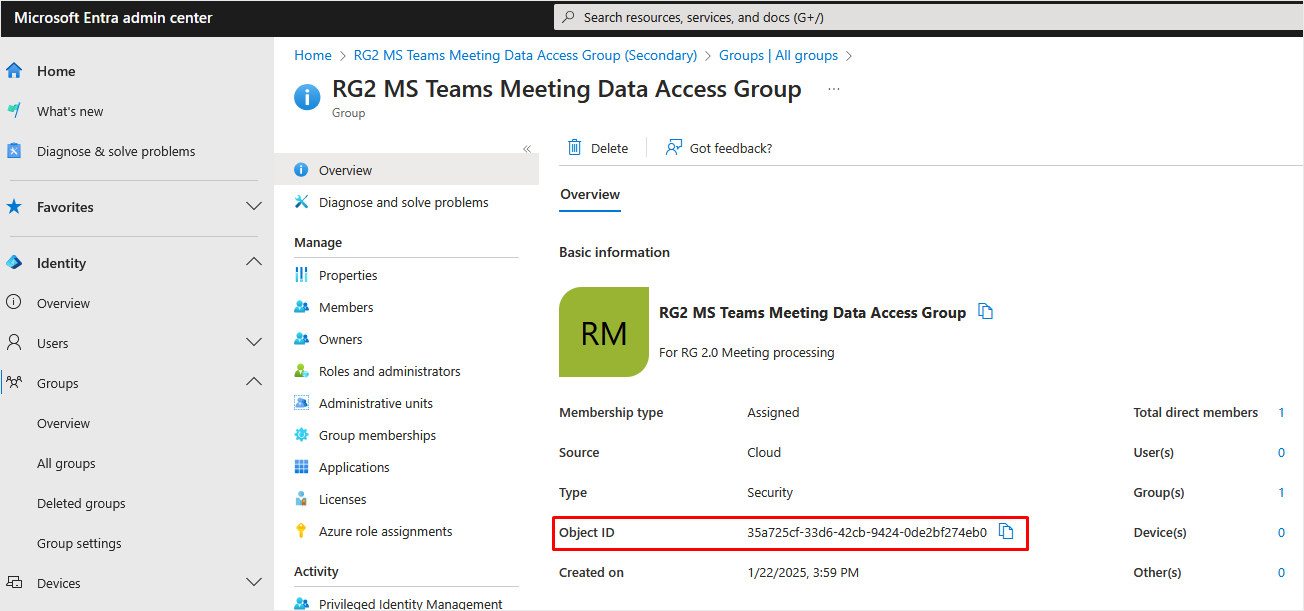
For the assignment to the Azure AD / Entra ID security group instead use the powershell script below:
Grant-CsApplicationAccessPolicy -PolicyName Test-policy -Group "35a725cf-33d6-42cb-9424-0de2bf274eb0"
Explanation of parameters:
PolicyName: Specifies the name of the application access policy to assign (e.g., Test-policy).
Group: Specifies the Azure AD / Entra ID group to which the policy is applied, identified by its ObjectId (e.g.,
e322d51e-83a2-4b74-8fb4-28847b3559f7).
Important
According to Microsoft’s documentation, updates to policies or changes to the groups where a policy is assigned may take approximately 30 minutes to take effect.
Reconnect the Azure AD / Entra ID account for the Graph app-only access profile#
Go to the Connectivity tab in the profile settings.
In the Email Configuration section, initiate a reconnection using an Azure AD / Entra ID account with Admin Permissions.
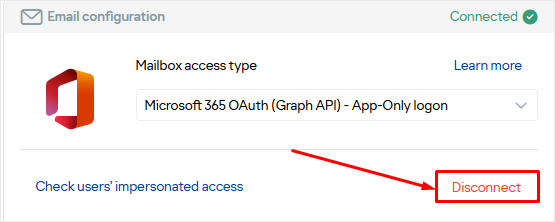
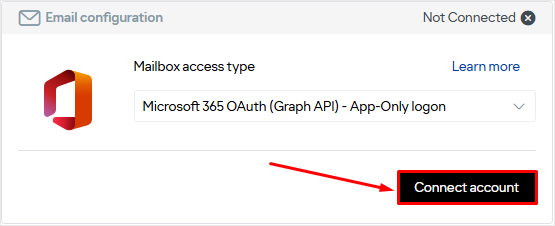
Click the Disconnect button, then the Connect button to initiate the login process.
Provide admin consent#
During the reconnection process, grant consent for the new permissions when prompted.
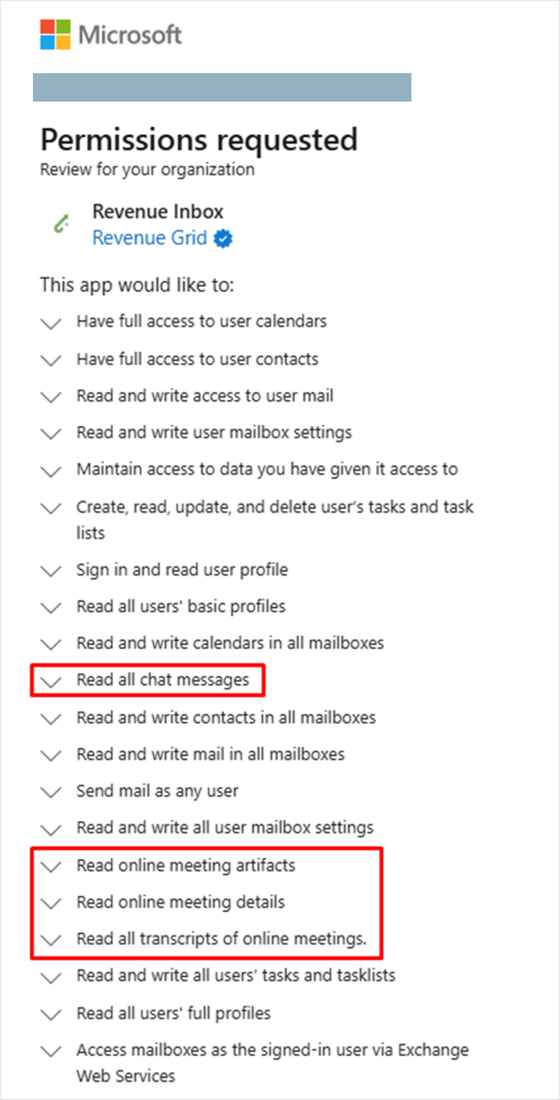
If consent has been granted, a user within the corresponding profile will see that the MS Teams connectivity displays a “Connected” status.