

Foresight rollout#
This article outlines the step-by-step rollout of Revenue Grid with Foresight. The roadmap below illustrates the general process involving Revenue Grid implementation managers, CRM admins, and users.
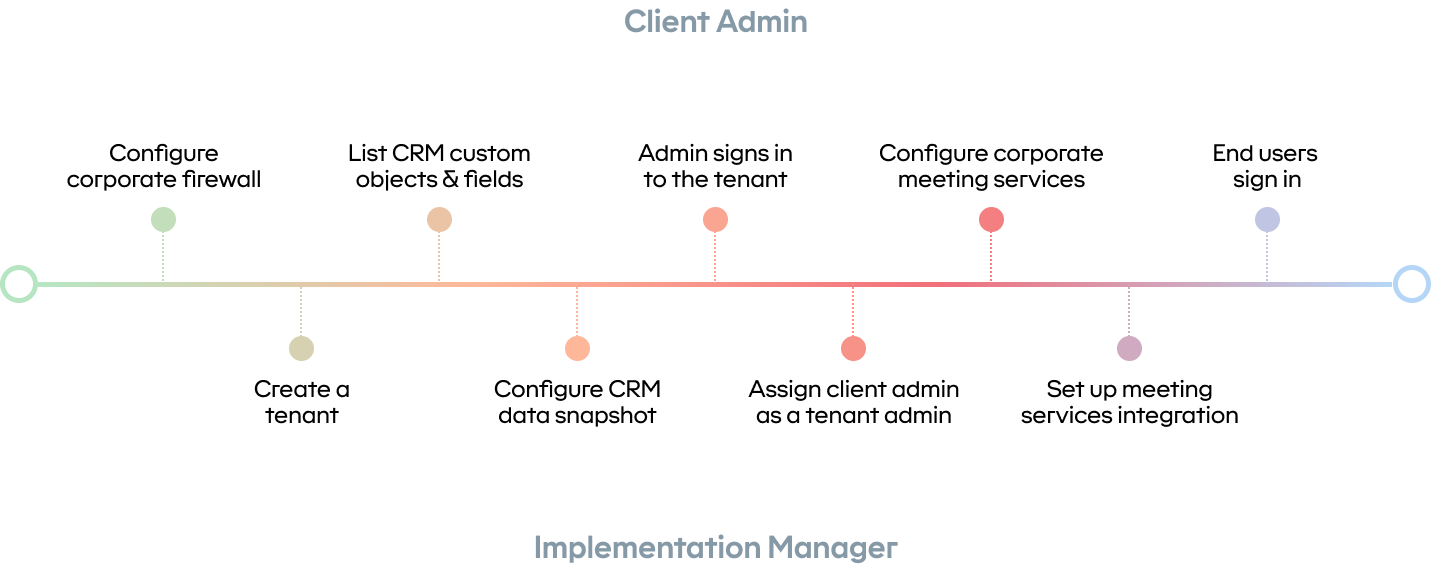
This guide focuses on the steps to be performed by CRM admins and users. All steps are required for Foresight to function correctly.
The rollout includes the following steps:
Configure the corporate firewall#
Configure your corporate firewall to work with Revenue Grid, as described in this article.
List custom CRM objects and fields (optional)#
Foresight captures and processes extensive CRM data. The default configuration is detailed in the article Default CRM data snapshot.
If you want Foresight to process data from specific custom CRM fields, please provide Revenue Grid Support with the corresponding CRM object types and field names.
Configure corporate meeting services#
To provide accurate predictions and recommendations, Foresight requires access to sufficient data from meeting services. To grant this access, follow the instructions below according to your company’s meeting service.
Grant MS Teams permissions#
To integrate Foresight with your corporate MS Teams, please grant the following permissions on your Azure tenant:
OnlineMeetingRecording.Read.AllOnlineMeetingArtifact.Read.All
Create Zoom OAuth application#
To integrate Foresight with your corporate Zoom, create a Zoom OAuth application and provide the Foresight implementation manager with the application credentials.
For details on creating a Zoom App, see the article Create Zoom App for Revenue Grid.
Sign in#
Important
The first user to sign in will automatically receive admin rights, so we recommend that the CRM admin logs in first.
Once Revenue Grid with Foresight is rolled out, the implementation manager will provide you with the registration wizard link. Users can then sign in.
For detailed instructions, refer to the article Sign in to Revenue Grid with Foresight.