

Notes on opportunities#
When working on an opportunity, you often need to quickly record important information — a customer concern, a risk, a next step, or an internal reminder.
Notes on opportunities allow you to:
Add short text notes directly to an opportunity.
Choose whether AI should process the note (Public) or ignore it (Private).
Edit or delete notes as needed.
This helps you keep deals documented, aligned with your manager, and accurately reflected in AI-generated insights.
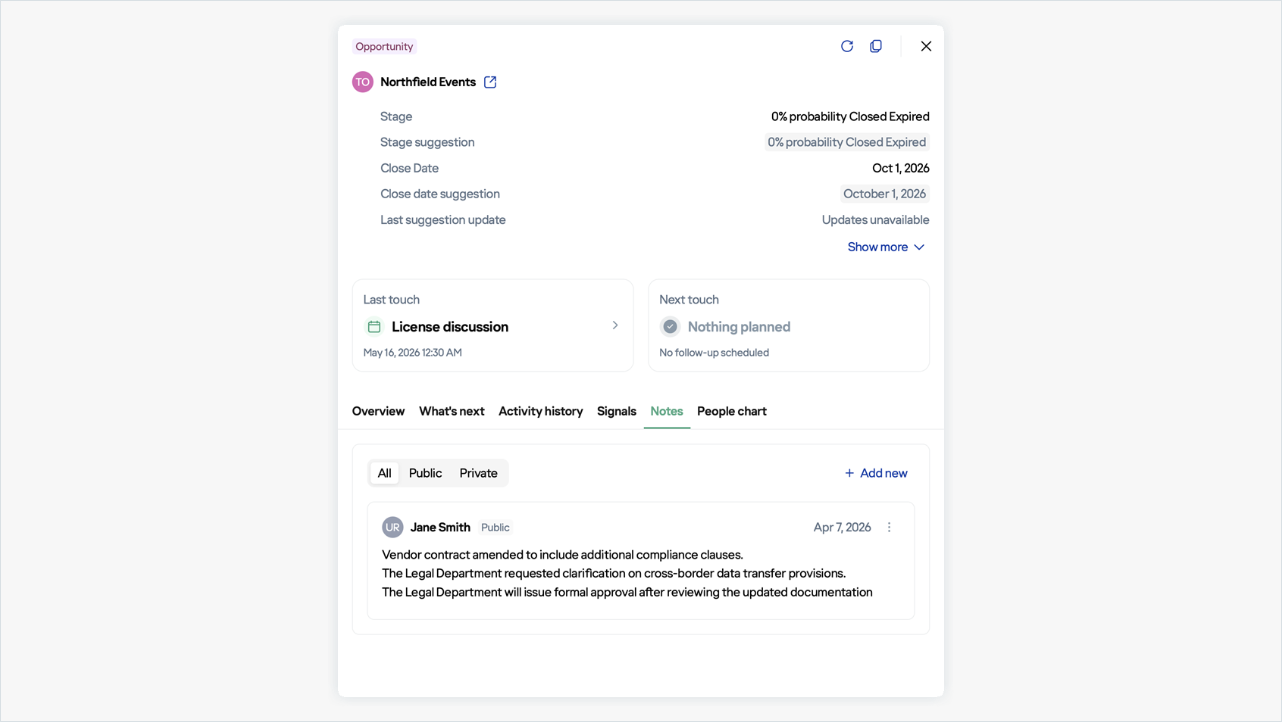
Public vs. private notes#
When creating a note, you must choose its type. Use public notes when the information should influence reporting, insights, or forecasting.
Public notes#
A Public note is processed by AI.
AI will:
Extract important facts from the note
Use those facts in:
Opportunity insights
Meeting preparation
Summaries
Suggestions
Public notes are visible to all users who have access to the opportunity.
Private notes#
A Private note is not processed by AI and is visible only to its author. Use private notes when you want to document information without affecting AI-generated insights or when you want to make a note for yourself.
AI will:
Not extract facts
Not use the note in summaries or predictions
How to create a note#
You can add a note directly from the opportunity drawer.
Steps#
Open the opportunity.
Go to Notes.
Click Add note.
Enter the note text (required).
Select the note Type:
Public (default)
Private
Click Save.
Delete a note#
Only the note creator can delete it.
If you delete a public note:
Related AI-generated facts in the knowledge lake are removed
AI-generated artifacts (summaries, insights, etc.) are updated
Deleting a note permanently removes it and any related AI facts.