

Your silent companions – Notetakers#
Introducing Notetakers, an AI-powered solution to enhance your meeting experience, that can join any meeting no matter who the organizer is or what platform you’re using: Teams or Zoom, the agent can participate seamlessly.
Bringing value#
Notetakers are an indispensable part of the Meeting Assistant tool, brought for collecting data for further analysis. Listening during the meeting, the Notetaker records meeting audio, turning it into text transcript. The transcript is essential, since further it is converted into valuable insights on the Revenue Grid platform. At the moment, there are two Notetakers available for different platforms and meeting organization settings: Microsoft Teams Notetaker and Dial-In Agent.
Note
Only one Notetaker will join the meeting, even if there are several users invited from the same tenant.
Microsoft Teams Notetaker#
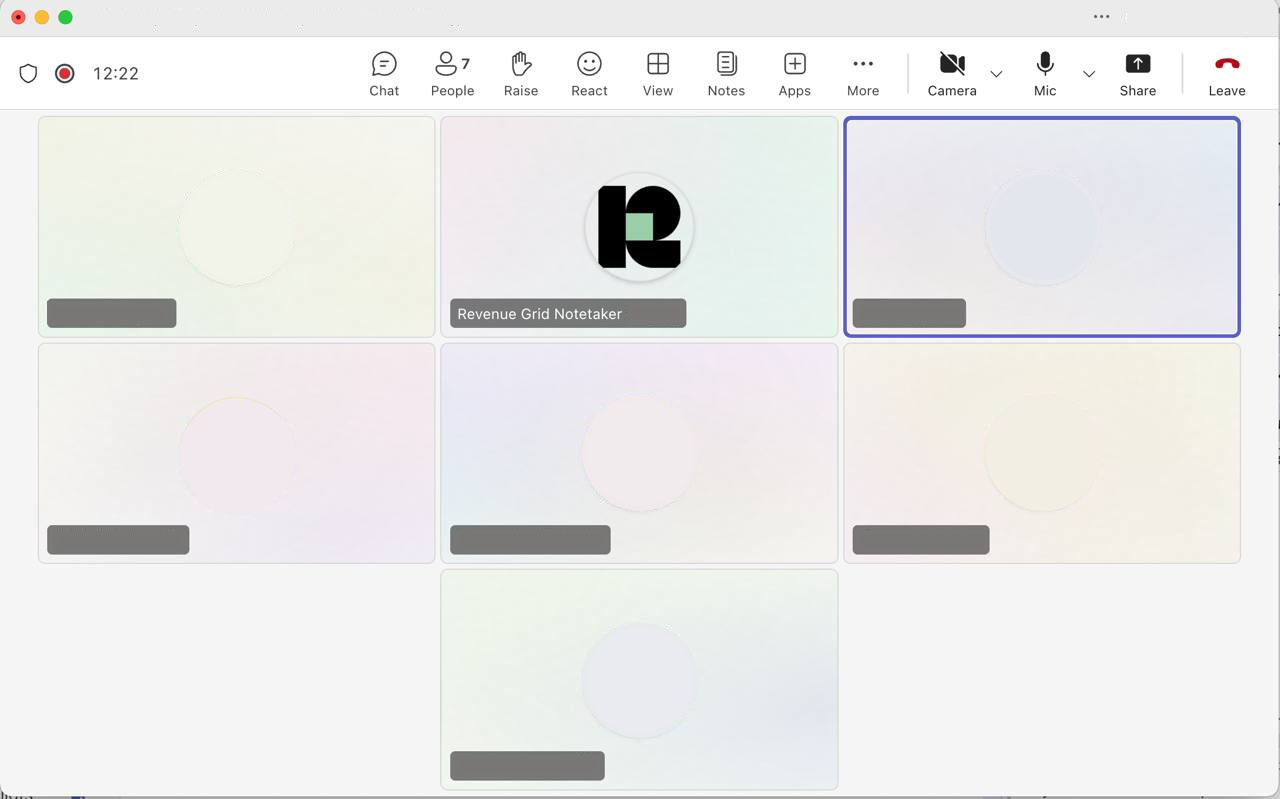
MS Teams Notetaker is able to function automatically and doesn’t need any invites from you. As it is stated in the name - this Notetaker only participates in the meetings organized in the Microsoft Teams and only if organizer is a Revenue Grid user.
How does MS Teams Notetaker works:
The Notetaker joins the meeting a few minutes before the start time, awaiting for everyone to join. There is no need to approve Notetaker joining, as it is a part of the team.
During the meeting the Notetaker will not disturb you. The only mention of it will be in the participants list.
After the meeting ends, the Notetaker awaits for 30 minutes and leaves in case the meeting was not ended manually by any of the participants.
To learn, how to manage Teams Notetaker’s settings - read this article: Configure MST Notetaker Settings
Dial-In Agent#
Dial-In Agent operates automatically, therefore you don’t have to manage it manually by, for example, inviting it into the conversation. The only condition for the agent to connect is to ensure, that the meeting invite includes dial-in phone number.
To enable Dial-In Agent in your meetings, proceed with the following steps:
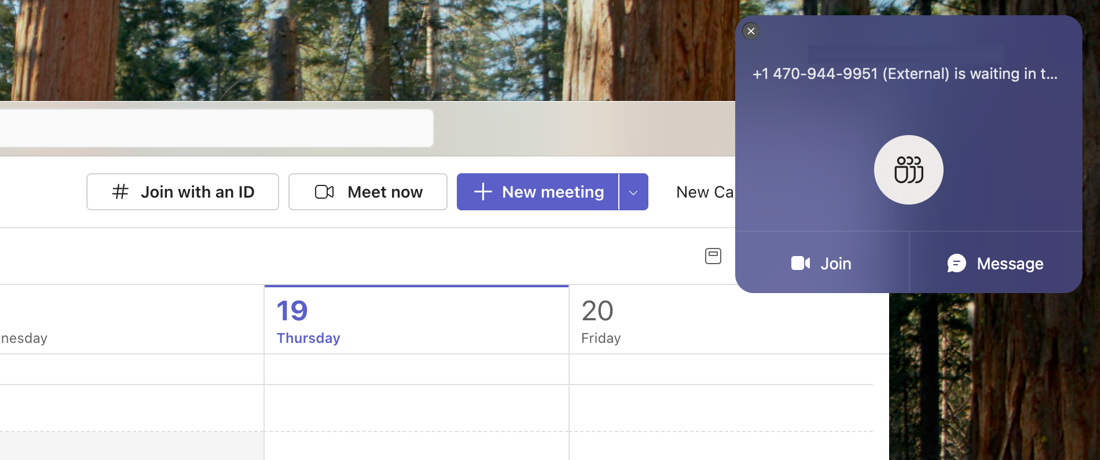
The agent joins a few minutes before the meeting starts, awaiting in the lobby.
Important
Phone number related to the agent is static and is always the same: +1 470-944-9951.
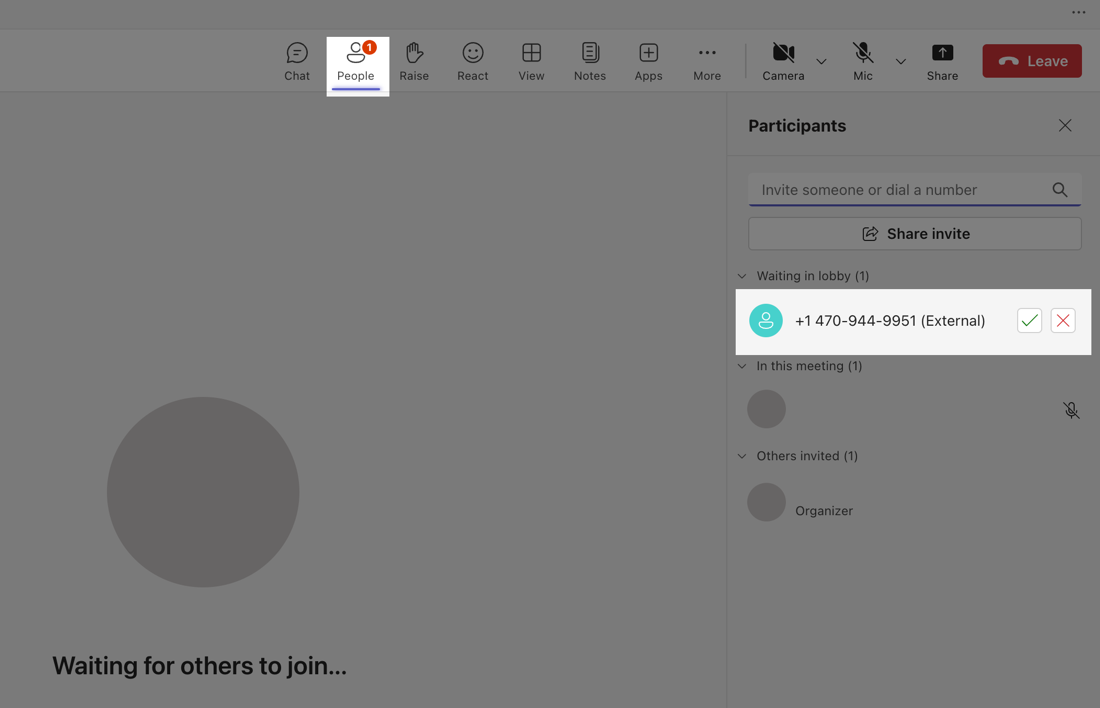
After you, or any of your colleagues entered the meeting, anyone of you can approve agent’s request on joining. As for example with the Microsoft Teams, a red indicator becomes visible while the agent is awaiting in the lobby.
If the announcement setting is active, after you, or any of your colleagues approved agent’s request on joining, it will join, identifying itself, saying: “Revenue Grid will be recording this meeting for internal reference only.” Introduction phrase can always be changed according to your needs, for example, stating your company’s name instead. Identification option have to be enabled in the Microsoft Teams settings, instruction will be provided in a separate paragraph.
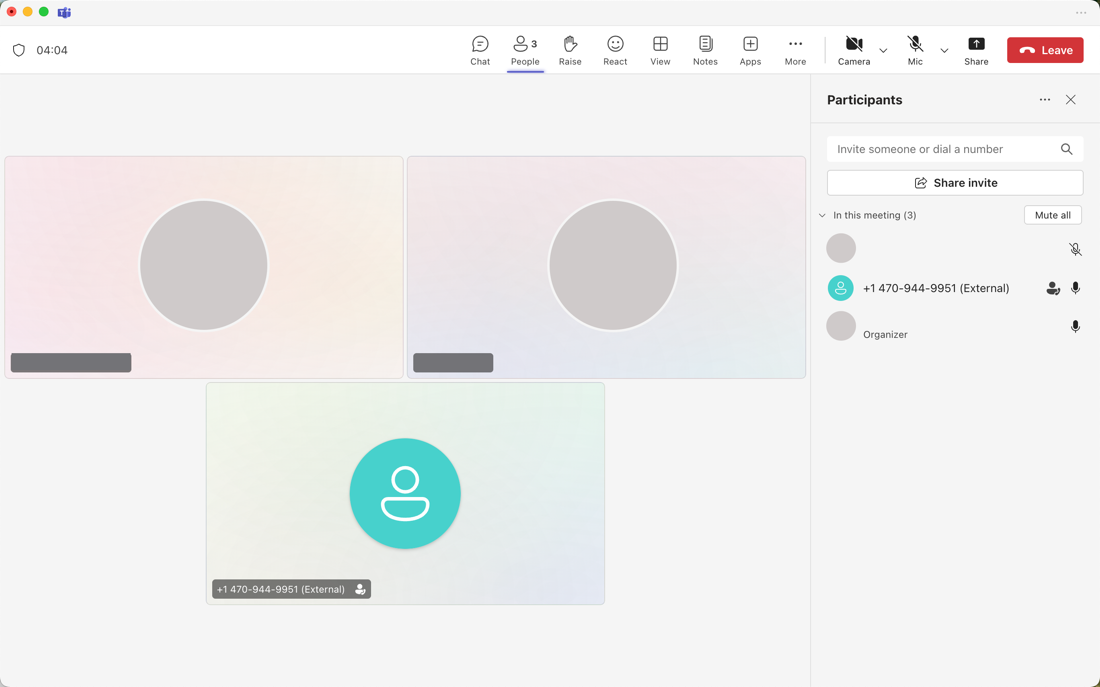
The agent will be present until the planned end of the meeting and 30 additional minutes, after which it will leave. However, if everyone leaves, it will leave as well, assuming that the meeting is over.
How to enable voice identification of the Dial-In Agent#
In order for the Dial-In Agent to be able to identify itself after joining your meeting, you will need to make sure, that required settings are on. To do so, follow the instruction below:
Go to Teams Admin Center > Meetings > Conference bridges.
Under Entry/Exit announcement settings, enable:
Enable entry/exit announcements
Ask callers to record their name before joining
Now, you know how to invite and join Dial-In Agent, in order to enhance your post-meeting research experience, by providing data for Meeting Summary, Meeting Evaluation and Action Items while using Meeting Assistant tool.