

Manage data processing for Foresight#
Foresight uses communication data, including emails and calendar events, to generate AI-powered insights and outputs. When Foresight is enabled for your organization, Revenue Grid admins can control which communication data is available for processing.
Depending on what you need to control, you can:
Block processing of communications associated with specific email addresses or domains across your Revenue Grid organization.
Allow or stop communication processing for users individually or configure the setting for multiple users with a settings preset.
Note
The blocklist described in this article controls communication data processing for Foresight. It is separate from the email and domain blocklists used by Context Sync to control which emails and calendar events are automatically saved to Salesforce.
Block communication processing for email addresses and domains#
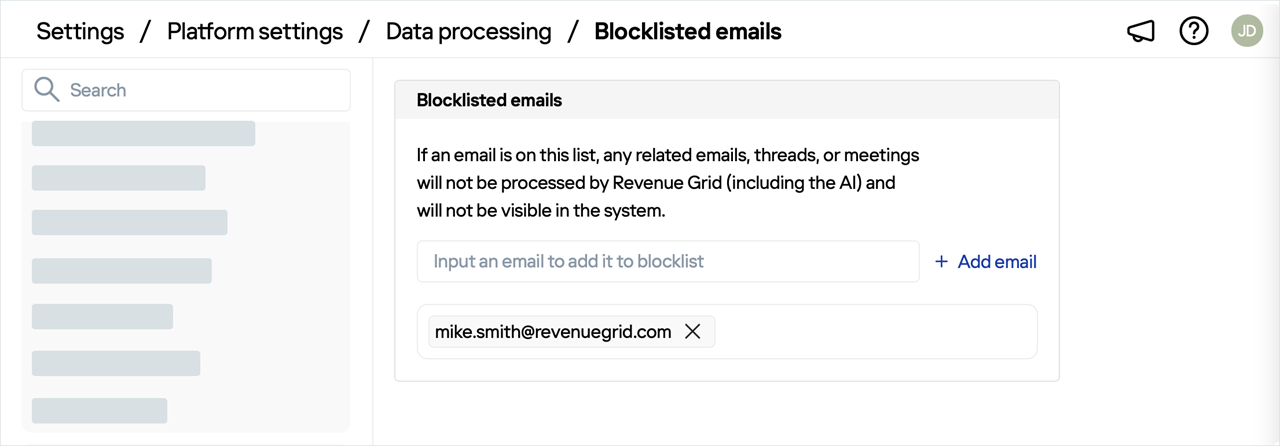
Use the organization-wide blocklist to prevent Revenue Grid from processing communications associated with specific email addresses or domains. Blocklisted emails, related threads, and meetings aren’t processed by Revenue Grid, including AI, and aren’t visible in Revenue Grid.
This setting applies to the entire Revenue Grid organization.
Before you begin#
You must be a platform admin in Revenue Grid.
Add email addresses or domains to the blocklist#
In the upper-right corner of the page, select the profile icon, and then select Settings.
Go to Platform settings > Data processing > Blocklisted emails.
Enter the email addresses or domains you want to block.
Separate multiple values with spaces, commas, or semicolons.
Enter an exact domain, such as
example.com, or a full email address, such asuser@example.com.Don’t use wildcards, such as . Wildcards aren’t supported.
Select + Add or press Enter.
Select Save.
To remove an email address or domain from the blocklist, remove the corresponding entry, and then select Save.
Manage communication processing for users#
You can allow or stop communication processing for Revenue Grid users. Change the setting directly when you need to configure a specific user, or use a settings preset when you need to configure the setting for multiple users.
Users can override the communication processing setting configured by an admin, including settings applied through a preset.
Configure communication processing for a specific user#
Before you begin#
You must be a platform or profile admin in Revenue Grid.
Allow or stop communication processing for a specific user#
In the upper-right corner of the page, select the profile icon, and then select Settings.
In the Administration section, locate the user in one of the following ways:
Select Profiles, open the profile that contains the user, and then select the user.
Select Users, and then select the user.
Go to Data processing.
Under Communication processing, turn Allow communication processing on or off.
Select Save.
Users can change this setting later in their personal settings.
Configure communication processing for multiple users#
Use a settings preset when you need to configure communication processing consistently for multiple users instead of changing the setting separately for each user.
Before you begin#
You must be a platform admin in Revenue Grid.
Configure communication processing in a settings preset#
In the upper-right corner of the page, select the profile icon, and then select Settings.
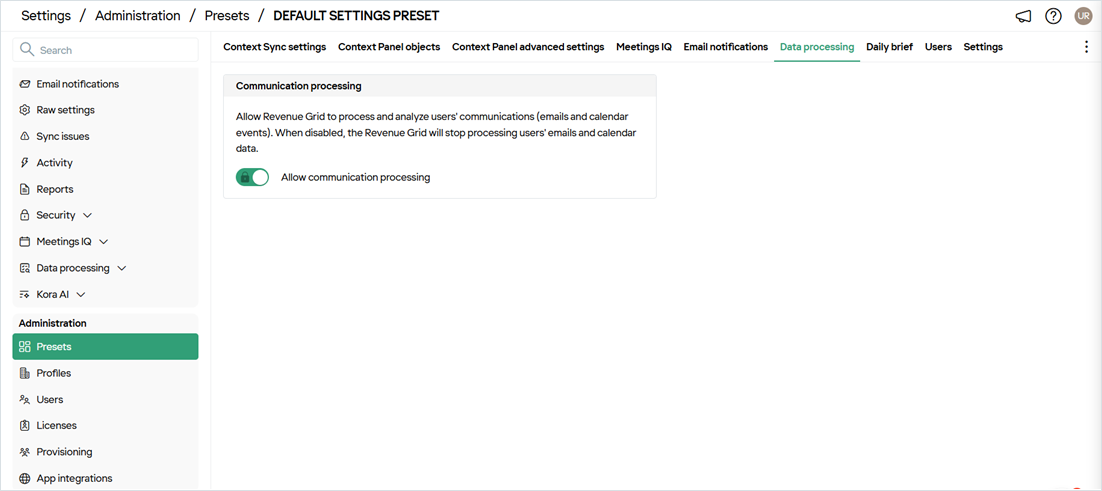
In the Administration section, select Presets.
Open the preset you want to configure.
Select the Data processing tab.
Under Communication processing, turn Allow communication processing on or off.
Select Save.
Saving changes to a preset doesn’t automatically apply them to users who already have the preset assigned. Apply or reapply the preset to update their settings. For more information, see Configure and update settings presets and Assign settings presets to users and profiles.
Users can change this setting later in their personal settings.