

Configure Microsoft Teams Notetaker settings and permissions#
Managing settings for Microsoft Teams Notetaker#
After reading this article, you will be able to find and manage settings for your Microsoft Teams Notetaker: allow or disallow Notetaker from joining your meetings, choose how the Notetaker joins meetings, and set a custom name for it.
There are several setting levels, that can customize notetaker according to your needs - Platform level, Profile level and User level:
Platform level settings are located at: Settings > Platform settings > Meetings IQ > Notetakers
Preset level settings are located at: Settings > Administration > Presets > Preset_Name > Meetings IQ
User level settings are located at: Settings > Administration > Users > User_Name > Meetings IQ > Notetakers
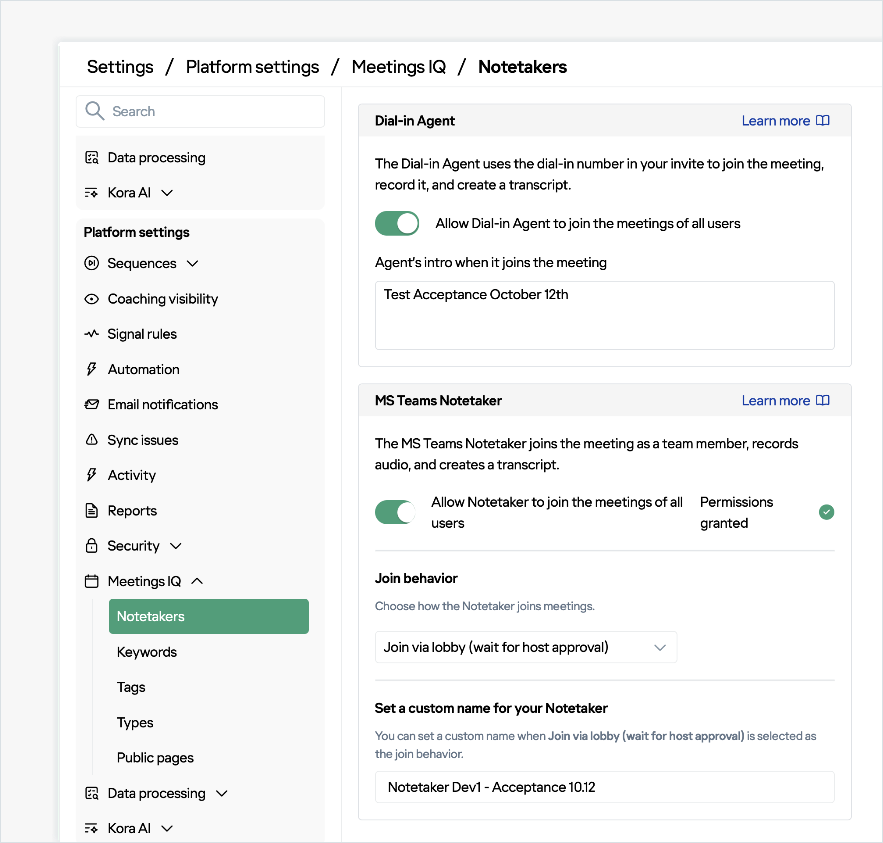
Under MS Teams Notetaker, use the Allow Notetaker to join the meetings of all users toggle to enable or disable the Notetaker for your organization. When the required Microsoft permissions have been consented to, a Permissions granted label appears next to the toggle.
Microsoft Teams Notetaker permissions consent#
After toggling the Notetaker on, there are several permissions, that need to be consented in the Microsoft Azure. To do so, follow next instruction.
You need to copy the link to any text editor:
https://login.microsoftonline.com/{organization}/v2.0/adminconsent?client_id=336be6bf-83eb-47ad-93ef-32250063f88d&scope=.default&redirect_uri=https%3A%2F%2Fri-shared-fastprod.revenuegrid.com%2Fredirect.htmlReplace
{organization}with your Organization ID.Copy, paste and follow the new link in the browser.
Consent with asked permissions on the opened page.
Configuring the Notetaker’s join behavior#
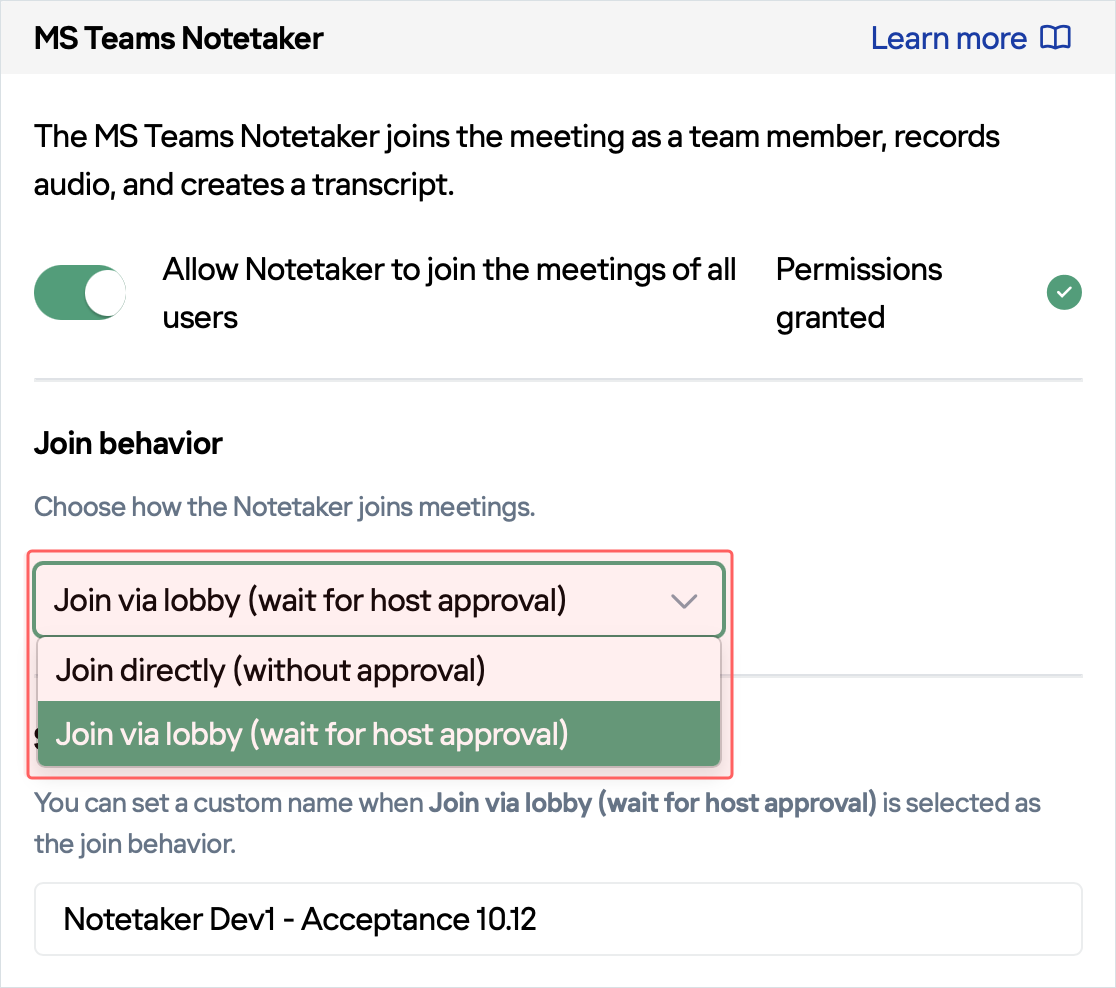
You can control how the Notetaker joins a Microsoft Teams meeting by using the Join behavior dropdown. This setting determines whether the Notetaker enters the meeting automatically or waits in the lobby until the host lets it in.
To configure the join behavior:
Go to Settings > Platform settings > Meetings IQ > Notetakers.
Under MS Teams Notetaker, find the Join behavior section.
From the dropdown, select how you want the Notetaker to join meetings — Join directly (without approval) or Join via lobby (wait for host approval).
Setting a custom name for the Notetaker#
You can set a custom display name that the Notetaker uses when it joins a meeting. This lets meeting participants easily recognize the bot in the participants list and lobby, instead of seeing a generic name.
Important
Setting a custom name is only available when the Join behavior is set to Join via lobby (wait for host approval). If a different join behavior is selected, this field is not editable.
To set a custom name for the Notetaker:
Go to Settings > Platform settings > Meetings IQ > Notetakers.
Under MS Teams Notetaker, make sure Join behavior is set to Join via lobby (wait for host approval).
In the Set a custom name for your Notetaker field, enter the name you want participants to see (for example,
RevenueGrid TeamsBot).