

Troubleshoot Salesforce Scheduler Adapter installation and configuration#
This article describes common issues that may occur when installing or configuring the Revenue Grid Salesforce Scheduler Adapter (SSA) and how to resolve them.
Error: Dependent classes need recompilation#
You may encounter this error when installing the SSA managed package:
This package can't be installed.
There are problems that prevent this package from being installed.

• ApexClass: Dependent class is invalid and needs recompilation:
    Class RGLSA.SM007_postEvent

• ApexClass: Invalid type: AppointmentSchedulingEvent

• ApexClass: Dependent class is invalid and needs recompilation:
    Class SM007_postEventTest: Dependent class is invalid and needs recompilation:
    Class RGLSA.SM007_postEvent: Invalid type: AppointmentSchedulingEvent

• AppSchedEventLSASendHandlerTest: Dependent class is invalid and needs recompilation:
    Class RGLSA.SM007_postEvent: Invalid type: AppointmentSchedulingEvent
The error occurs when the Publish Appointments as Platform Events setting is not enabled in Salesforce Scheduler.
To resolve this issue:
Enable Publish Appointments as Platform Events in the Salesforce Scheduler settings.
Retry the SSA managed package installation.
Error: Entity is locked#
You may encounter this error when configuring calendar item creation in the email server calendar:
ENTITY_IS_LOCKED

Can not create Apex Class on an active organization.
This error occurs when configuration steps that modify metadata are performed in a production environment instead of a sandbox.
This may happen when you:
Create a trigger on the
AppointmentSchedulingEventobjectAdd a new Apex class
Add an outbound change set and its components
Perform these configuration steps in a Sandbox environment.
Error: Users cannot use Salesforce Scheduler Adapter#
Some users may be unable to use the Salesforce Scheduler Adapter, while other users can access it without issues.
This issue occurs when the affected users were not included in the original installation scope of the SSA managed package. For example, the package was installed using Install for Admins Only, or Install for Specific Profiles and the users are outside the selected profiles.
To resolve this issue:
Open the Salesforce Setup page.
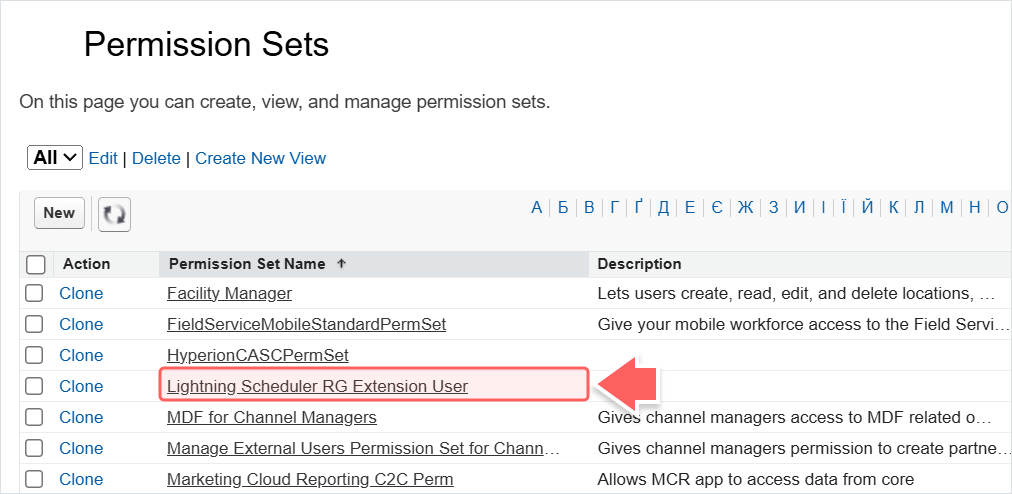
In the Quick Find field, search for Permission Sets, then open Permission Sets.
Open the Lightning Scheduler RG Extension User permission set.
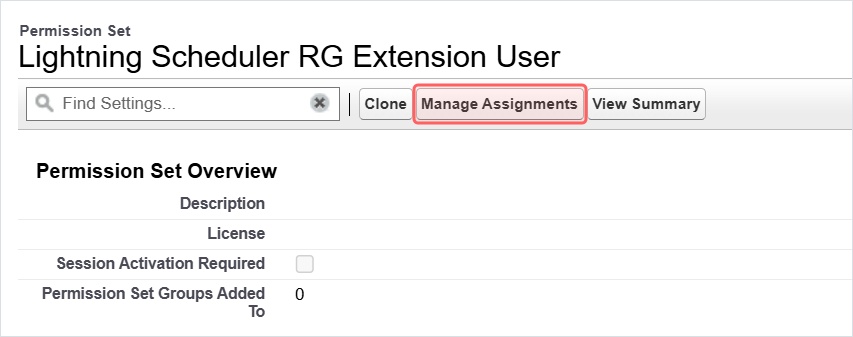
Select Manage Assignments.
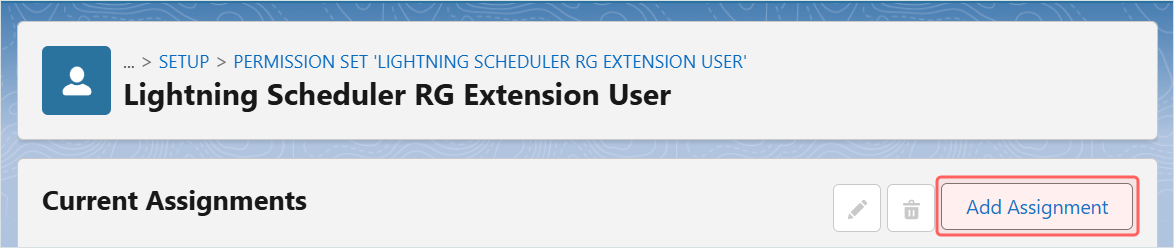
Select Add Assignment.
Select the users to assign the permission set to, then select Next.
Select Assign.
When the assignments are complete, select Done.