

Customize calendar event data sent by SSA#
Salesforce Scheduler Adapter (SSA) supports customizing the subject, description, and location sent to users’ mailbox calendars when Salesforce Scheduler appointments are created. You can use Apex to build these values from standard and custom Salesforce fields without changing the corresponding fields on the Service Appointment record.
How payload customization works#
When a Salesforce Scheduler appointment is created, Salesforce generates an AppointmentSchedulingEvent. The Apex trigger configured for instant calendar event creation passes this event to the SSA handler, which processes the appointment and creates the corresponding event in the user’s mailbox calendar.
With payload customization, you can override the subject, description, and location after Salesforce generates the AppointmentSchedulingEvent but before the SSA handler processes it:
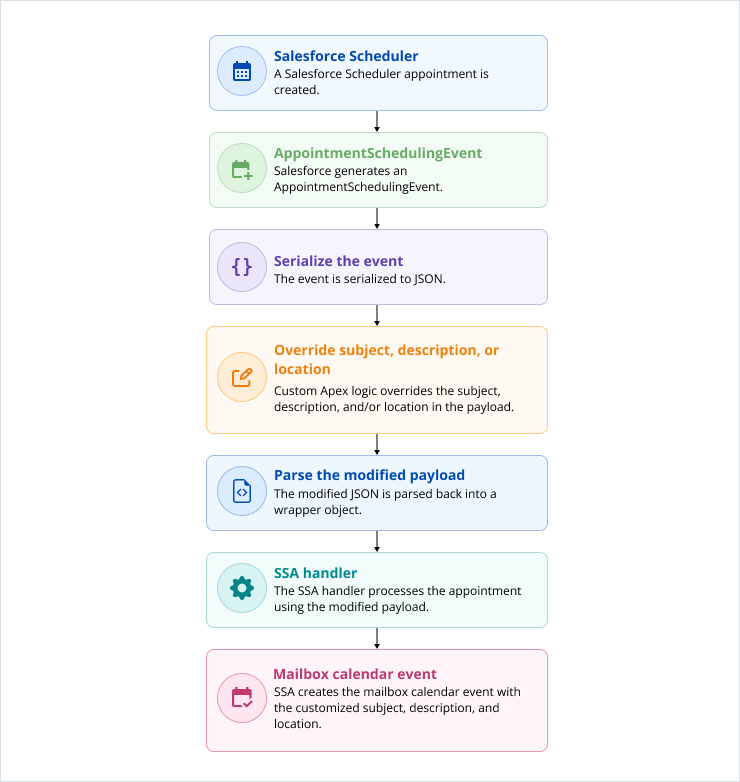
The customization changes only the values in the payload that SSA processes. It doesn’t update the corresponding fields on the Salesforce Service Appointment record.
For example, you can combine several Salesforce fields to create a custom calendar event subject or description instead of copying the combined value to a Service Appointment field.
Supported calendar event fields#
You can override the following calendar event fields:
Calendar event field |
|
|---|---|
Subject |
|
Description |
|
Location |
|
You don’t need to override all three properties. Include only the values that you need to customize. SSA processes the other values normally.
Before you begin#
Make sure that:
You have permissions to create and deploy Apex classes and triggers in Salesforce.
You have configured instant creation of events in the mailbox calendar.
Create a payload override Apex class#
Create an Apex class that receives the serialized AppointmentSchedulingEvent, overrides the required calendar event values, and returns the updated JSON. The following example shows how to override all three supported values.
public with sharing class SchedulingPayloadOverride {

    private static final String FIELDS_KEY = 'ServiceAppointmentFields';

    public static String apply(String eventJson) {
        Map<String, Object> root =
            (Map<String, Object>) JSON.deserializeUntyped(eventJson);

        Map<String, Object> fields =
            (Map<String, Object>) root.get(FIELDS_KEY);

        // Replace these sample values with your custom logic.
        fields.put('SubjectOverride', '<custom subject>');
        fields.put('Comments', '<custom description>');
        fields.put('Address', '<custom location>');

        return JSON.serialize(root);
    }
}
Replace <custom subject>, <custom description>, and <custom location> with the values or Apex logic required for your Salesforce configuration. For example, you can retrieve standard or custom Salesforce fields, query related records, combine multiple values, or format them before assigning the results to the supported properties.
Customize the AppointmentSchedulingEvent trigger#
If you already configured instant calendar event creation, you have an Apex trigger on the AppointmentSchedulingEvent object.
Update the trigger so that it passes the serialized event to your payload override class before passing the event to the SSA handler.
Important
Don’t create an additional trigger that processes the same AppointmentSchedulingEvent through the SSA handler. Update the the existing AppointmentSchedulingEvent trigger configured for instant event creation to include the payload customization.
The following example uses the SchedulingPayloadOverride class created in the previous section:
/**
 * Sample subscriber-org trigger for customizing the scheduler payload.
 * Deploy it manually after installing the RGLSA package.
 */
trigger AppSchedEventTrigger on AppointmentSchedulingEvent (after insert) {
    for (AppointmentSchedulingEvent evt : Trigger.new) {
        try {
            String event_json =
                SchedulingPayloadOverride.apply(JSON.serialize(evt));

            new RGLSA.AppSchedEventLSASendHandler()
                .processAppointment(
                    RGLSA.AppSchedulingEventWrapper.parse(event_json)
                );
        } catch (Exception e) {
            System.debug(
                LoggingLevel.ERROR,
                'AppSchedEventTrigger: '
                    + e.getMessage()
                    + '\n'
                    + e.getStackTraceString()
            );
        }
    }

    RGLSA.SM005_Logs.save();
}
The trigger serializes each AppointmentSchedulingEvent and passes it to SchedulingPayloadOverride.apply(). It then parses the modified payload and passes it to RGLSA.AppSchedEventLSASendHandler for standard SSA processing. The subject, description, and location values that the override class doesn’t modify continue to be processed normally.
Test the customization#
Before deploying the customization to production, test it in a Salesforce sandbox or another test environment.
Create a Salesforce Scheduler appointment and verify that SSA creates the corresponding event in the user’s mailbox calendar with the expected customized values. Also, verify that the subject, description, or location values you don’t customize continue to be processed as expected.
Test scenarios where Salesforce fields used by your custom logic are empty or related records aren’t available. Make sure that your custom Apex logic handles these cases without preventing SSA from processing the appointment.